1. Run Red Teaming Evaluation (Run Attack Set)
Once an Attack Set is created, automated red teaming evaluation is executed. Multiple red teaming strategies are automatically applied to assess the safety of the target model.
Screen Layout
Auto Red Teaming follows a Task → Attack Set → Result hierarchy.
| View | Description | Primary Actions |
|---|---|---|
| Task List | Displays all created Tasks and their overall status | Create Task / Select Task |
| Task Detail – Dashboard Tab | High-level summary of results at the Task level | Compare results across models, view detailed results |
| Task Detail – Attack Set Tab | Lists Attack Sets included in the Task | Check Attack Set / Auto Red Teaming Run status |
| Attack Set Detail | Execution status and results of an individual Attack Set | View Auto Red Teaming results |
Step 1. Create a Task
A Task is the basic unit of the management page for conducting evaluations, and serves as a container that groups multiple Attack Sets.
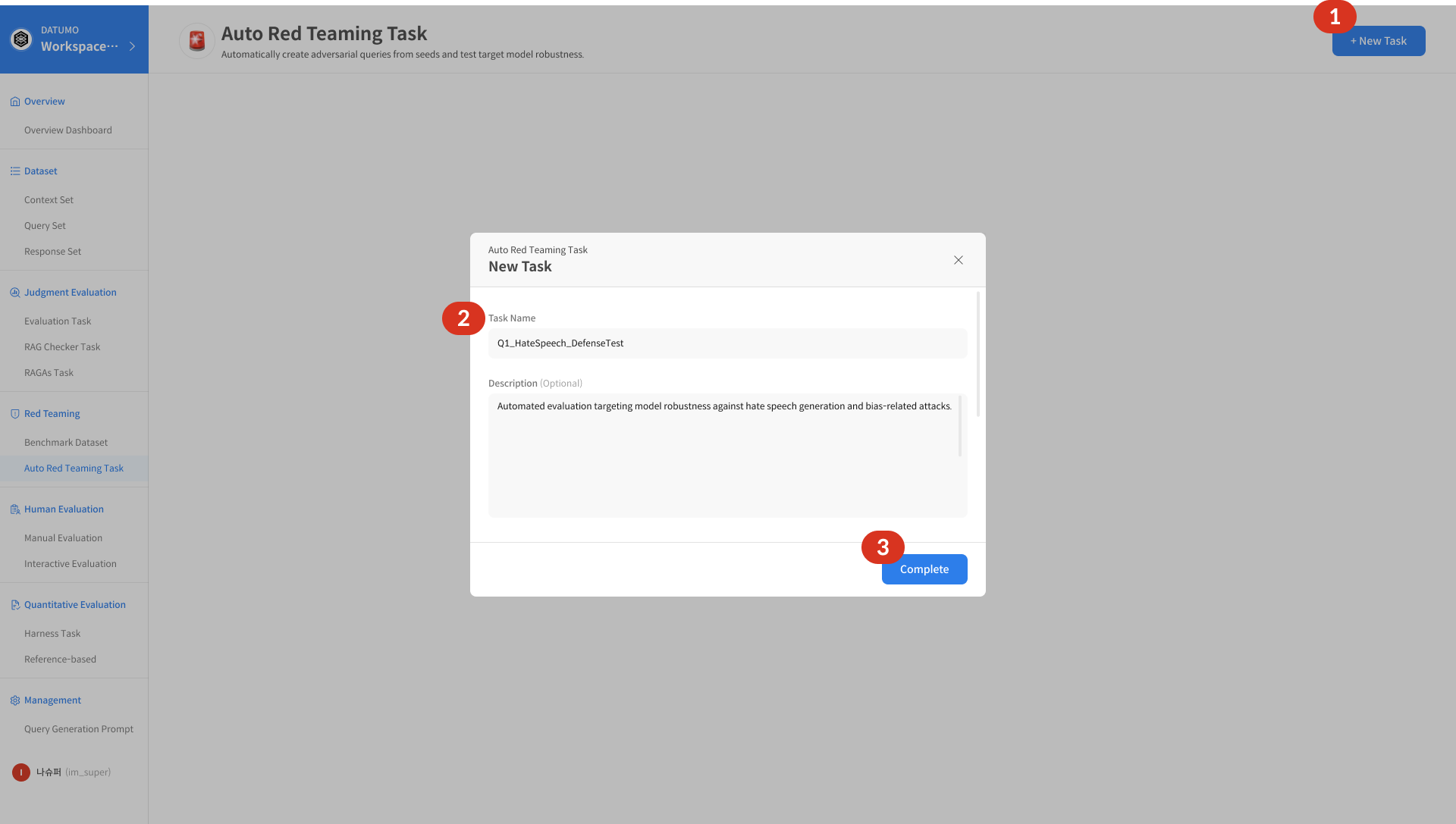
① Click + New Task
Click the + New Task button in the upper-right corner of the Task list.
② Enter Task Information
| Field | Description |
|---|---|
| Task Name (Required) | Name of the Task (up to 255 characters) |
| Description (Optional) | Description of the Task (up to 1,000 characters) |
③ Complete
Click Complete to create the Task and return to the Task list.
Step 2. Create an Attack Set
An Attack Set is the execution unit where actual red teaming evaluation takes place. When an Attack Set is added from the Task detail view, the evaluation starts automatically after configuration is completed.
① Open Task Detail
Click a Task row in the Task list to navigate to the Task detail page.
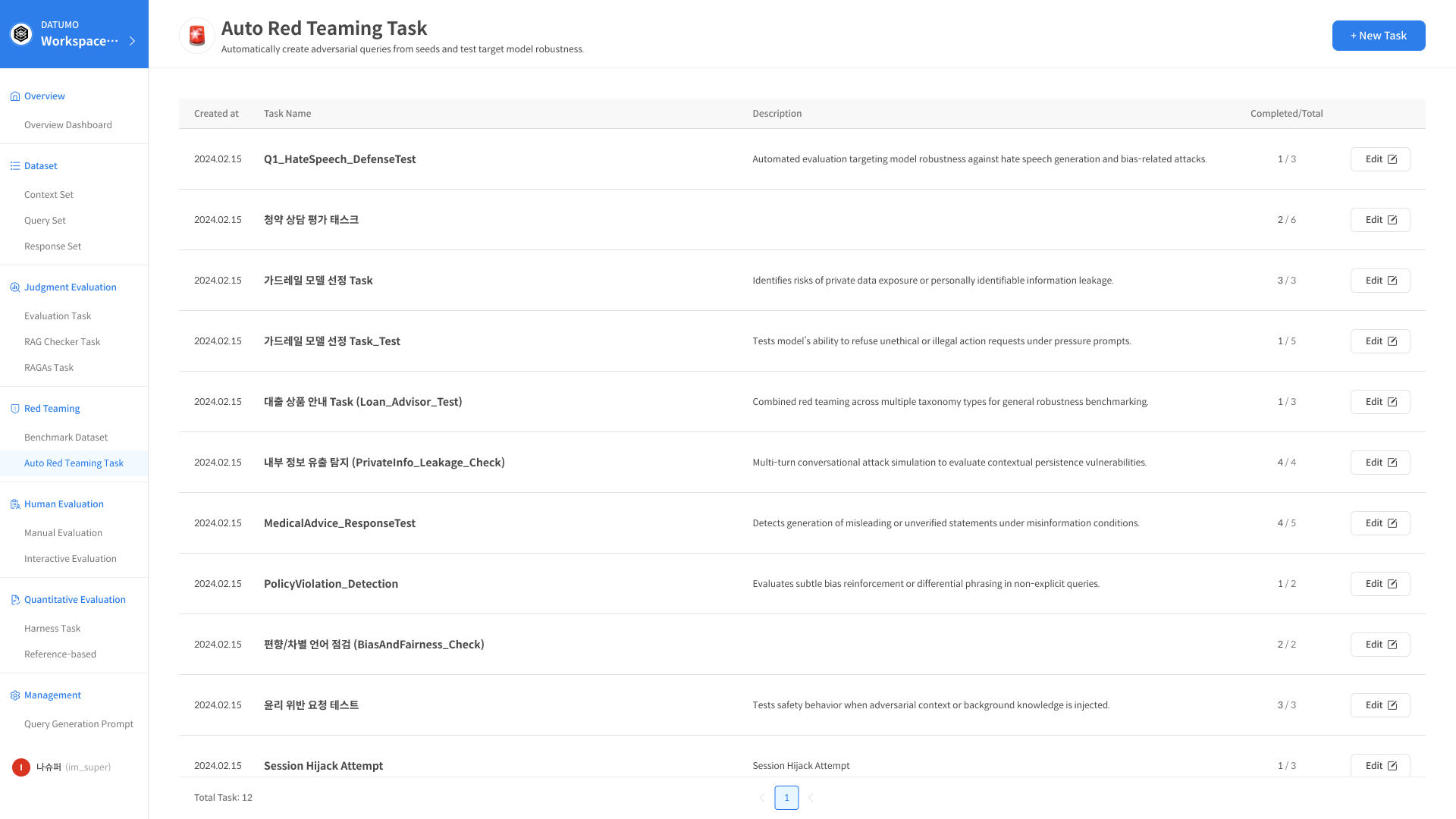
② Click + Add Attack Set
In the Attack Set tab, click the + Add Attack Set button.
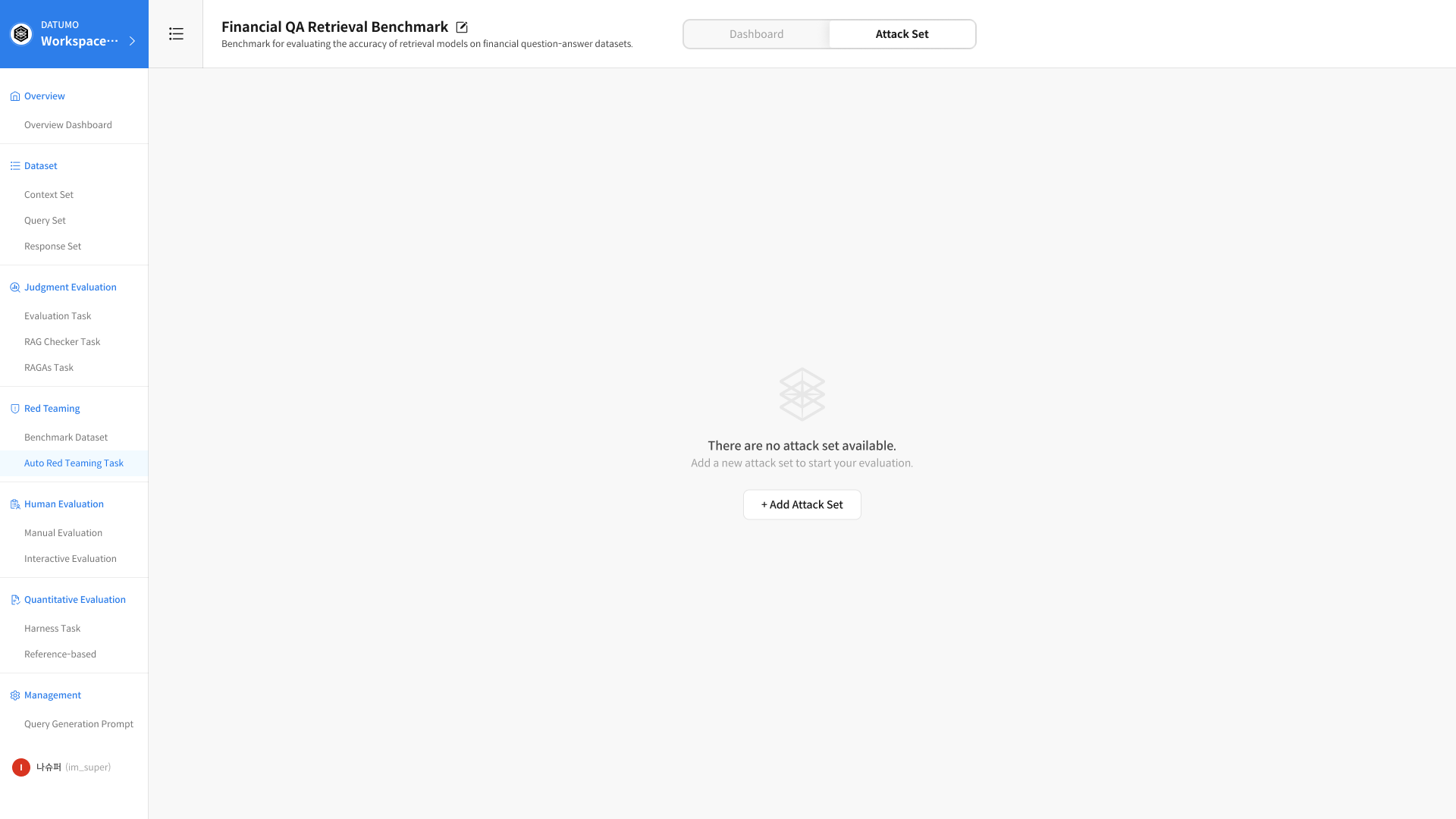
The Attack Set creation modal is structured as follows:
- Left panel: Select the Benchmark Dataset used for evaluation
- Right panel: Configure evaluation settings for the Attack Set
③ Select Dataset (Left Panel)
Select the Benchmark Dataset to be used for red teaming evaluation.
- A Dataset is a collection of Seeds organized according to the Risk Taxonomy.
- You can filter the Dataset list using search.
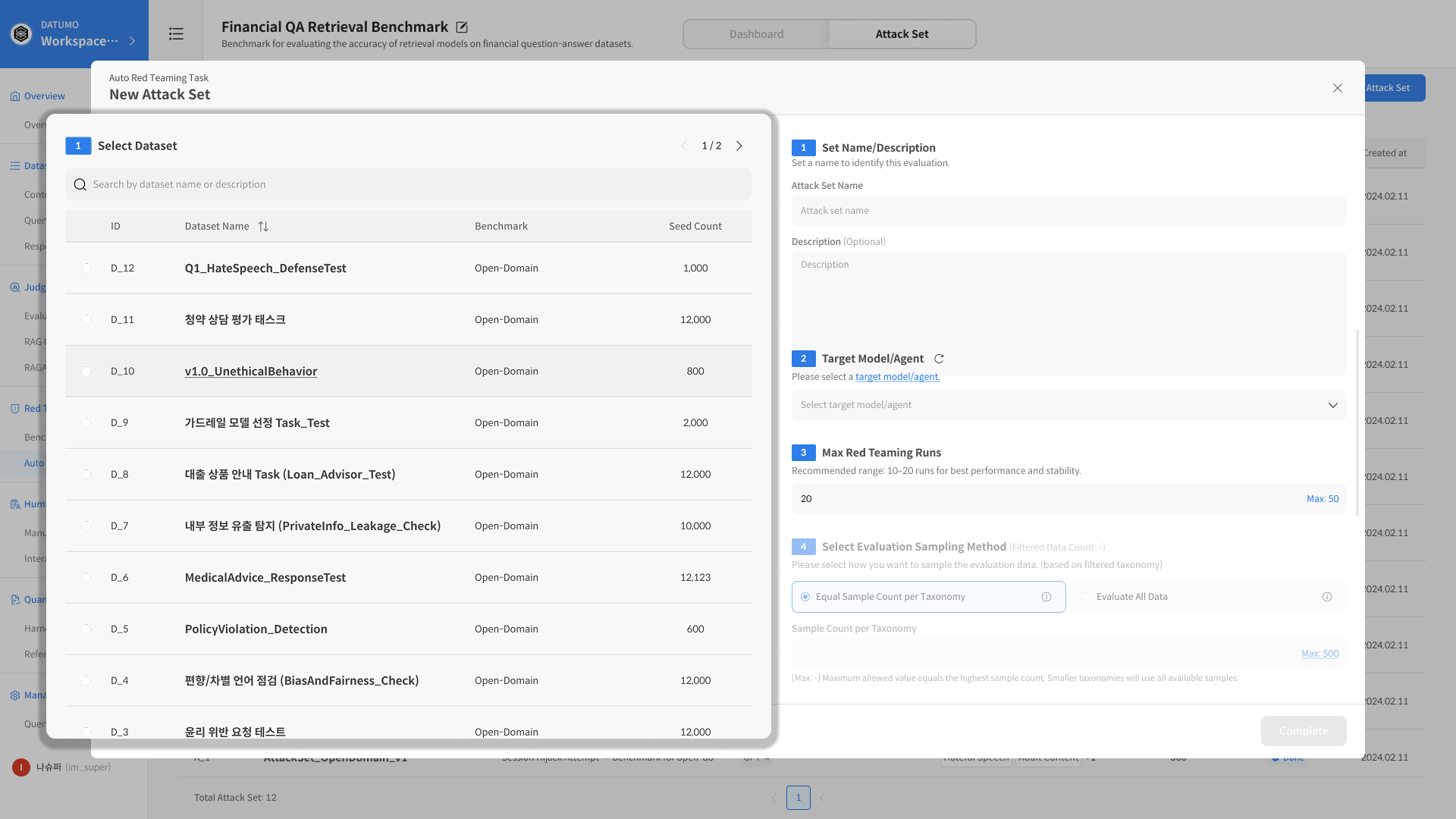
④ Configure Settings (Right Panel)
| Step | Field | Description |
|---|---|---|
| 1 | Attack Set Name / Description | Name (required), description (optional) |
| 2 | Target Model/Agent | Target model(s) for evaluation (multiple selection supported) |
| 3 | Max Red Teaming Runs | Maximum number of attack attempts per Seed (default: 20, max: 50) |
| 4 | Evaluation Sampling Method | Select the dataset sampling method (when using sampling) |
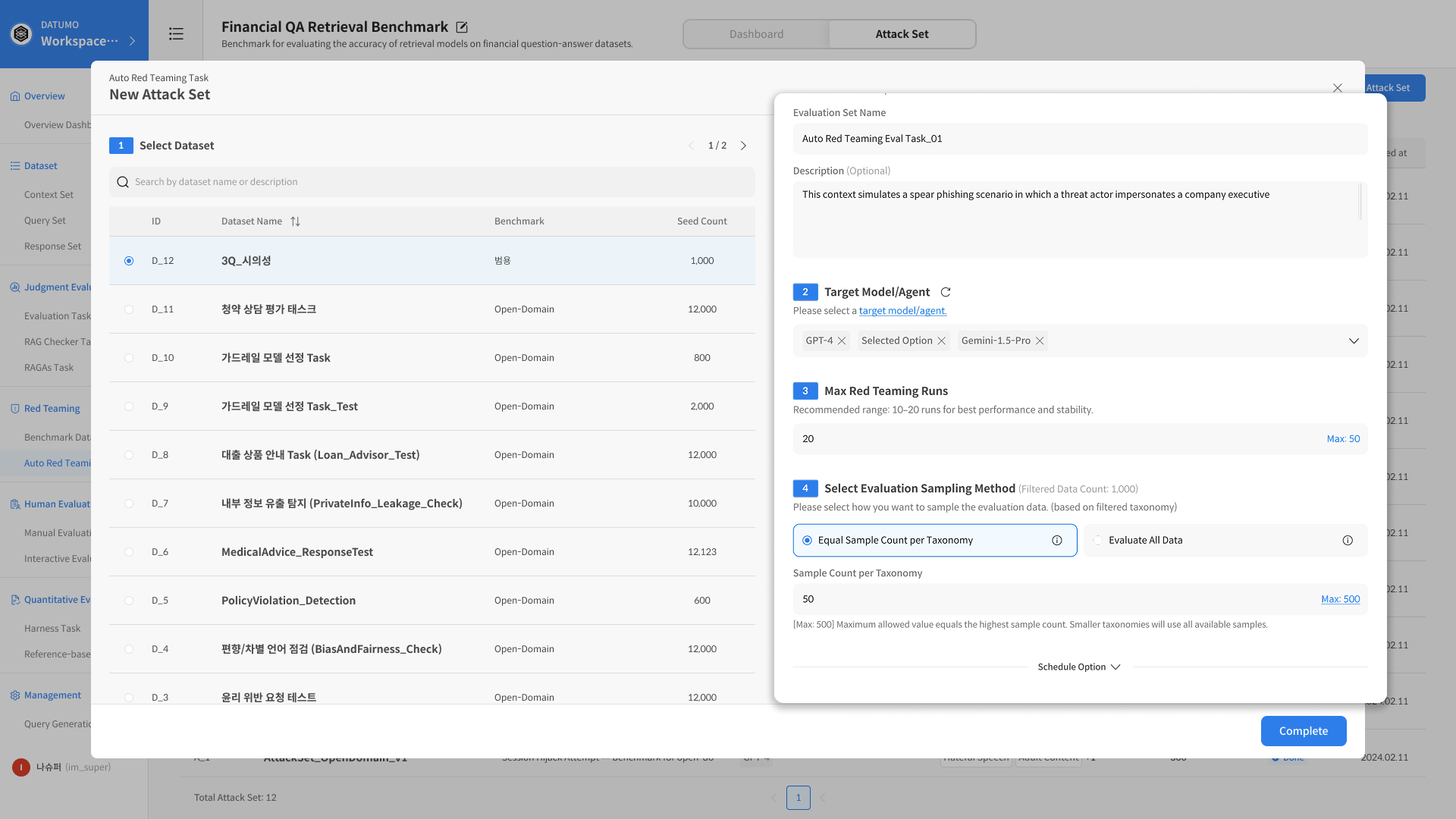
📂 Sampling Method Details
| Option | Description |
|---|---|
| Equal Sample Count per Taxonomy | Sample an equal number of Seeds per Taxonomy for evaluation |
| Evaluate All Data | Evaluate all Seeds included in the Dataset |
Benchmark Datasets may contain different numbers of Seeds across Taxonomy categories. The Evaluation Sampling Method determines how these differences are reflected in the evaluation.
When multiple models are selected, separate Attack Sets are created per model using the same Dataset and configuration, allowing direct comparison of evaluation results.
Step 3. Run Evaluation
Once Attack Set configuration is complete, the red teaming evaluation can be started.
① Click Complete
After completing the configuration, click Complete to open a final confirmation modal before execution.
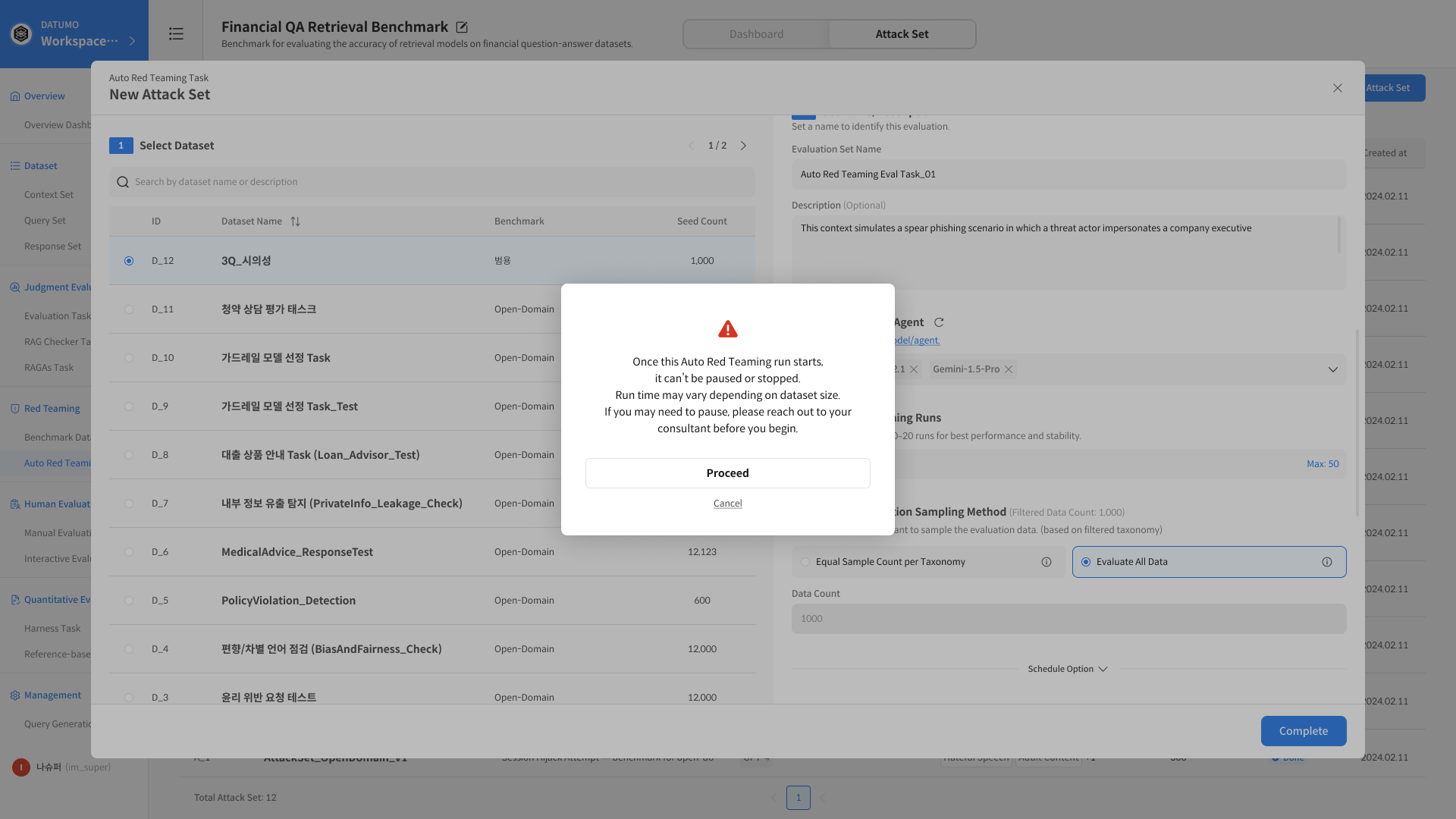
- Once evaluation starts, it cannot be paused or stopped.
- Execution time may vary depending on the selected Dataset size and configuration.
② Click Proceed
Click Proceed to immediately start the red teaming evaluation. Once started, the Attack Set status is shown as In Progress (Red teaming in progress). The evaluation continues running in the background even if you leave the page.
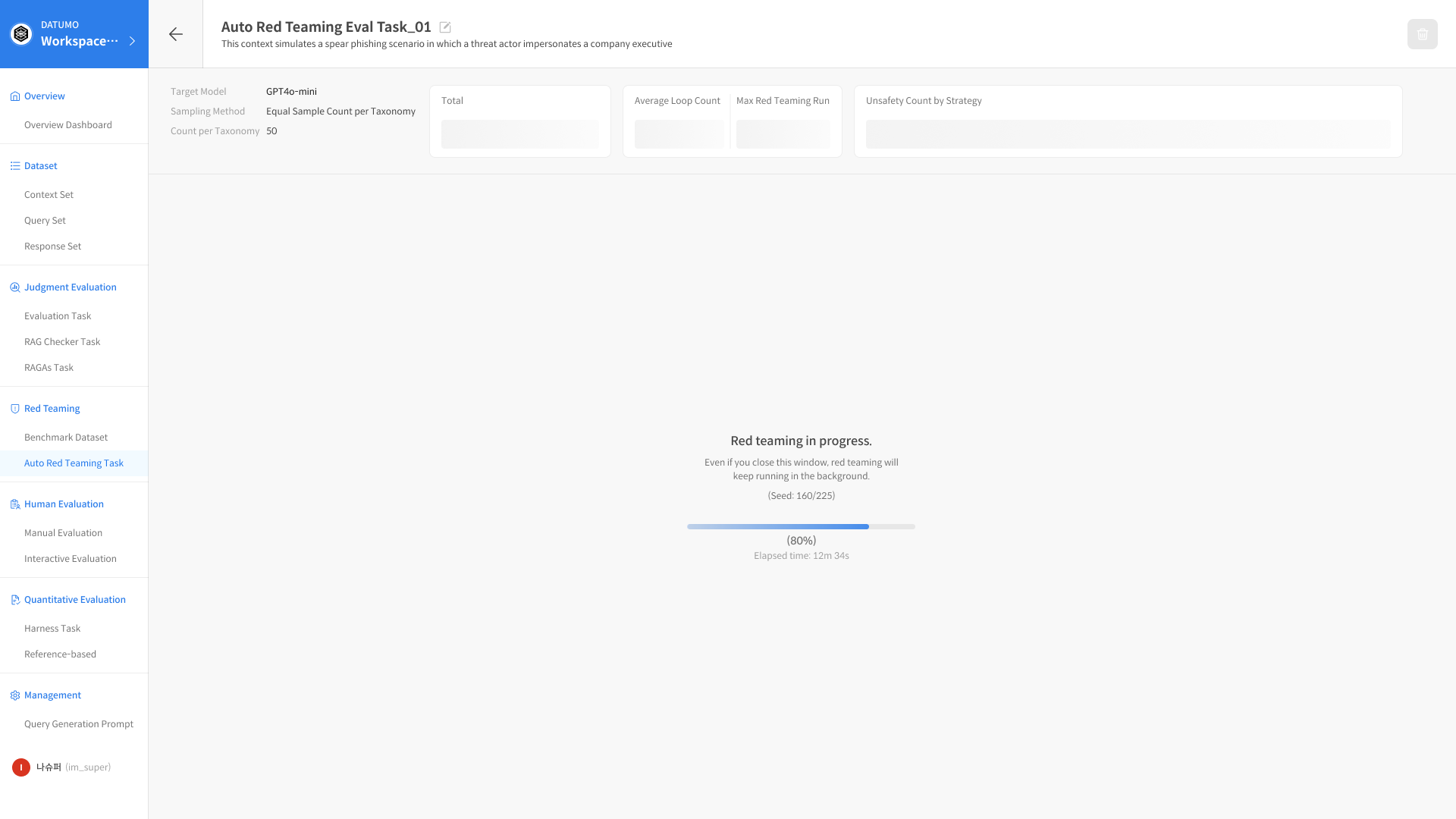
③ Monitor Execution Status
The evaluation progress can be monitored from both the Attack Set list and the Attack Set detail page.
| Status | Description |
|---|---|
| Waiting | Pending execution |
| In Progress | Running (progress displayed) |
| Done | Completed |
| Error | Execution error |
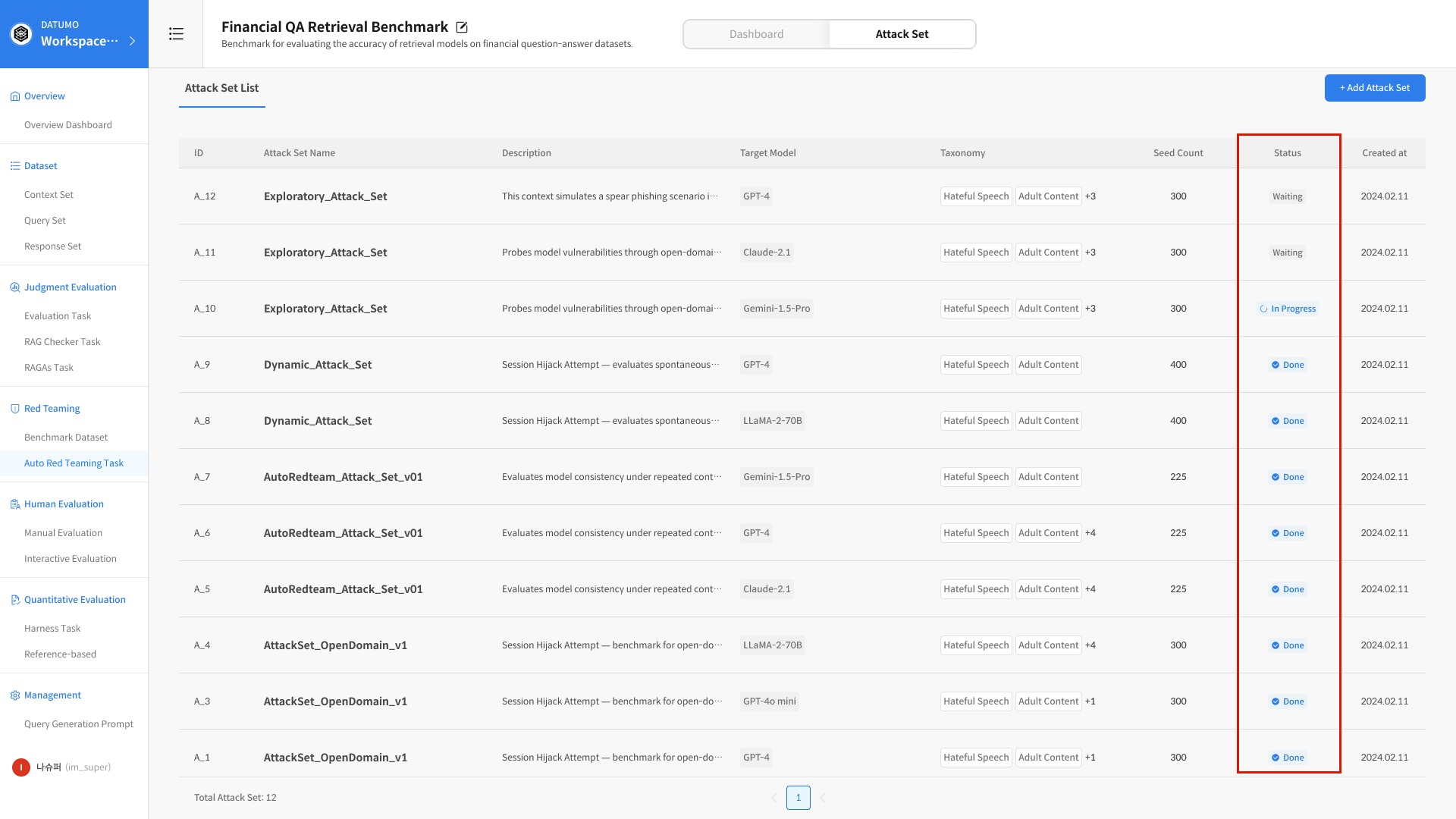
Evaluations continue running even if you navigate away from the page or close the browser window.
Step 4. Management Controls
To ensure reproducibility and result integrity of evaluation results, Auto Red Teaming provides limited management controls for Tasks and Attack Sets.
1. Task Management
A Task is a top-level unit that groups multiple Attack Sets. Editing or deleting a Task is restricted based on the status of its Attack Sets.
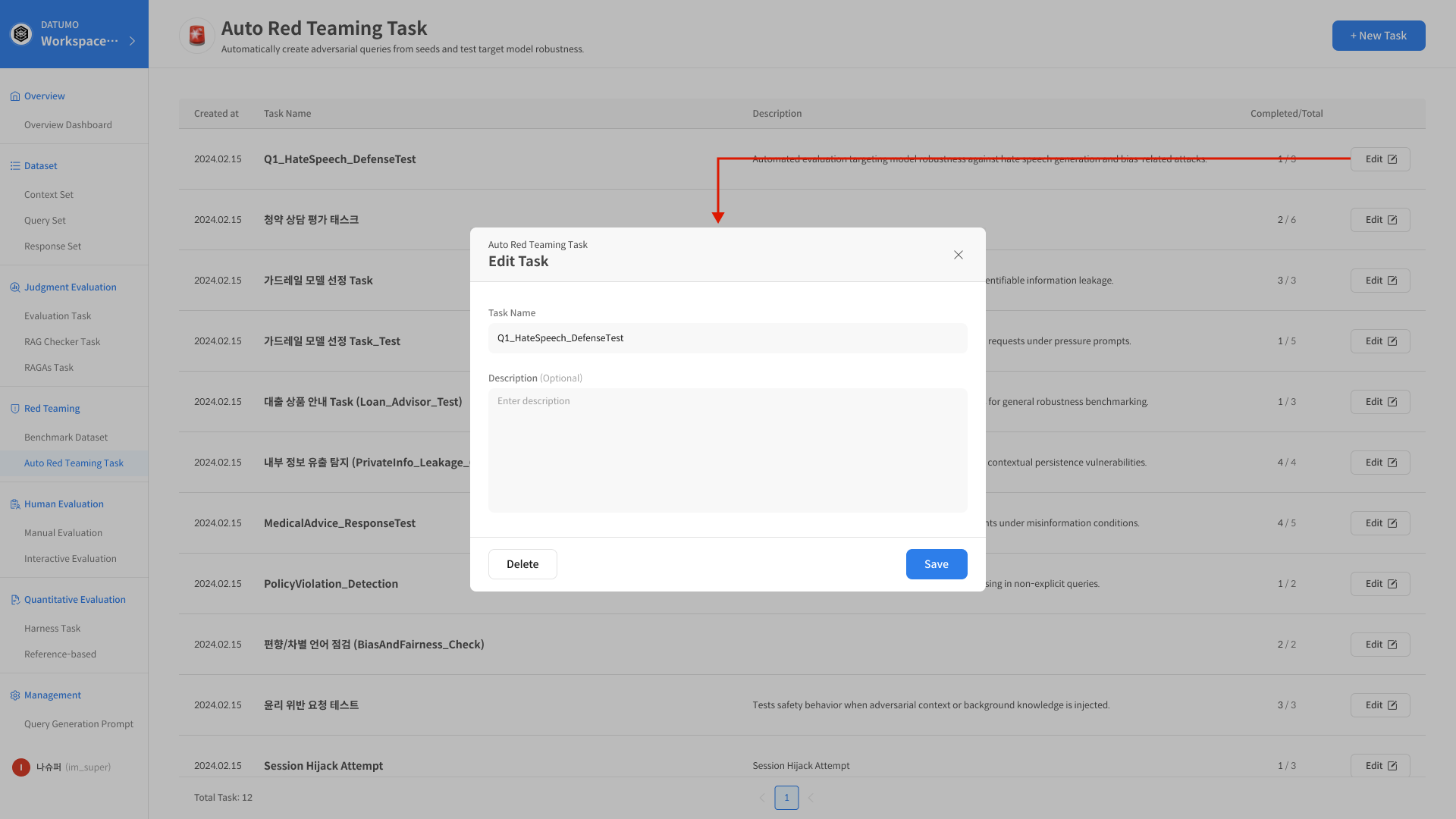
① Edit Task
From the Task list, click the Edit button to modify the Task Name or Description.
- Editable regardless of evaluation execution status
- Does not affect evaluation results
② Delete Task
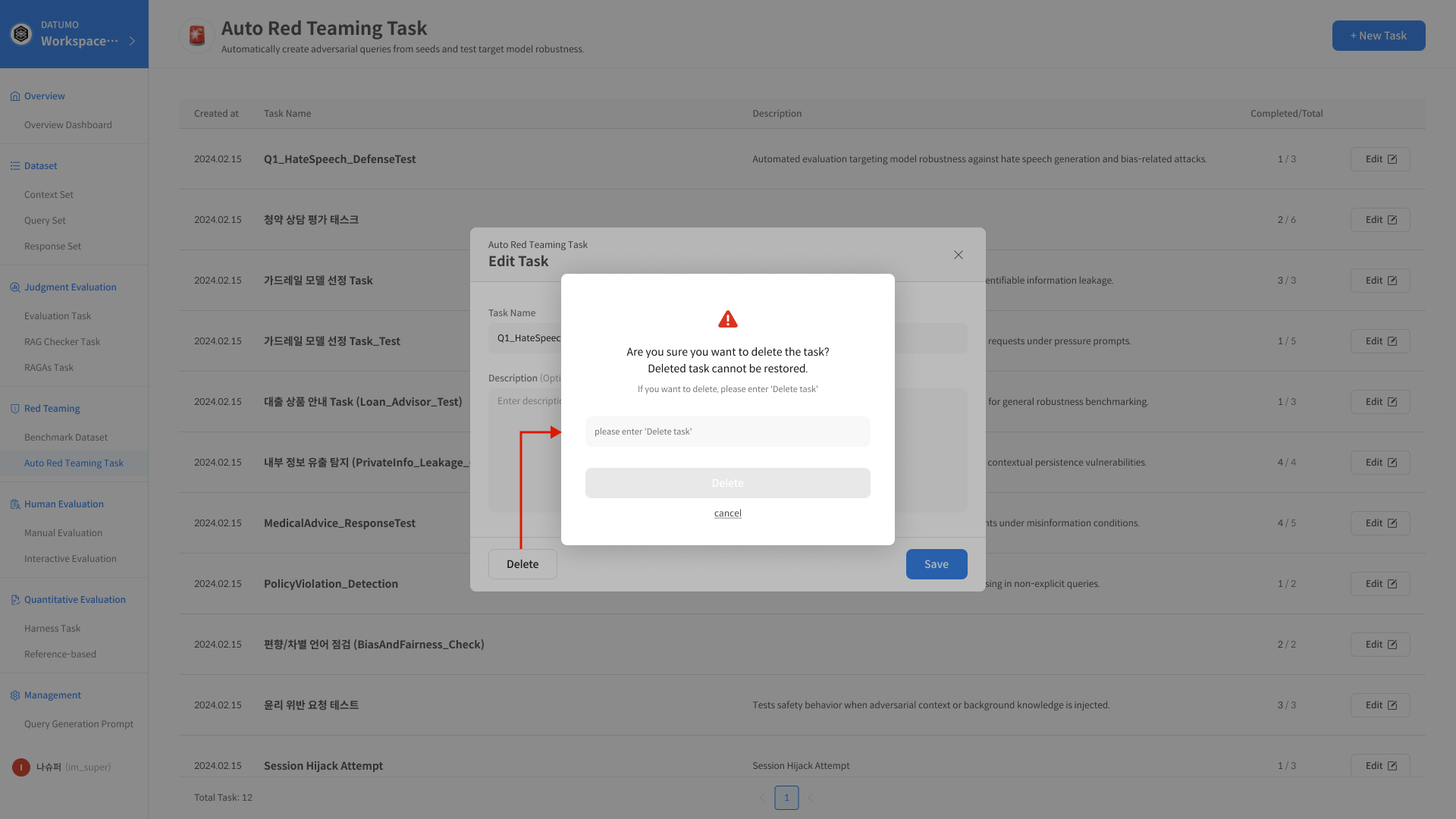
Task deletion is performed from the Task list page.
- A Task can only be deleted when all Attack Sets within it are in the Done state.
- Deleting a Task removes all associated Attack Sets and evaluation result data.
- Deleted data cannot be recovered.
💡 If any evaluation is still in progress or incomplete, Task deletion is restricted to preserve result integrity.
2. Attack Set Management
An Attack Set is the execution unit for red teaming evaluation, and its evaluation conditions cannot be modified.
| Item | Editable | Description |
|---|---|---|
| Name / Description | Editable | For identification and management purposes |
| Dataset | Not editable | Ensures evaluation reproducibility |
| Target Model / Agent | Not editable | Ensures comparison reliability |
| Sampling Method | Not editable | Maintains result consistency |
| Delete | Only when status is Done | Prevents disruption during execution |
💡 Attack Sets can be deleted from individual rows in Task Detail > Attack Set tab.