Model/Agent Management – How to Register an API
DATUMO's Model/Agent Management is a core feature for automated evaluation. It allows you to directly configure and manage various models or agents used in evaluation workflows. Specifically, target models used in evaluation are recognized as any API-based service (including Agents) capable of generating responses.
[Model/Agent Types] - The following five types of models/agents can be registered:
- Target Model → Model under evaluation that generates responses to questions
- Query Generation Model → Automatically generates evaluation questions
- ER Generation Model → Model that generates Expected Responses for queries
- Evaluation Model → Judgment model for automated evaluation
- Embedding Model → For RAGAs evaluation (specific Metric)
Step-by-step
Step 1. Registering a Model
① Accessing the Model/Agent Management Page
Click on the [Model Settings] item in the left navigation menu to go to the model management page.
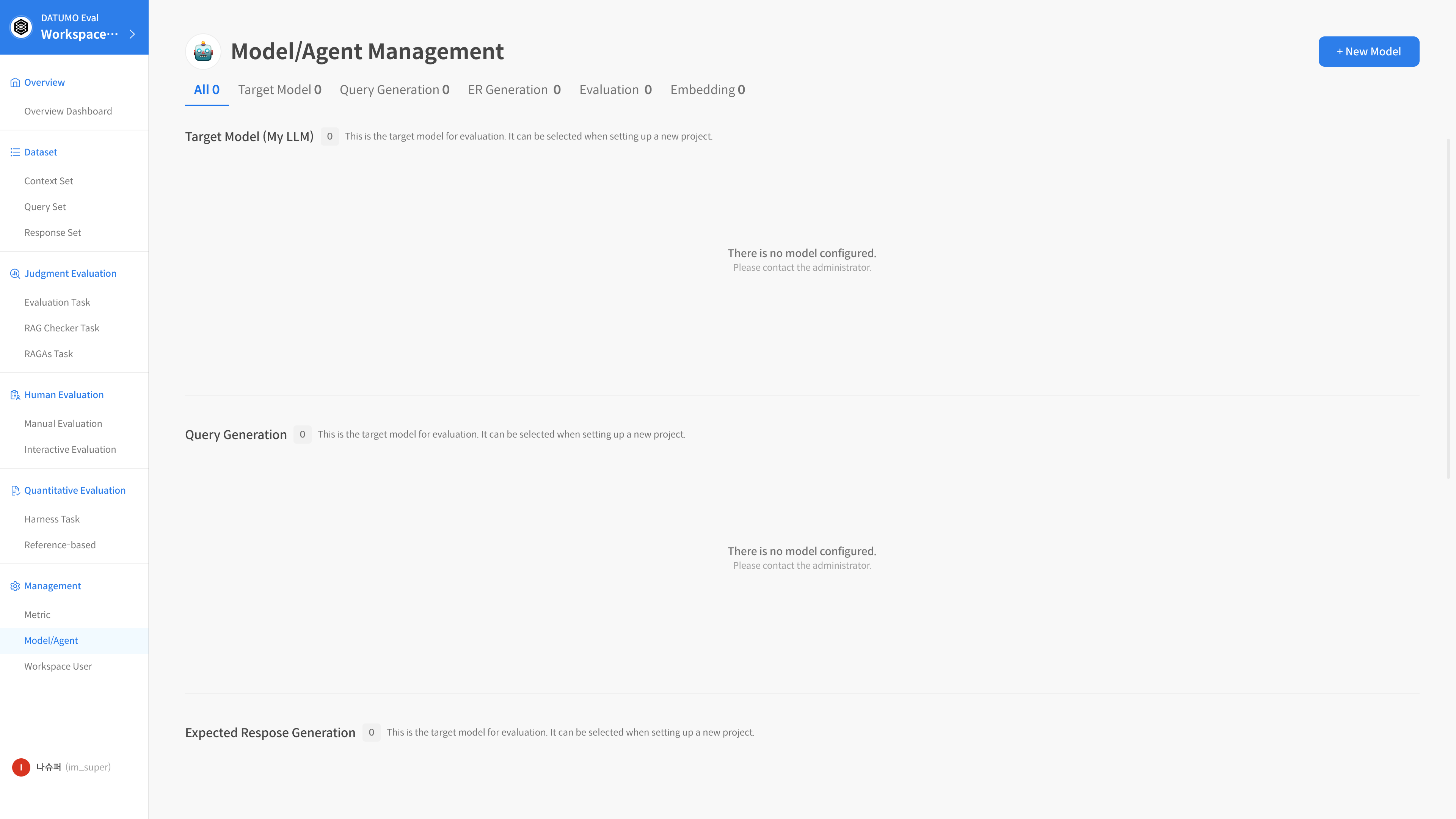
Filtering by type is available in the top tab (All / Target / Query Generation / ER Generation / Evaluation / Embedding)
② New Registration
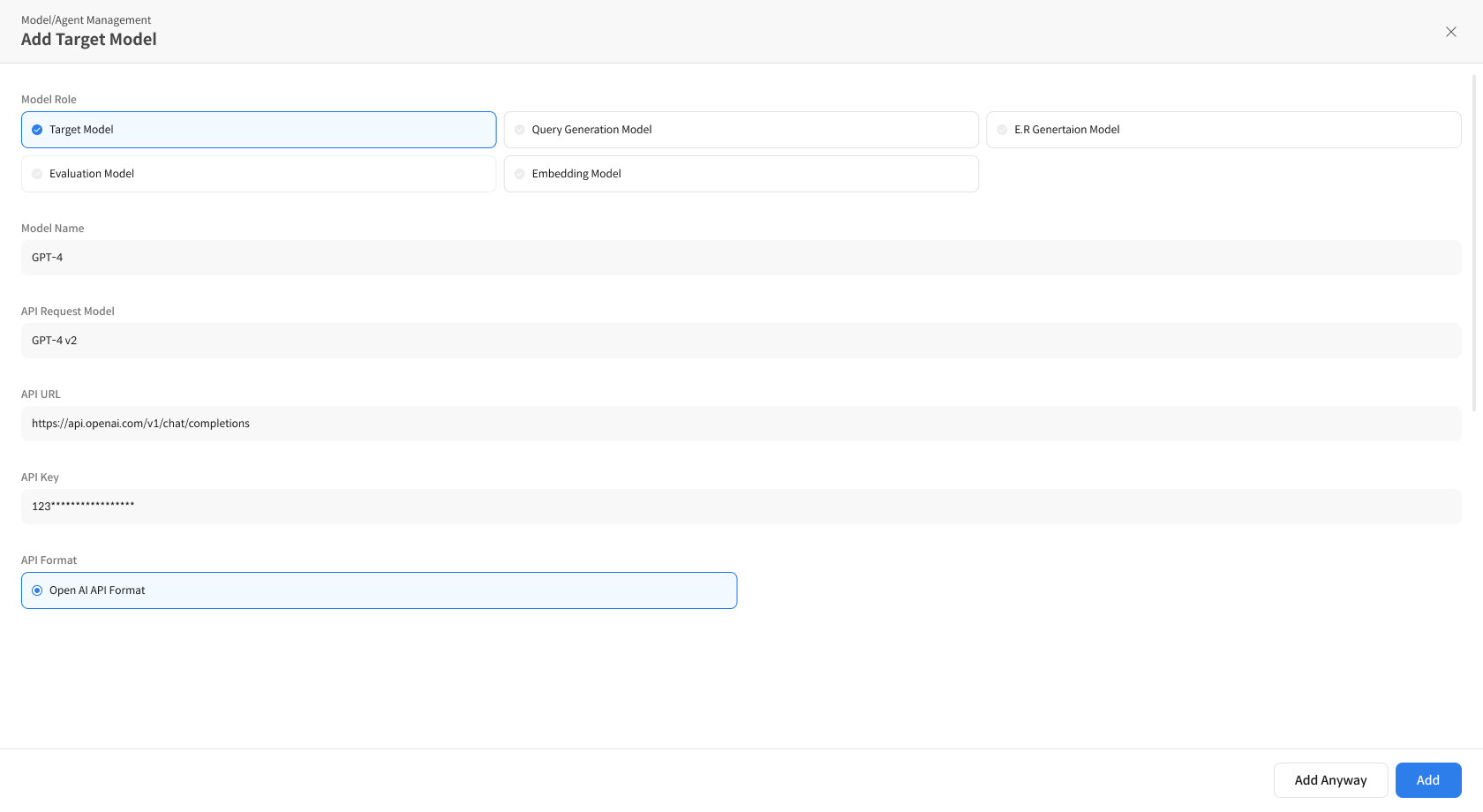
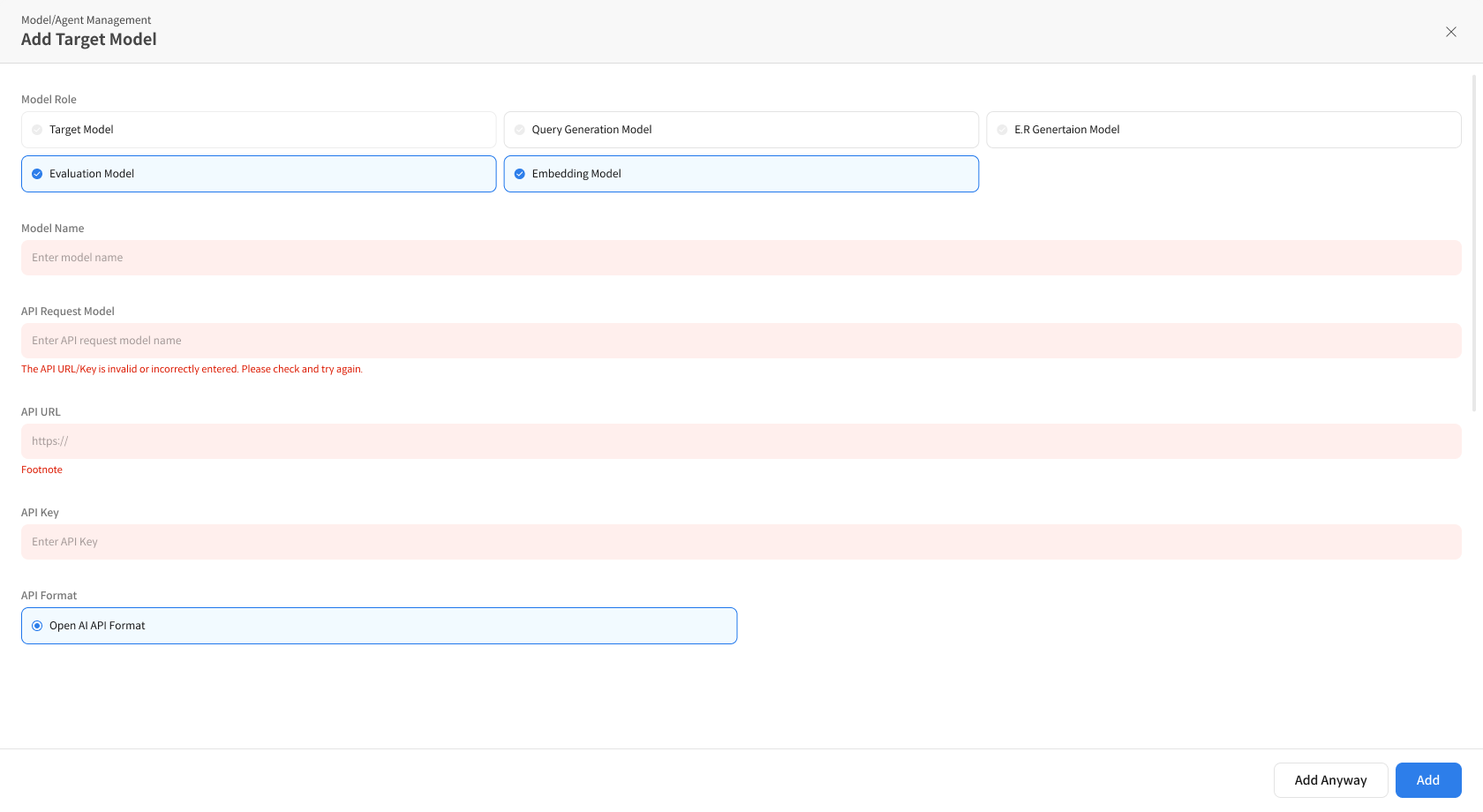
To register a model or agent, click +New Model/Agent, select the type, and enter the basic information. ※ API items are automatically validated. The button will be activated when all items are entered.
- Model Name, API Request Name, API URL, API Key, API Format
 +
+
※ API items are automatically validated.
The [Add Model] button will be activated when all required items are entered.
③ Confirming Model/Agent Registration
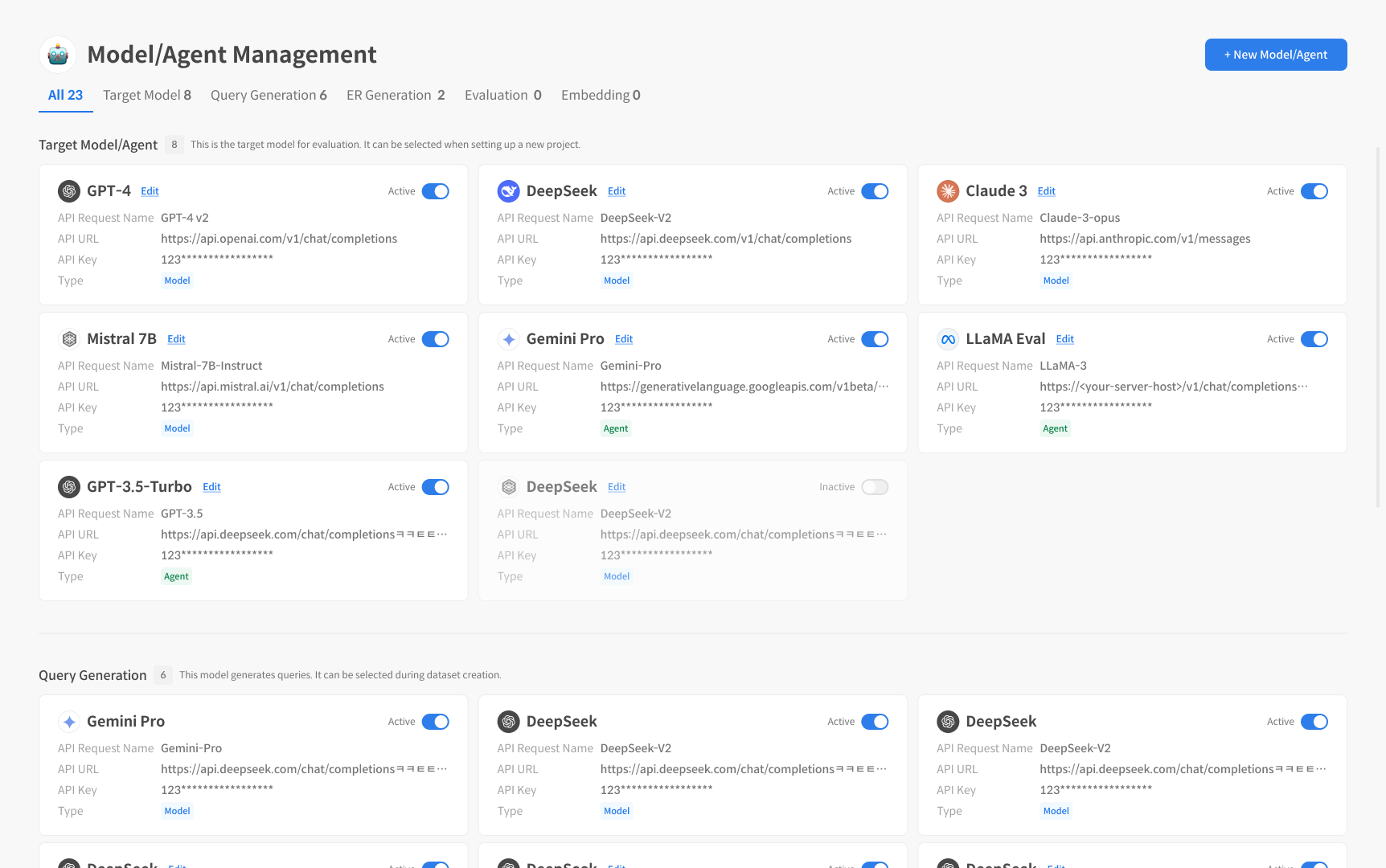
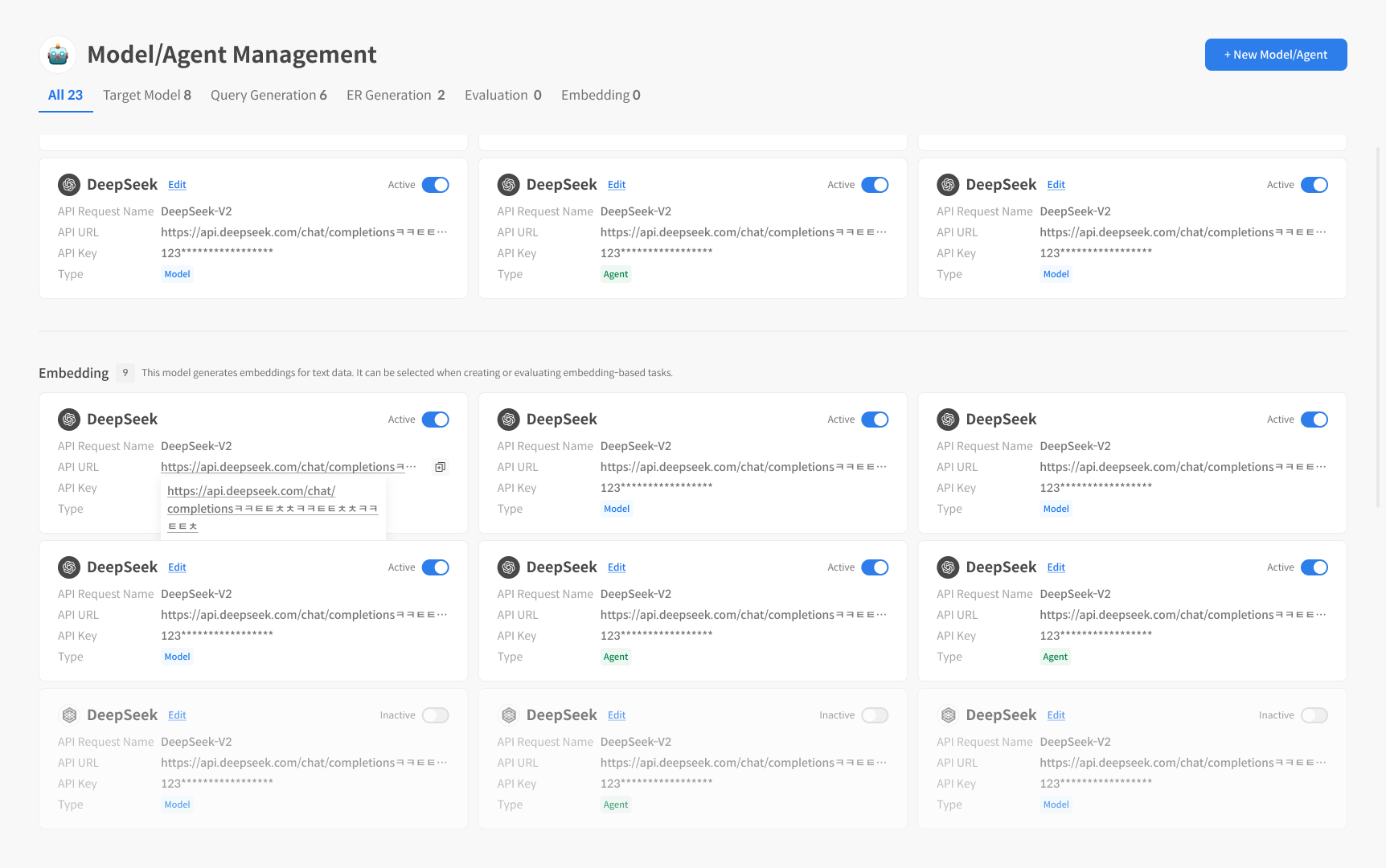
Clicking the [+New Model/Agent] button completes the registration, and it will be displayed as "Active" at the top of the list.
DATUMO processes model responses according to predefined formats. The following formats are supported. If your API request and response conform to these formats, DATUMO will process them correctly.
1. OpenAI Format
OpenAI Format API Request Example
{
  "messages": [
    {
      "role": "user", // String
      "content": "query" // String
    }
  ],
  "stream": false, // Boolean
  "temperature": 1.0, // Double
  "top_p": 0.0 // Double
}
OpenAI Format API Response Example
{
    choices: [
        {
            "role": "assistant", // String
            "content": "response" // String
        }
    ]
}
Step 2. Management Functions
① Register without API Information (Add anyway)
When preparing a Response Set, you may want to include a non-operational or legacy model/agent (e.g., as a placeholder) for evaluation purposes.
In this case, you can use the 'Add anyway' function to forcibly register it even without an API endpoint.
How to Use
- Enter the Model/Agent name.
- Enter temporary values (e.g., a hyphen) in the API-related fields.
- Select the 'Add anyway' option to complete registration.
Note
- Since there is no API information, the model will not operate in tasks that require actual calls.
- It is mainly useful for offline evaluations, such as Response Upload (uploading response files).
② Modifying Model/Agent Information and Deactivation
- Clicking the [Edit] button allows you to modify the model/agent name.
- You can control its visibility in the project using the activation/deactivation toggle. → Deactivated models/agents will not appear in the selection list during evaluation.
⑦ Deletion
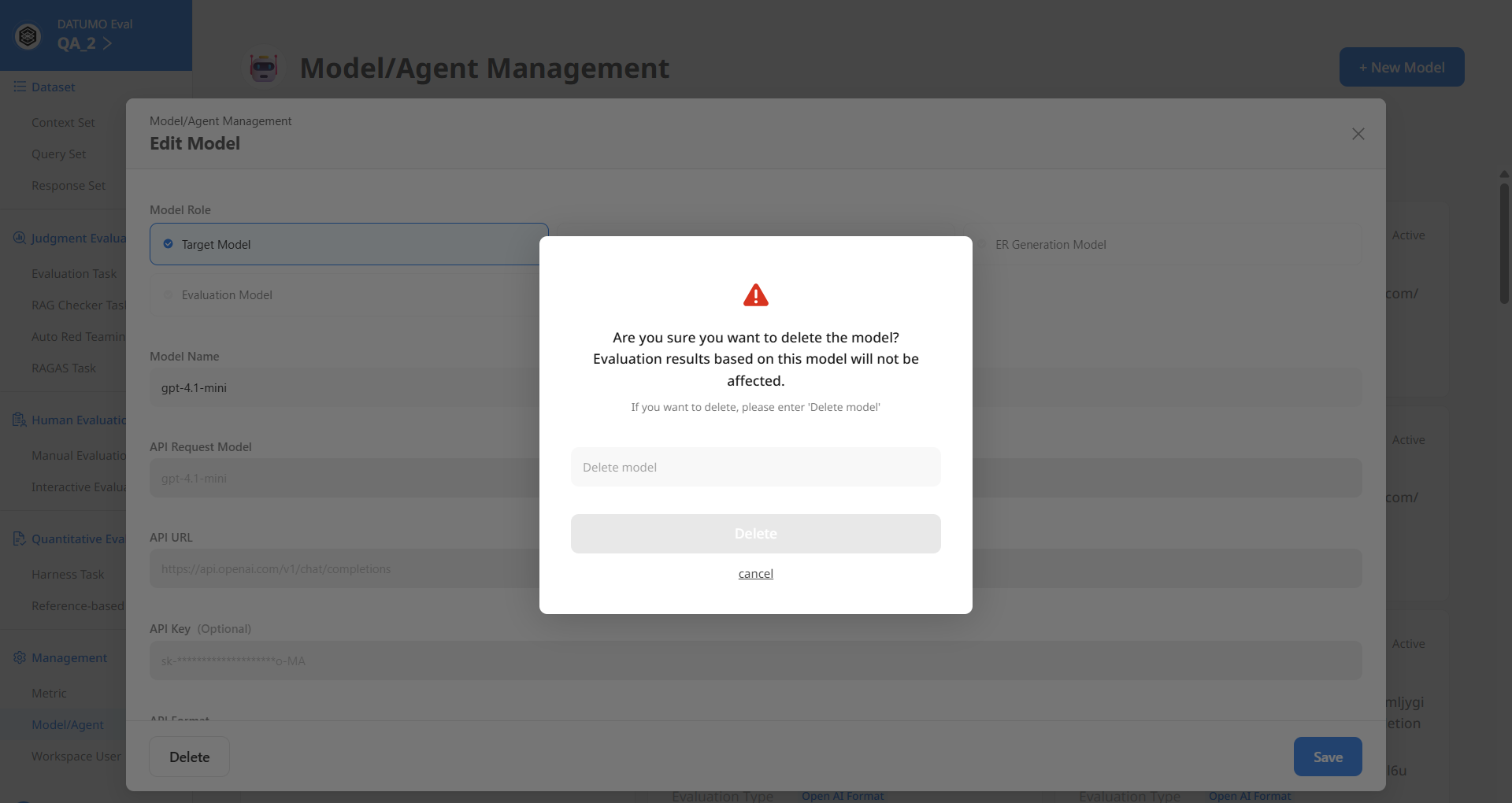
- You can delete a Model/Agent by clicking [Edit] and then the [Delete] button.
※ Deleted models cannot be restored. Please proceed with caution.