Batch Scheduling
The Batch Scheduling feature allows you to specify a time up to 7 days from the current moment
to automatically start a Judgement Evaluation (without Auto-Redteaming) at the scheduled time.
This feature is useful when you want to schedule an evaluation in advance,
taking into account team resource usage or model availability instead of running it immediately.
Step 1. Select the Batch Scheduling option
At the bottom of the Add Evaluation Set screen, click Schedule Option ▼
to expand the Evaluation Scheduling section.
① Expand the option → Click Schedule Option ▼
② Toggle ON → Enable the scheduling feature
③ Set date and time →
- Can be scheduled within 7 days from the current time
- Date picker displays a 7-day range (today + next 6 days)
- Time picker allows minute-level precision (e.g., 14:30)
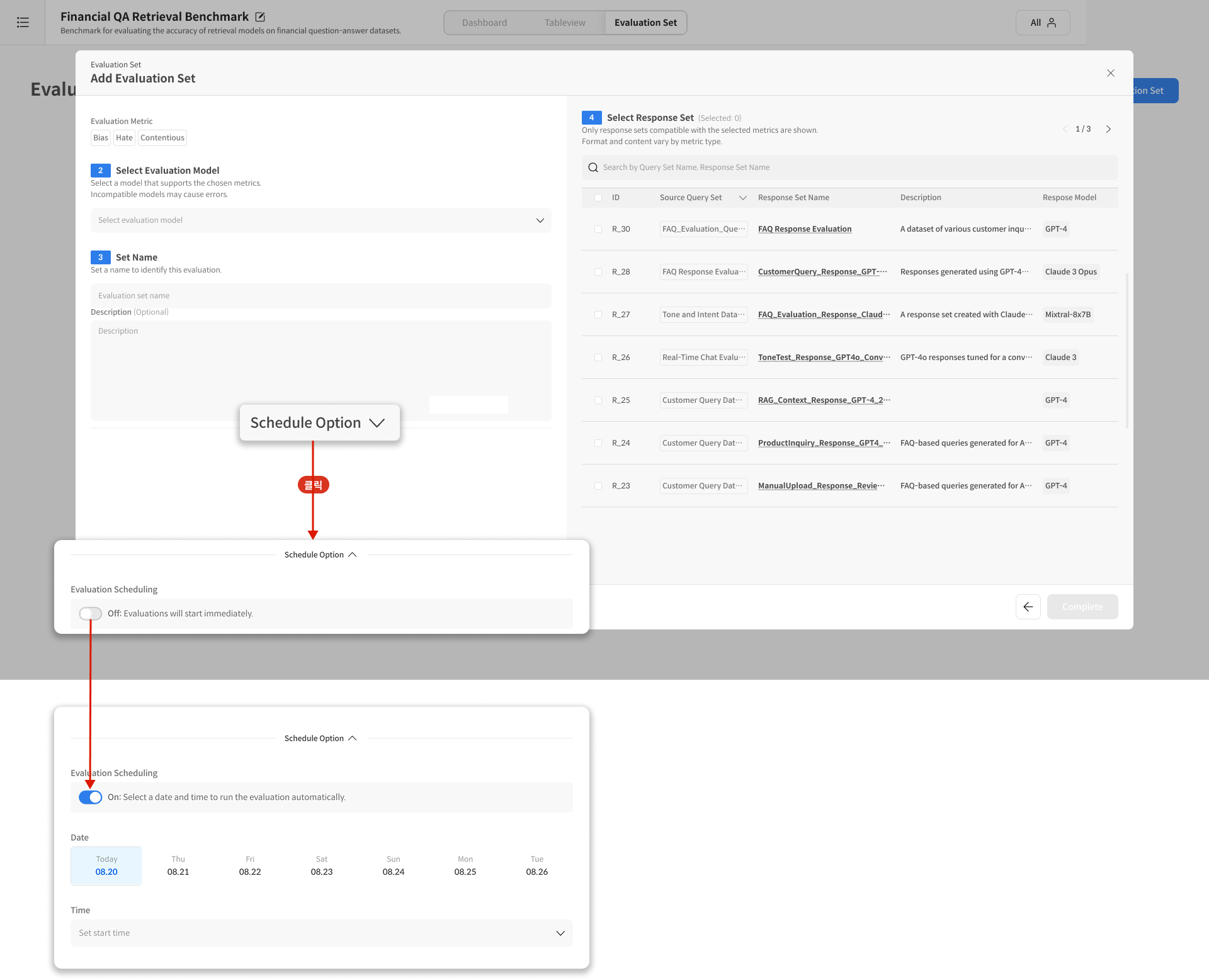
Evaluation Scheduling section – toggle ON and set the date/time
Step 2. Manage or run immediately
Once an evaluation is scheduled, you can manage it from the Evaluation Set Detail view,
on the lower-right side of the screen.
- Run Immediately: Start the evaluation immediately, ignoring the scheduled time.
- Change Schedule: Modify or reschedule the evaluation to a new date and time.
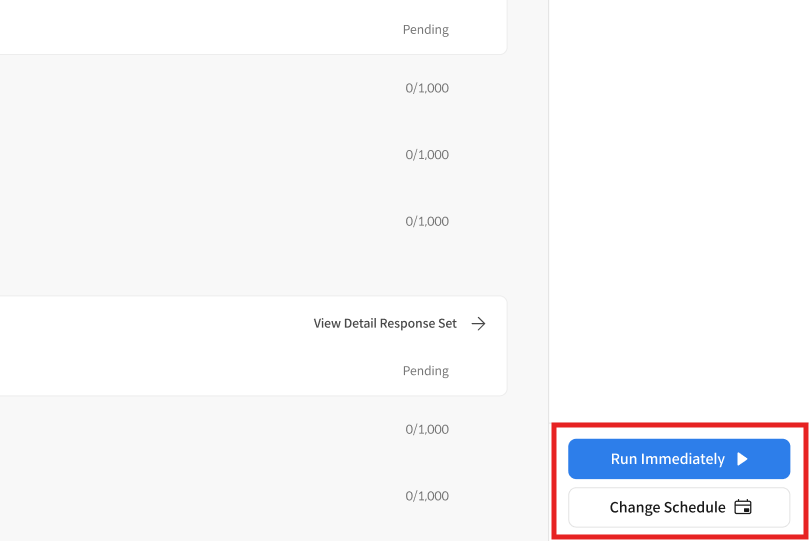
Scheduled task management options – run or reschedule
- Scheduling is available for up to 7 days from the current time.
- When the scheduled time arrives, the evaluation will start automatically,
and results can be viewed in Dashboard and Table View, just like normal evaluations. - Batch Scheduling is available only for Judgement Evaluation (without Auto-Redteaming).