Task Management
On the Task Management page, you can use the following functions on a Task basis:
- ① Pause an ongoing evaluation
- ② Restart a paused evaluation
- ③ Edit the Task name
- ④ Delete the Task
Step 1. Pause and Restart Evaluation
① Pause Evaluation
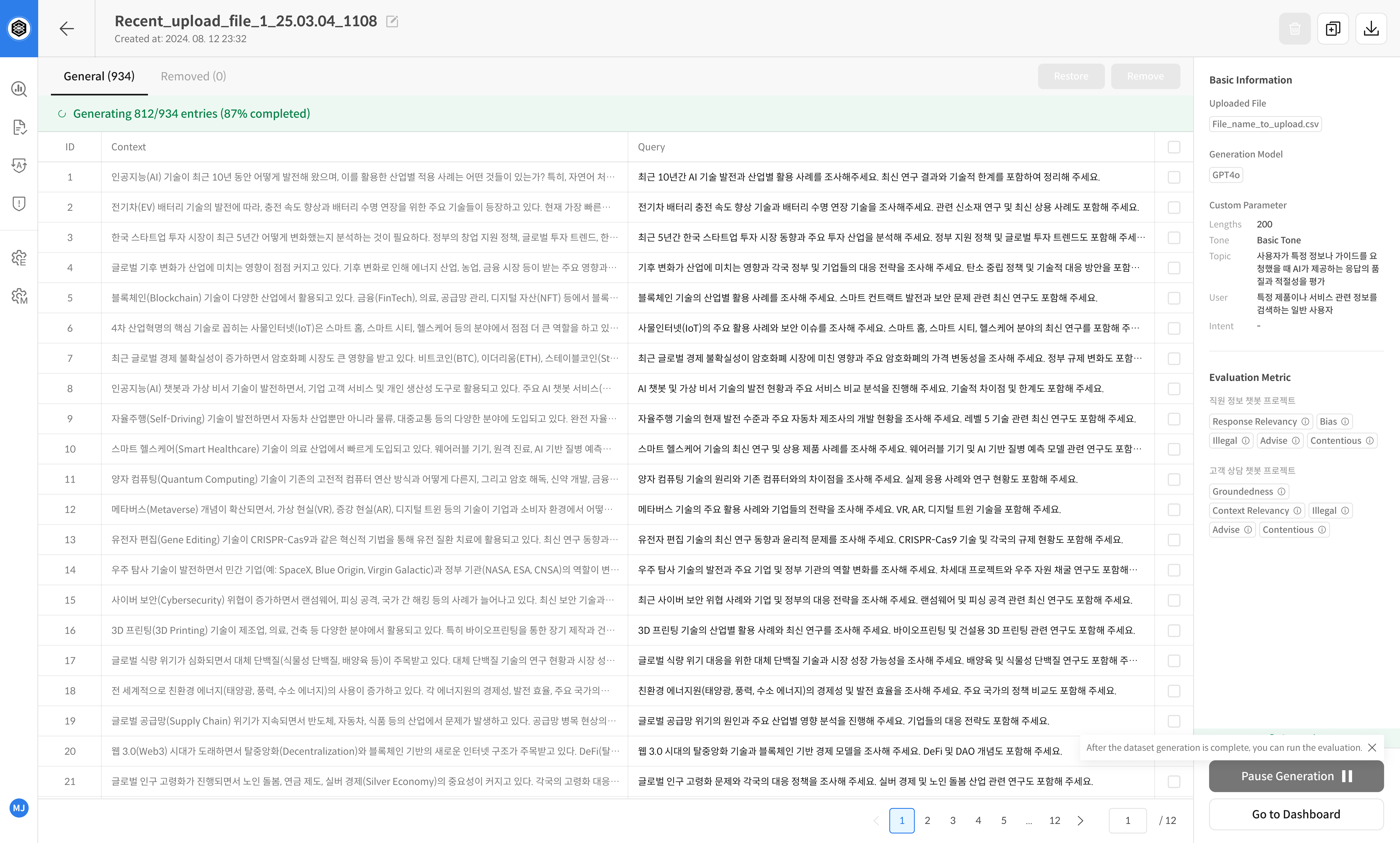
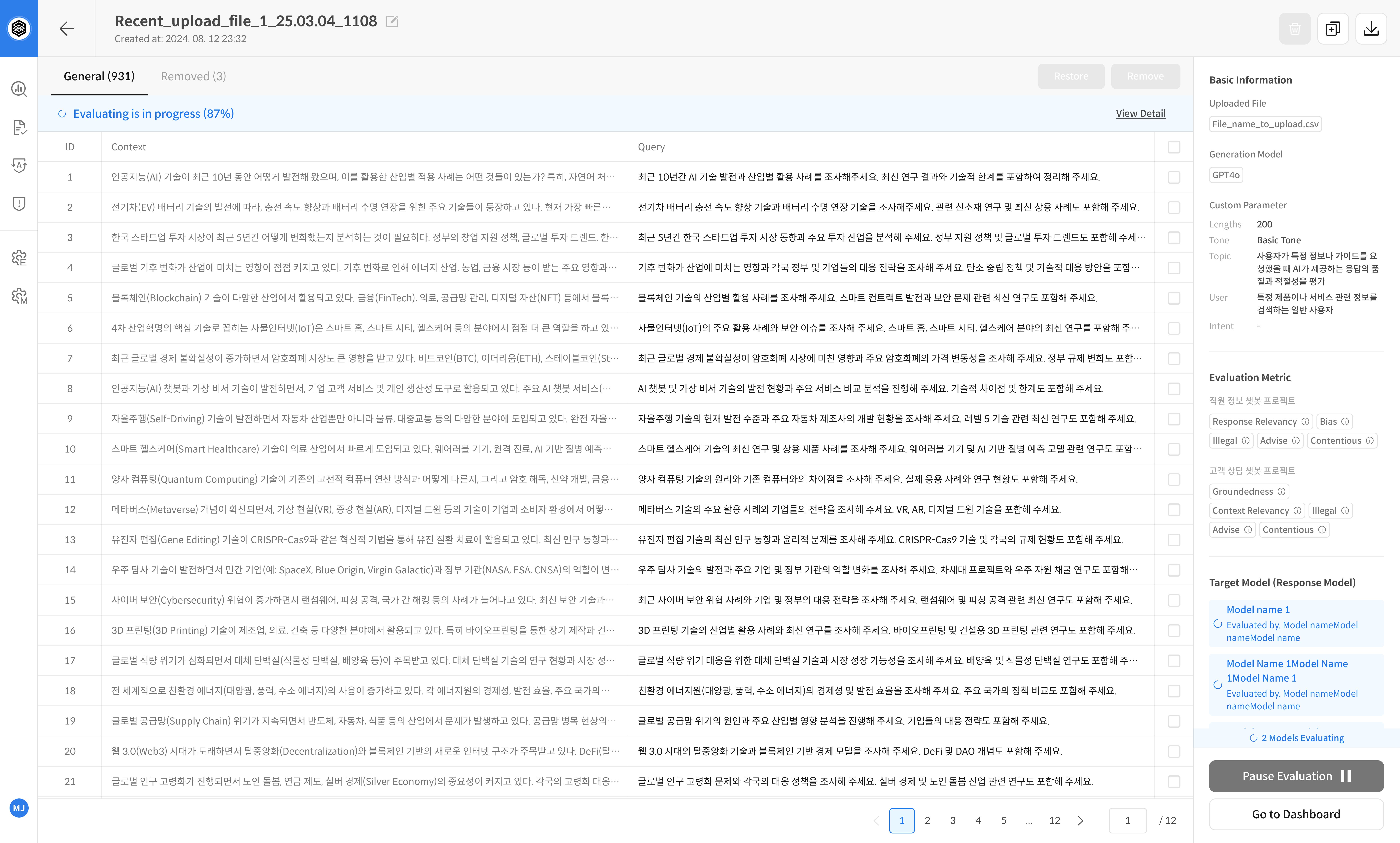
If an evaluation is in progress, you can pause its progress by clicking the Pause Evaluation button at the bottom.
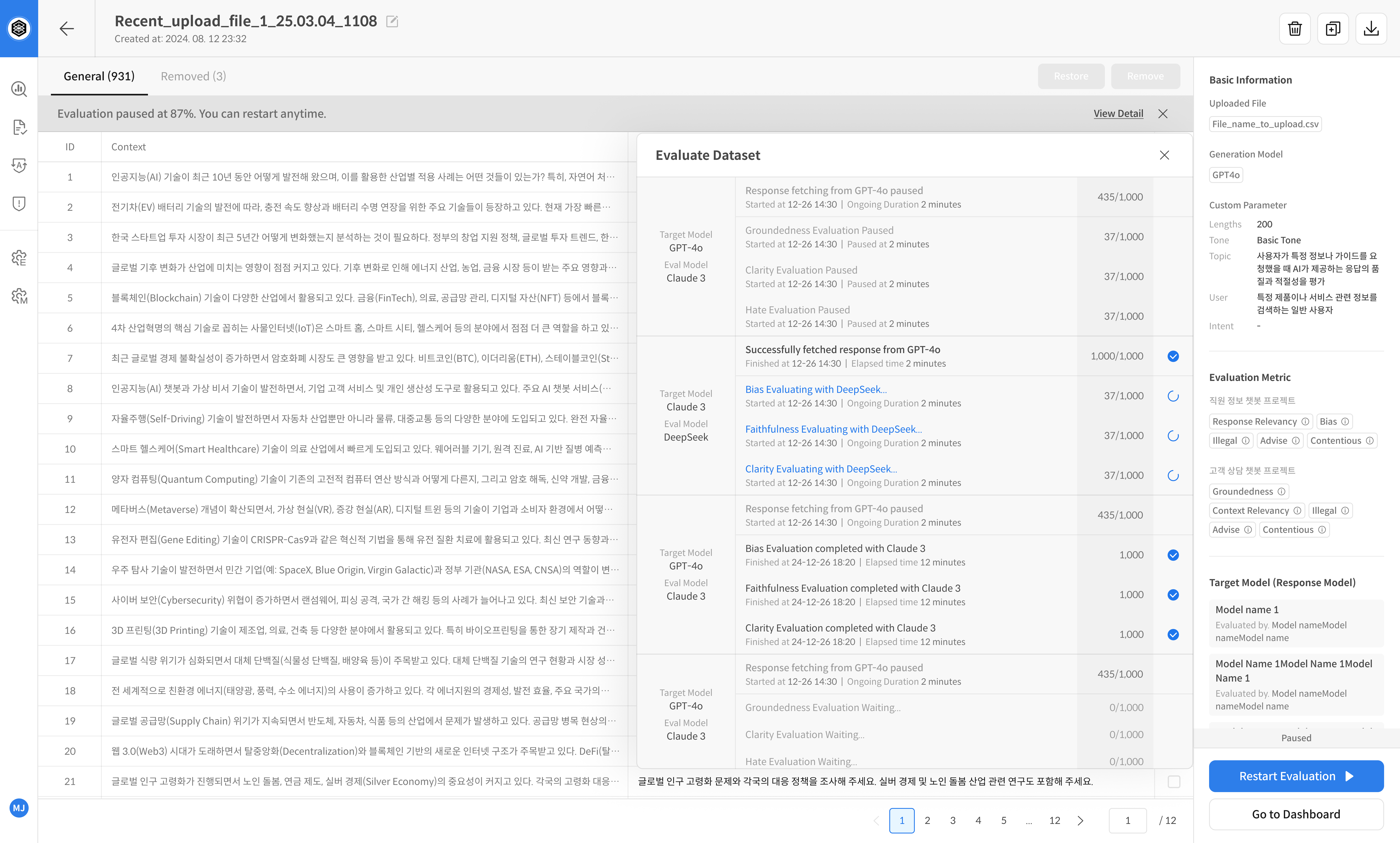
The evaluation history up to the point of suspension can be checked in the Evaluation History.
- During evaluation: Click the
Pause Evaluationbutton - After pausing: The progress can be checked in the [View Detail] menu
Example Screen
👉 Dataset generation in progress (Pause Generation button)
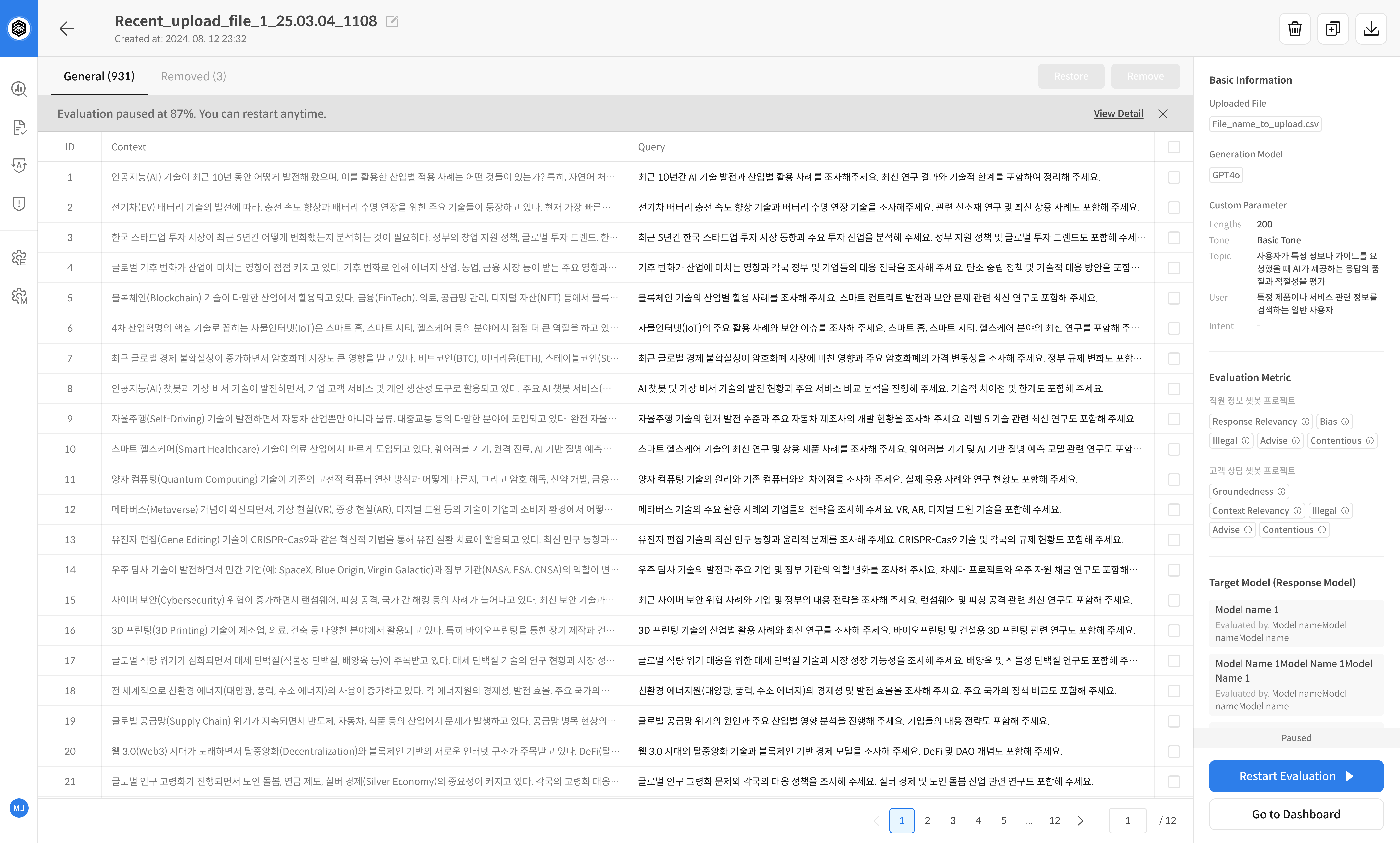
👉 Evaluation in progress (Pause Evaluation button)
👉 After pausing, you can check the progress in [View Detail]
② Restart Evaluation
You can continue a paused Task at any time by clicking the Restart Evaluation button.
The evaluation will continue from the point where it was paused.
- After pausing: Click the
Restart Evaluationbutton - After restarting: The evaluation will continue from the point where it was paused.
Example Screen
👉 After pausing dataset generation (Restart Generating button)
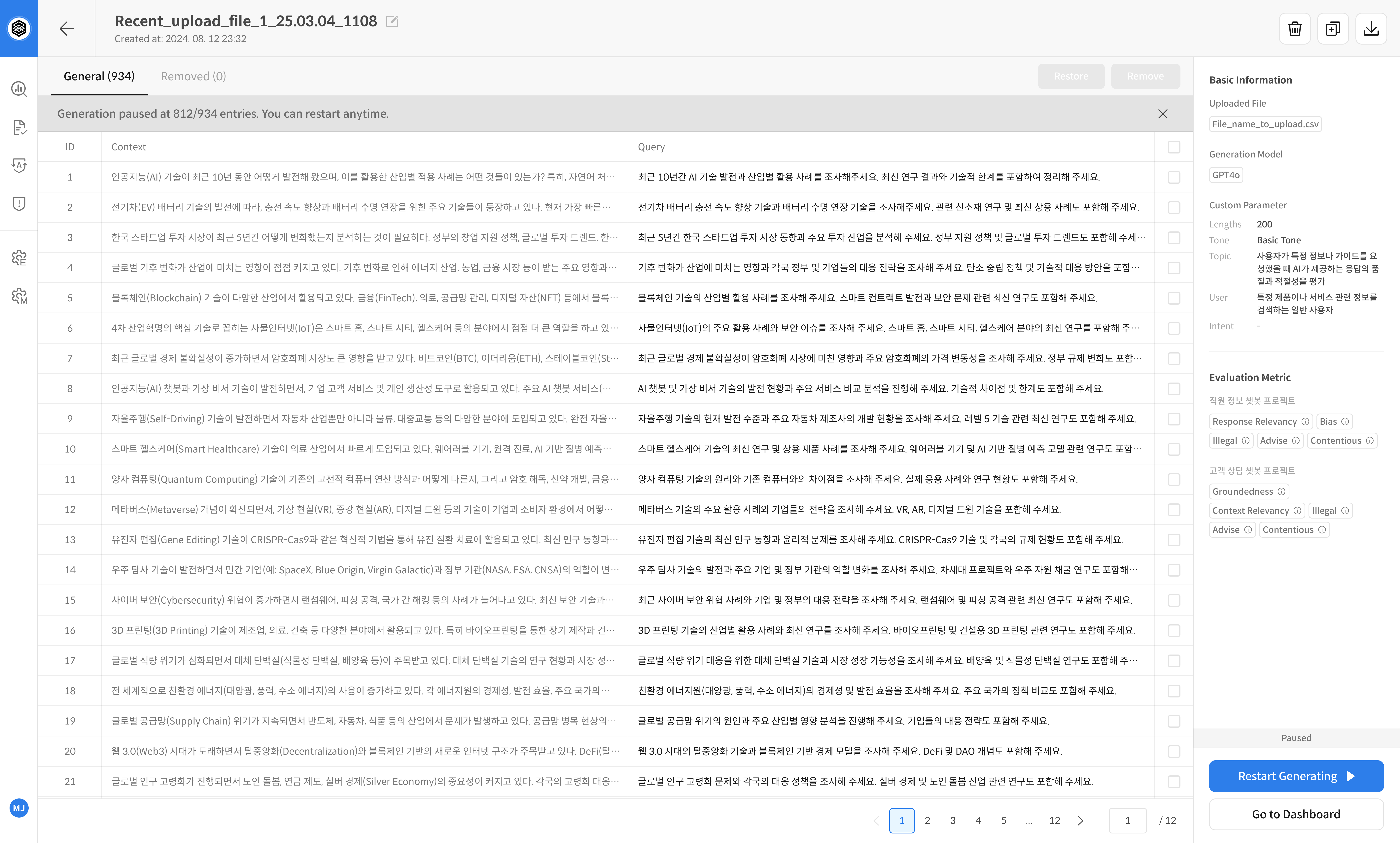
👉 After pausing evaluation (Restart Evaluation button)
③ Edit Task Name
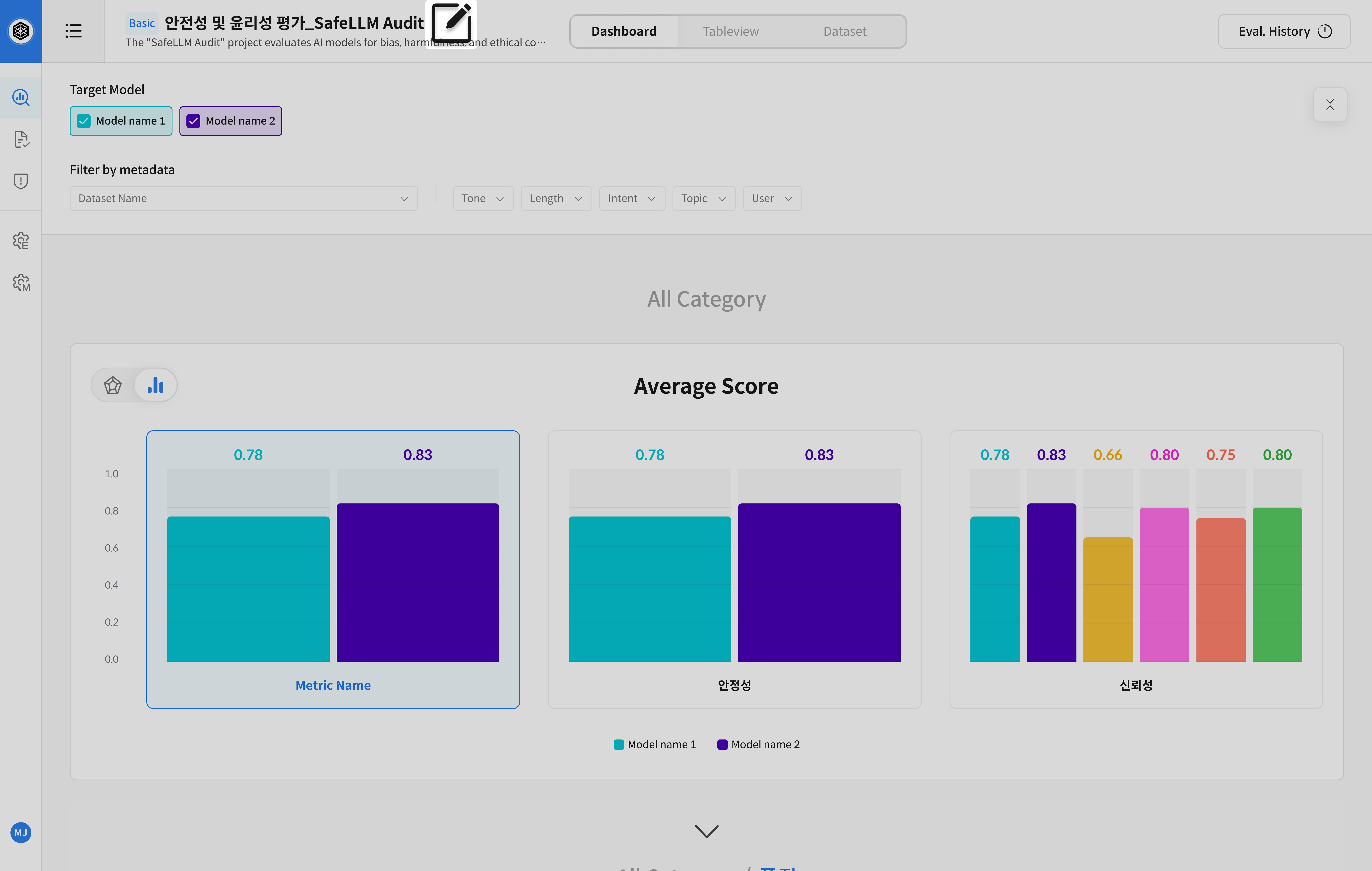
By clicking the [Edit] button next to the Task name at the top,
you can use the Edit Task Information or Delete Task functions.
-
Edit Task Information
→ After changing the Task name and description, click the [Save] button -
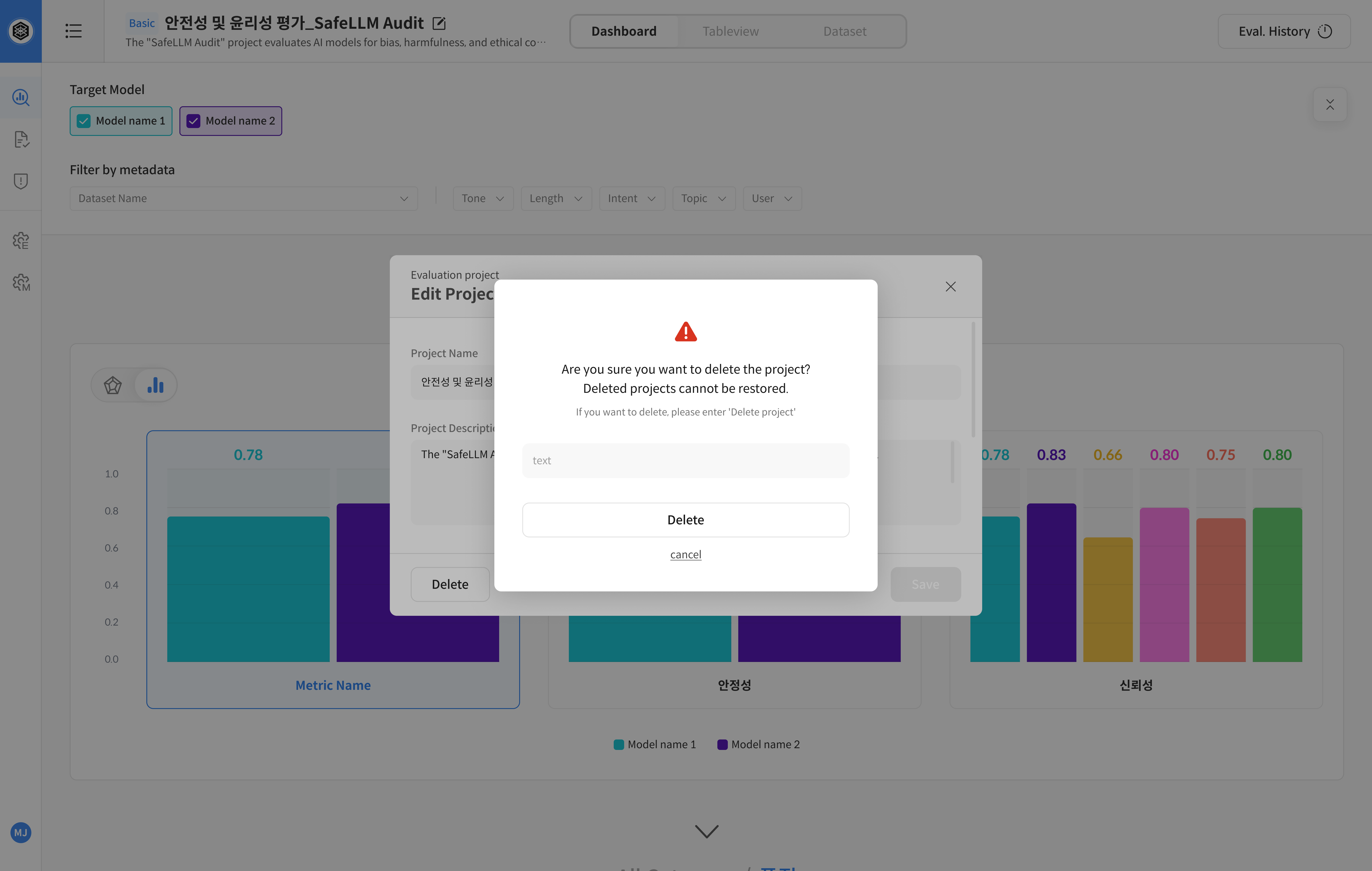
Delete Task
→ Click the [Delete] button in the edit modal → Proceed after confirming deletion
When you delete a Task, all datasets, evaluation results, and settings within that Task are also deleted.
⚠️ Deleted Tasks cannot be recovered.
Example Screen
👉 After clicking the [Edit] button, enter the Task information editing screen
👉 After editing the Task name/description, you can save by clicking the [Save] button
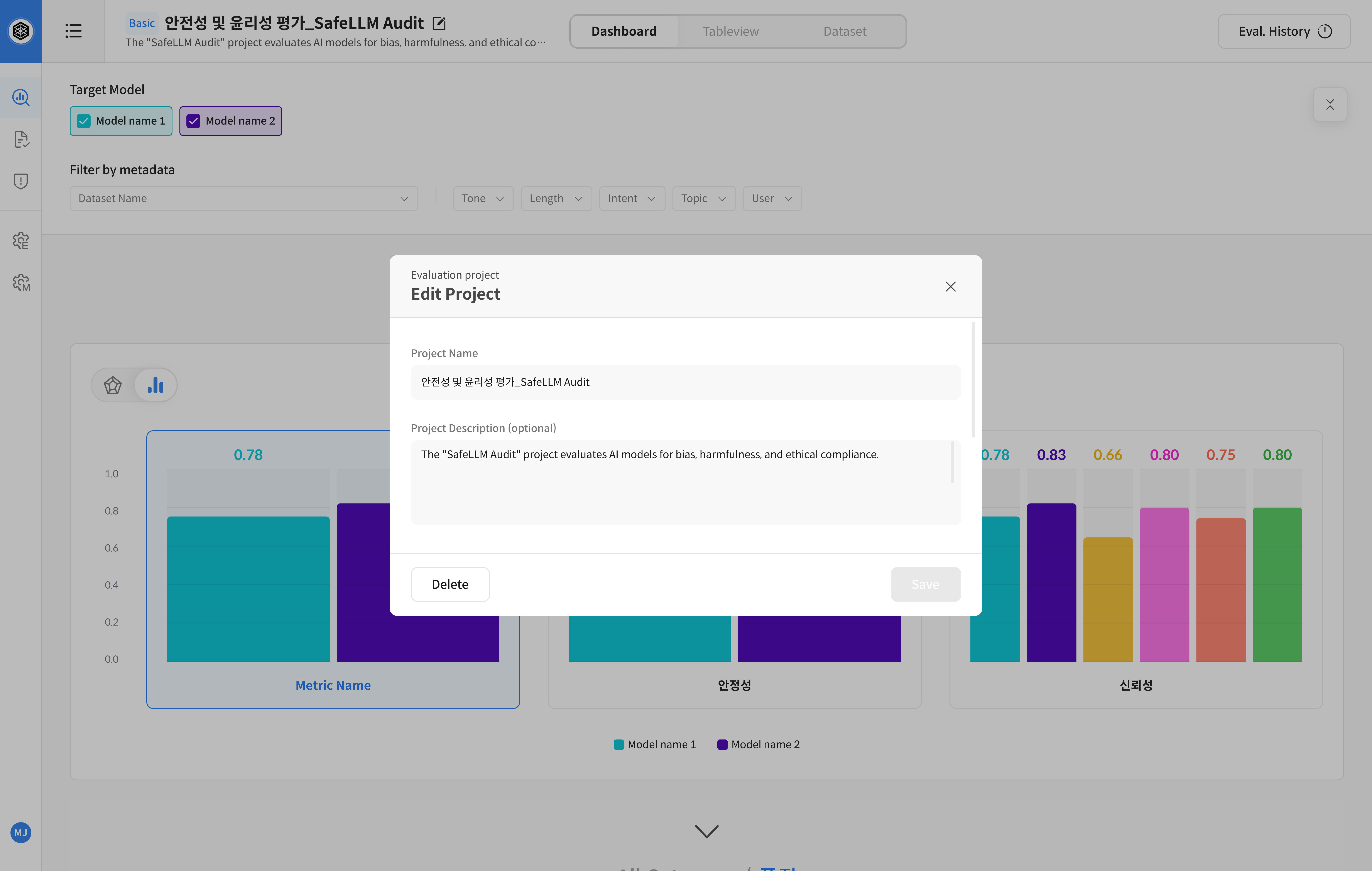
👉 You can delete after confirming deletion by clicking the [Delete] button