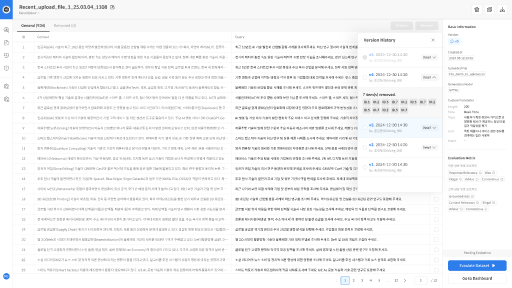
Dataset & ReviewEditing
The Evaluation Dataset Management page allows you to review and manage the datasets you've created.
You can inspect queries and contexts, decide which items to include in the evaluation, and ensure high-quality, reliable evaluation results through data curation features.
- Edit: Manually edit queries and context to refine evaluation data
- Remove/Restore: Exclude or restore specific items from evaluation
Step 1. Data Editing
Datasets created via Response Upload do not support the Edit function.
→ In this case, please edit the original file and re-upload it as a new dataset.
① Access the Data Review Screen
From the [Dataset] tab in your project, select the dataset you want to review.
You will be redirected to the [Dataset Detail] screen.
(If the dataset was just saved, you will be taken there automatically.)
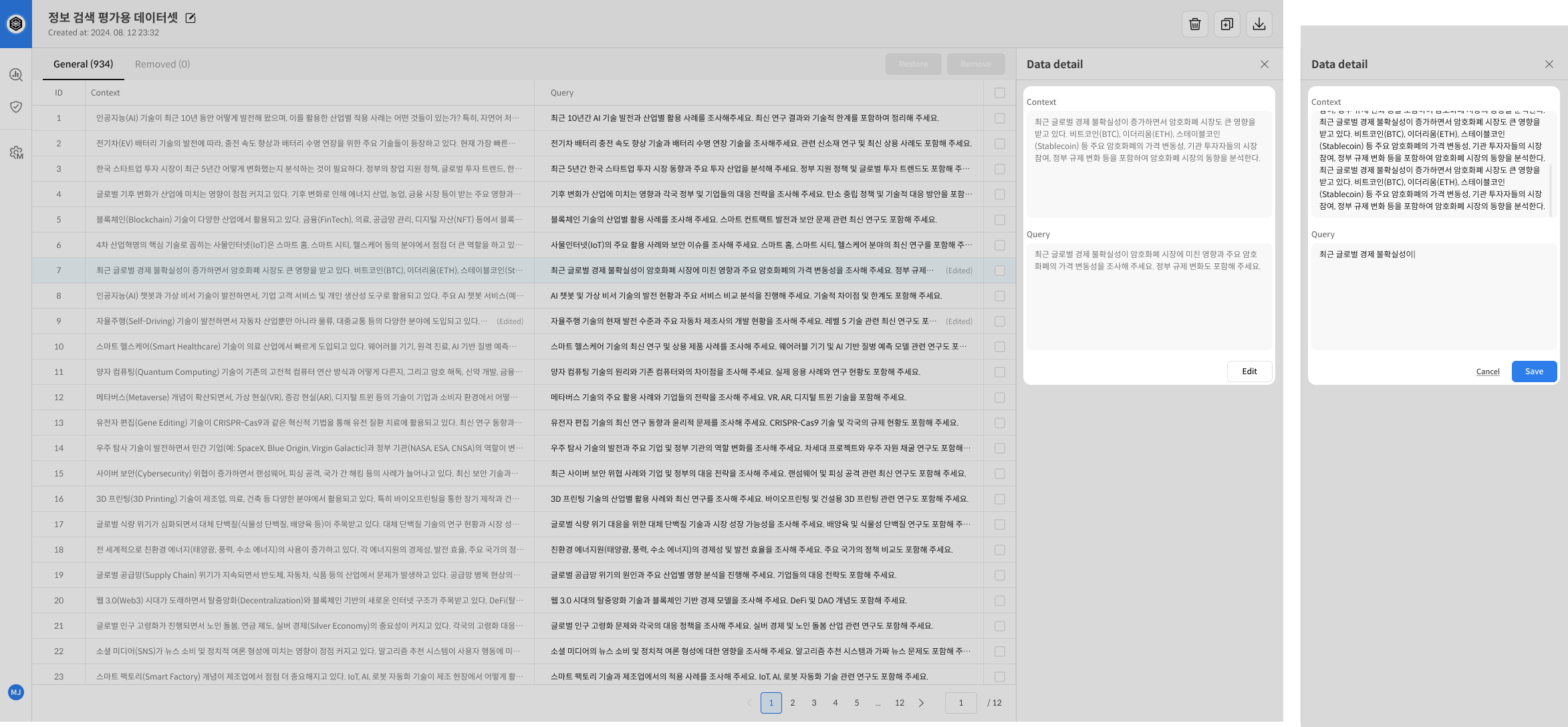
② Review and Edit Queries & Context
In the review screen, you can view the generated queries and contexts.
Click the Edit button to make any necessary changes.
Edits are applied in real time.
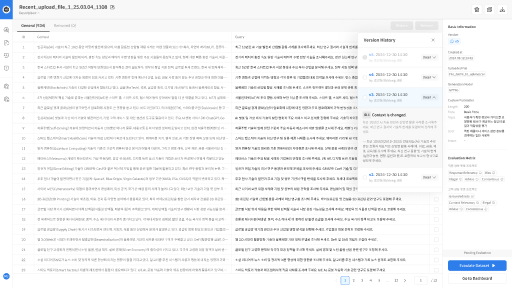
When Edit or Remove actions are performed on a dataset, all changes are automatically saved and recorded as history. Users can compare the before and after versions of each item using its ID.
Step 2. Manage Excluded Queries (Remove/Restore)
During review, you can exclude any query that seems unsuitable by selecting it and clicking Remove.
- You can include it back at any time by clicking the Restore button
- In the Removed tab, you can review all excluded items and restore them individually
This gives you flexible control over the quality of your evaluation data.
When you click the Remove button, a confirmation message will appear to verify whether you want to exclude the selected items.
Once confirmed, those items will be removed from the evaluation.
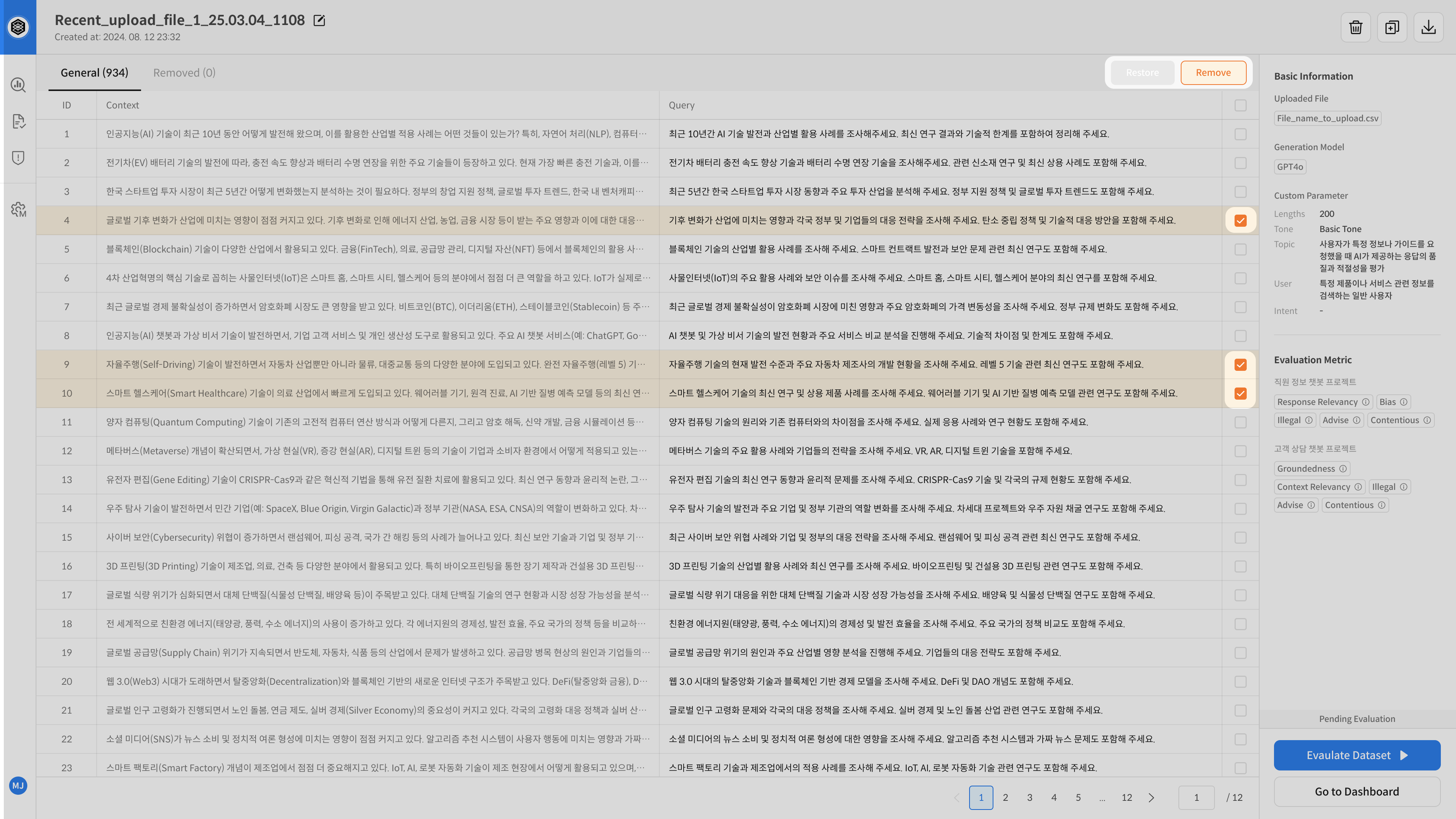
- Select the items you want to exclude and click the Remove button.
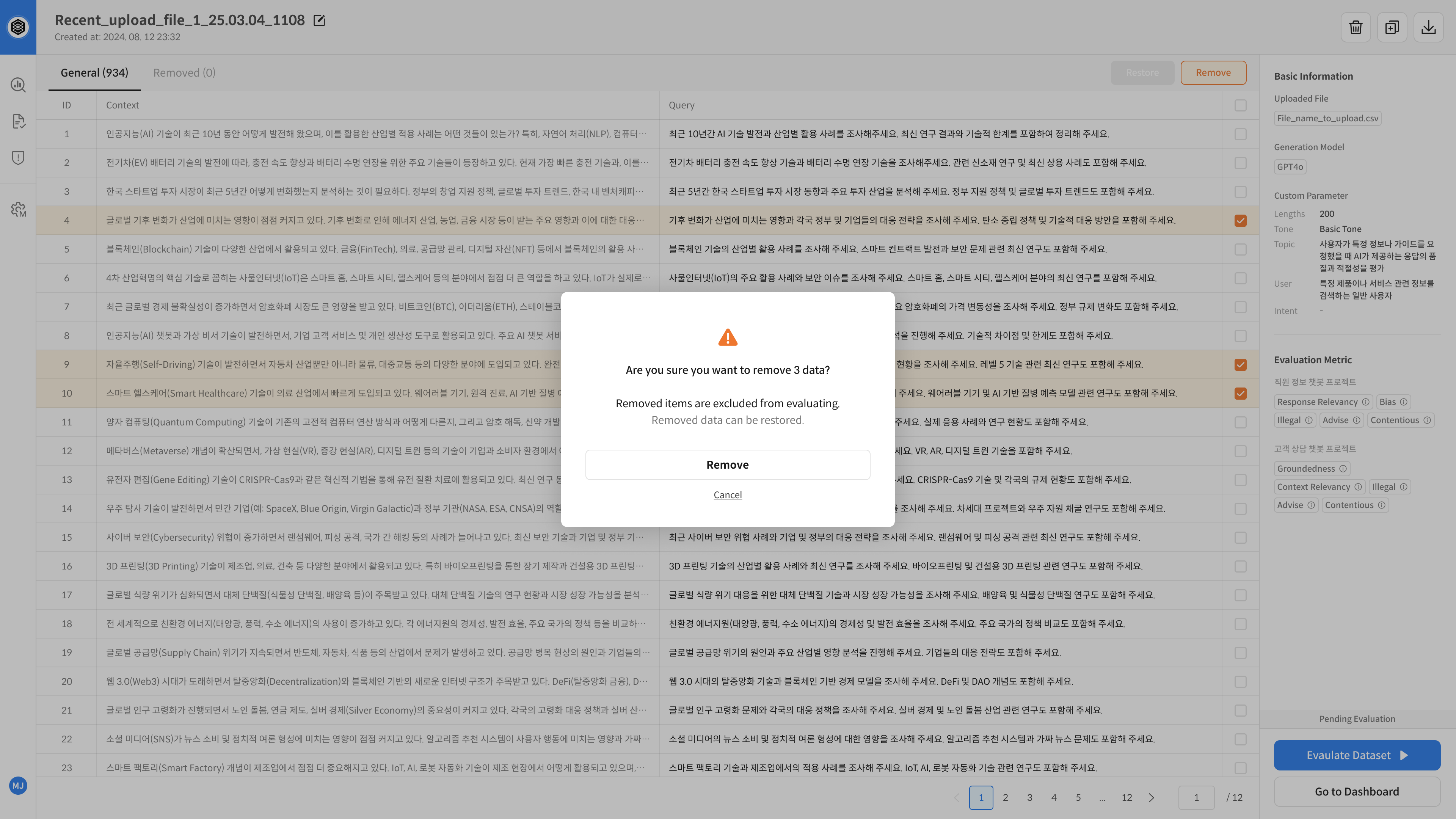
- A confirmation message will show the total number of items selected for exclusion.
Excluded queries can be tracked from the [Removed] tab.
If needed, individual queries can be restored using the Restore button.
This allows flexible management of evaluation quality.
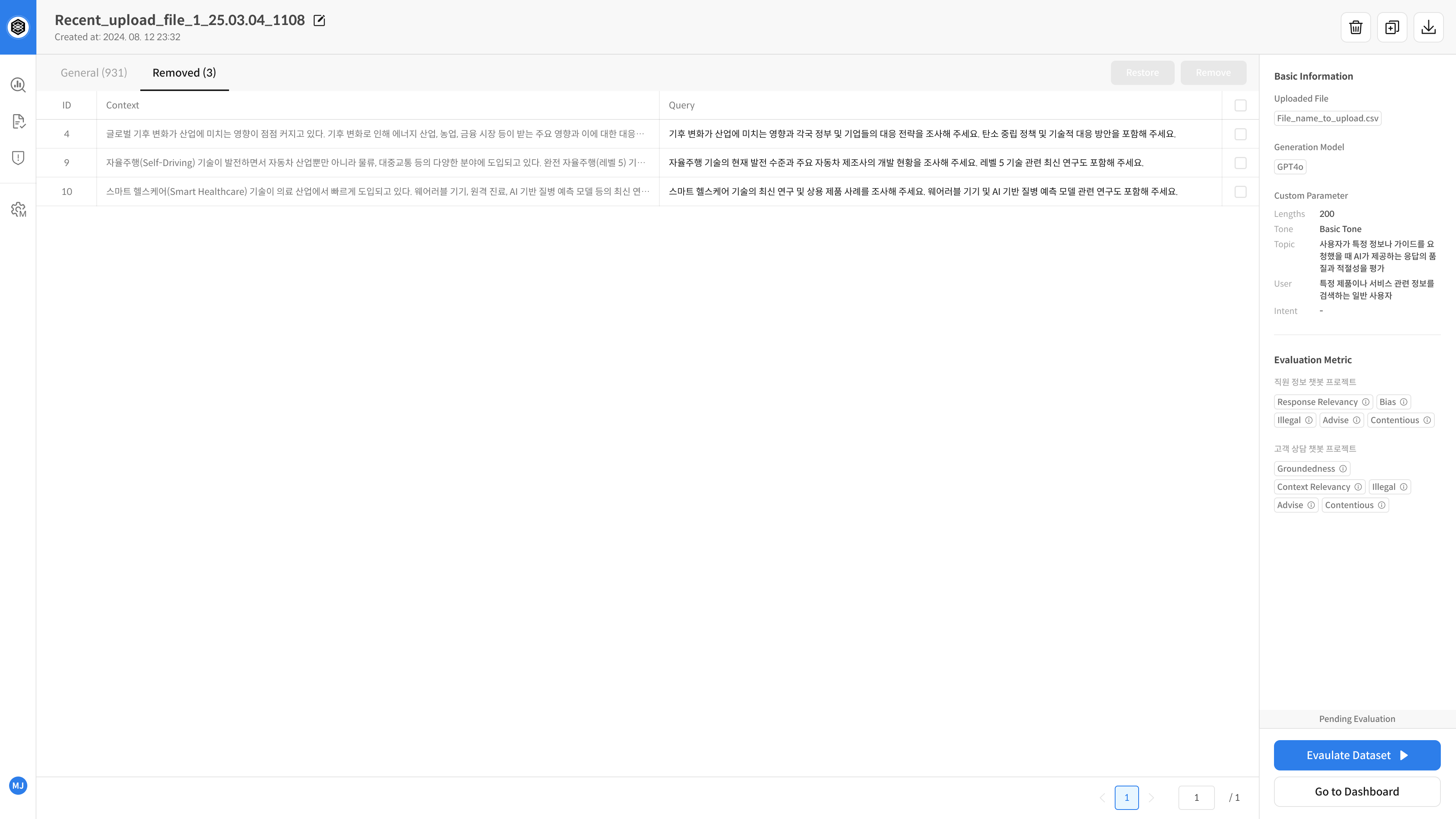
When Edit or Remove actions are performed on a dataset, all changes are automatically saved and recorded as history. Users can view remove/restore changes for each item by its ID.