Response Set
A Response Set is a collection of responses generated by an AI model for the questions in a Query Set. You can create multiple Response Sets for a single Query Set, allowing you to compare and analyze performance between models and use it as key data to measure quality by applying evaluation metrics.
This page provides a step-by-step guide on how to create and manage a Response Set.
- CSV/XLSX file upload method
- Automatic response generation method based on an existing Query Set
- Connection relationship with Query Set and modification restrictions
Step 1: Start Creating a Response Set
① Start Creating a Response Set
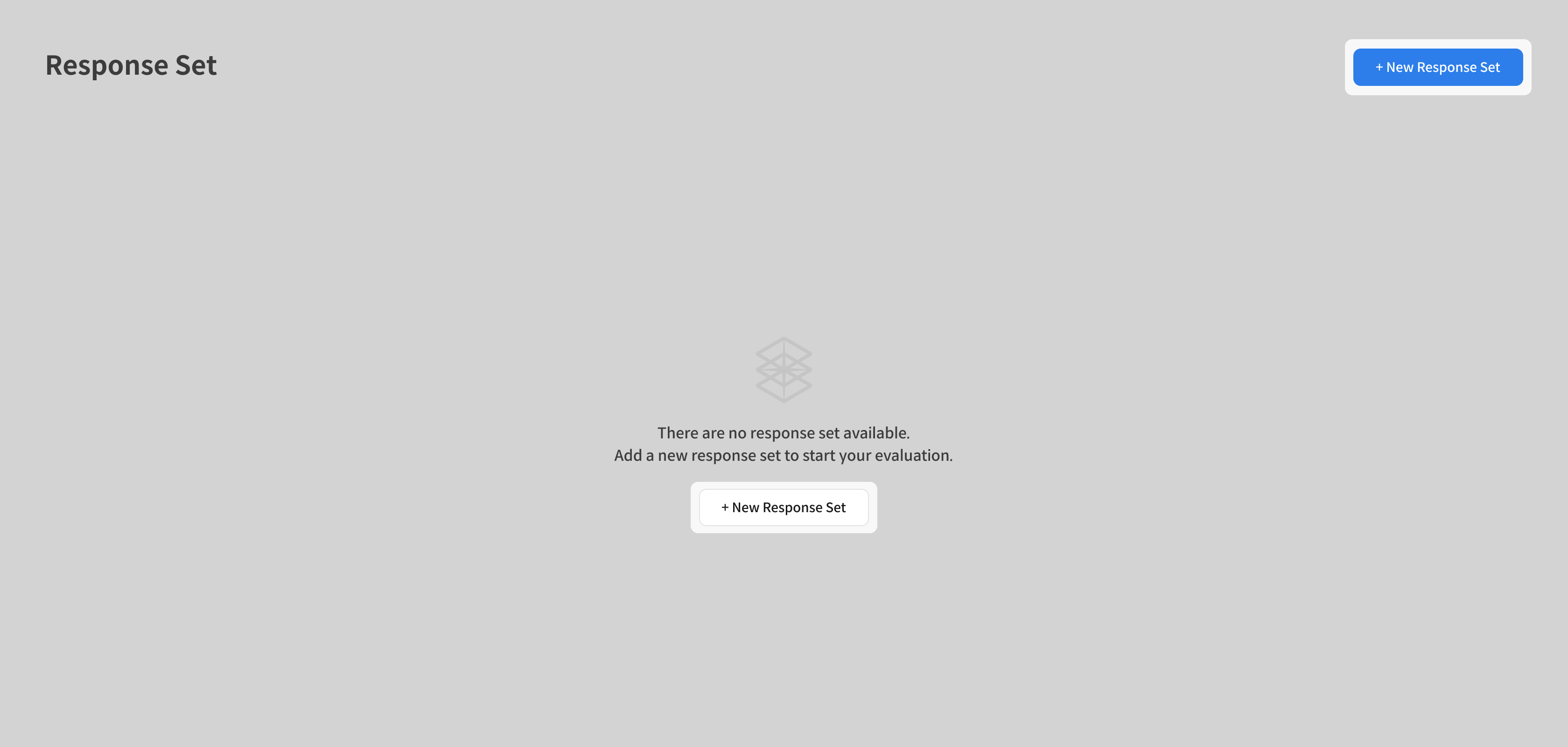
- Click the "+ New Response Set" button at the top right of the screen.
- The initial screen displays the message "There are no response set available."
② Select Creation Method
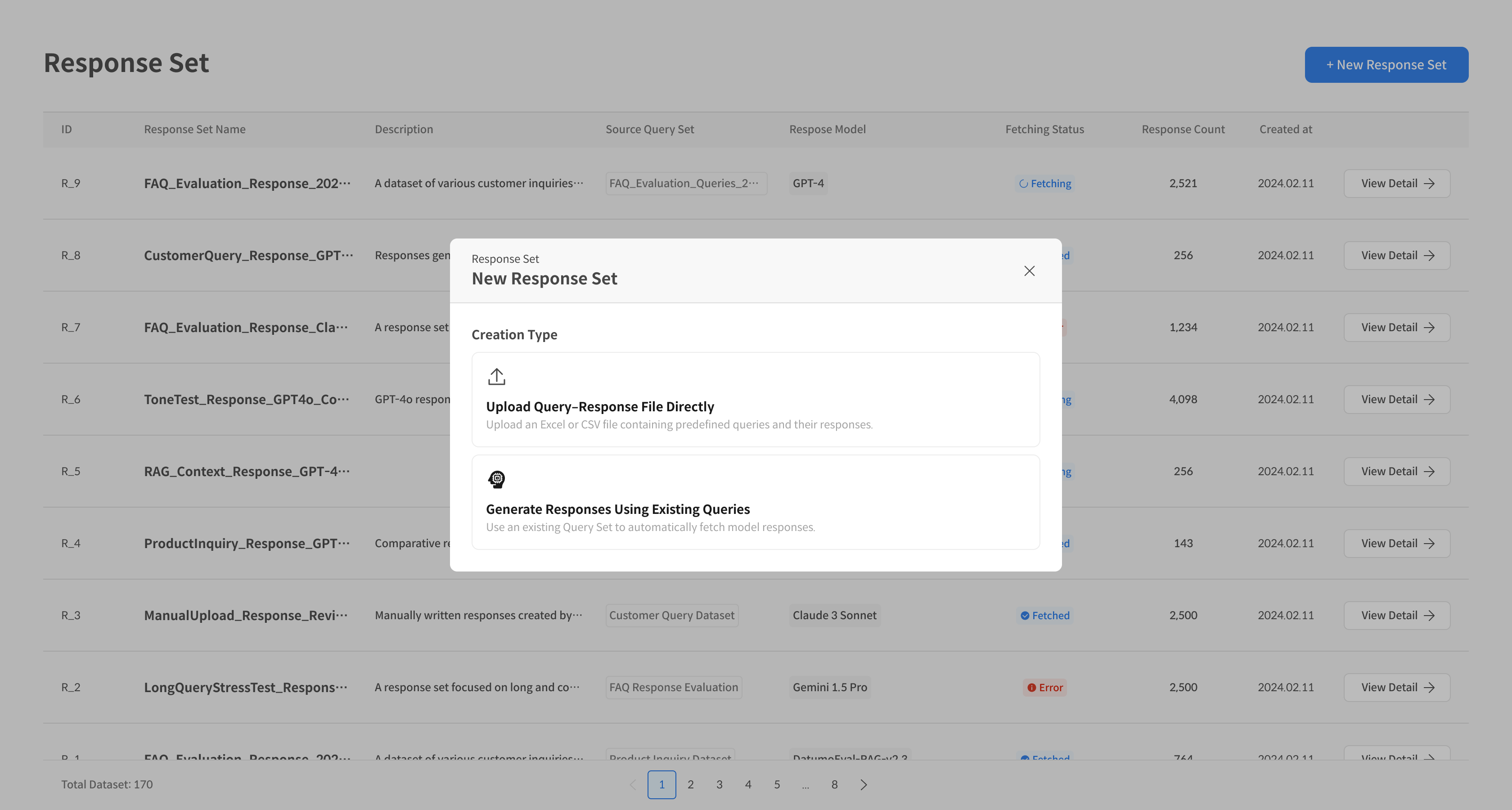
In the pop-up window, select the Creation Type:
Upload Response File Directly (Path A)
- Upload pre-existing Responses as a CSV/XLSX file.
- Recommended when using existing model results.
Generate Responses Using Existing Query Set (Path B)
- The AI model automatically generates Responses by selecting a Query Set.
- Recommended when real-time response generation is needed.
Creation Method A: Upload Response File Directly
① Upload Response File
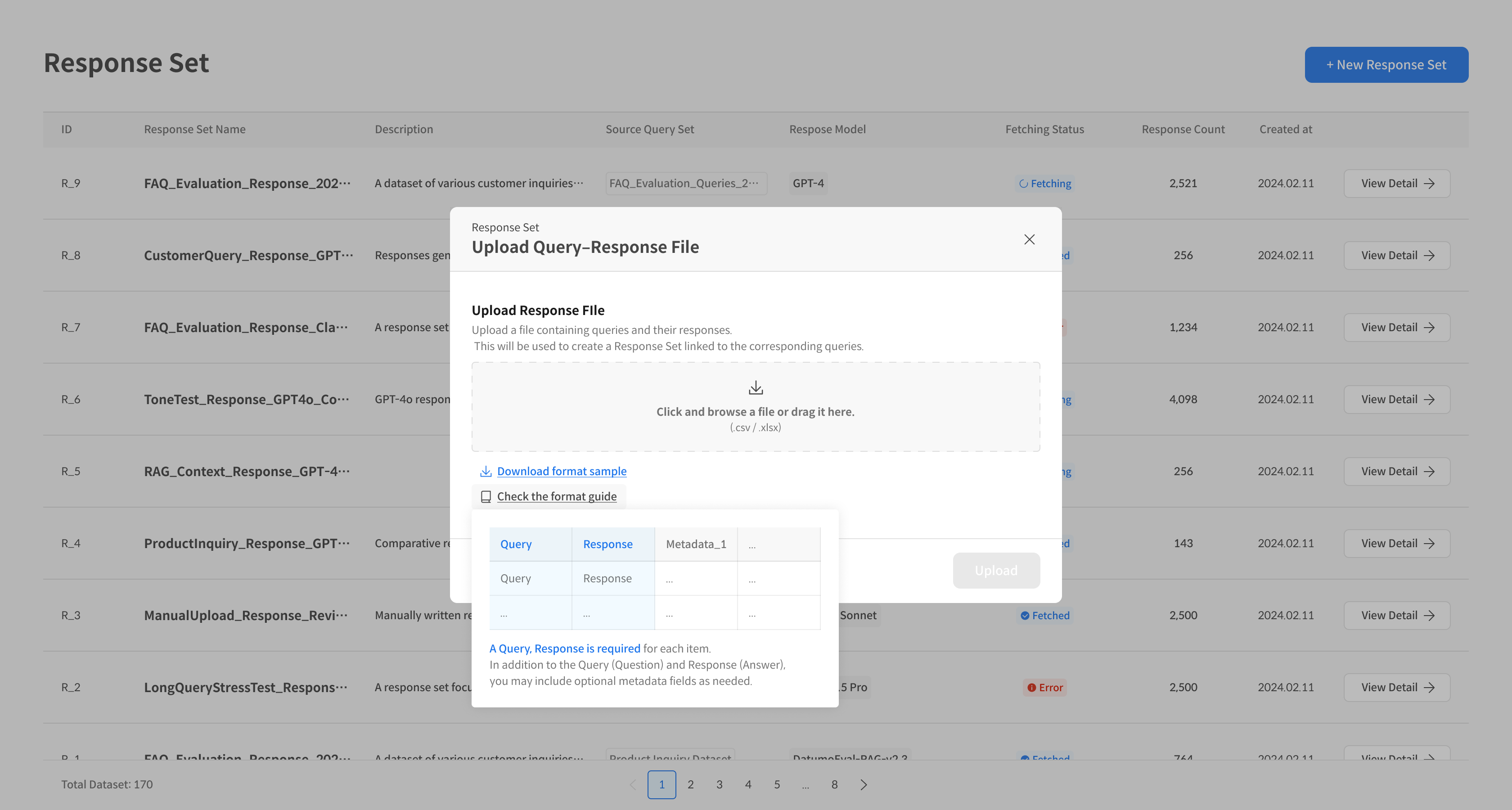
In the Upload Response File popup:
- Supported formats: CSV, XLSX
- Upload method: Drag & Drop or file selection
- Sample file: Provides examples of Query, Response, and Metadata.
② Enter Basic Information
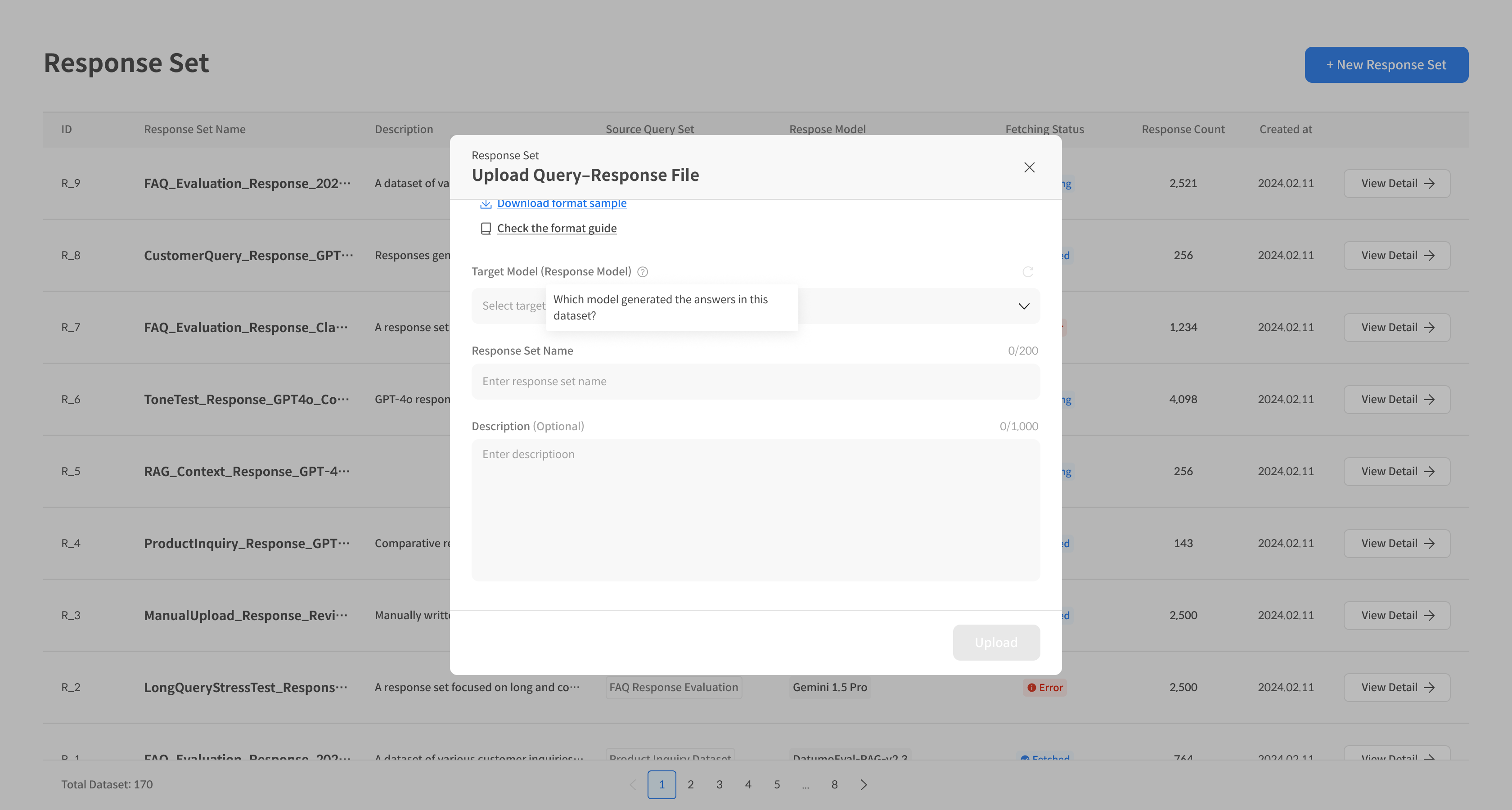
- Target Model: The name of the model that generated the response.
- Response Set Name: Required.
- Description: Optional.
- Click the Upload button to save.
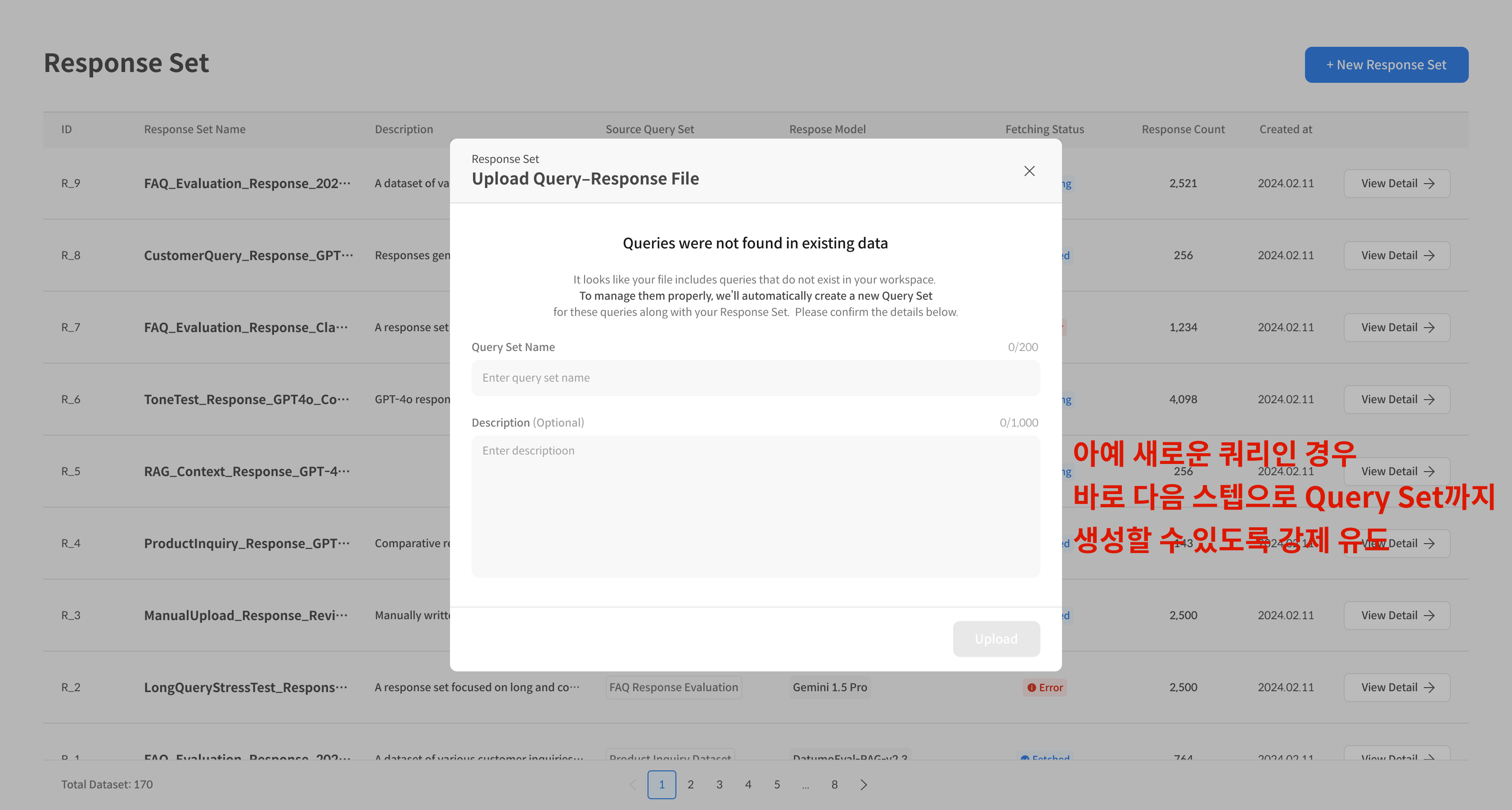
③ Special Case: Automatic Query Set Creation
If the Query of the uploaded Response Set does not exist in the existing Query Set:
- A new Query Set is automatically created.
- The automatically created Query Set is automatically linked with the uploaded Response Set.
- The linked Query Set becomes uneditable.
Creation Method B: Automatic Response Generation Based on Query Set
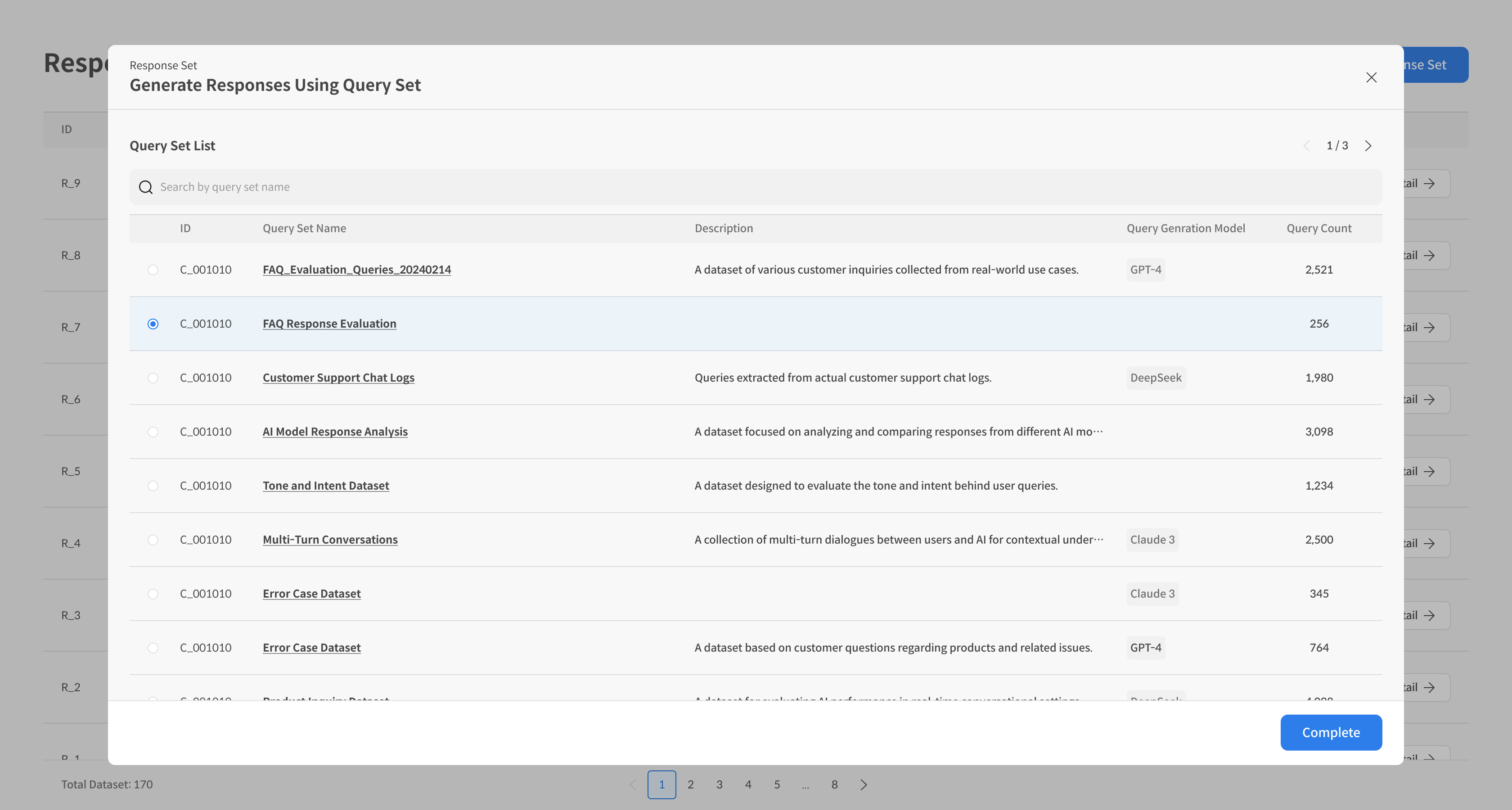
① Select Query Set
Select the Query Set for which to generate responses from the existing Query Set list.
② Set Response Generation Settings
- Select Response Model: GPT-4o, Claude 3.0, etc.
- Response Set Name: Required.
- Description: Optional.
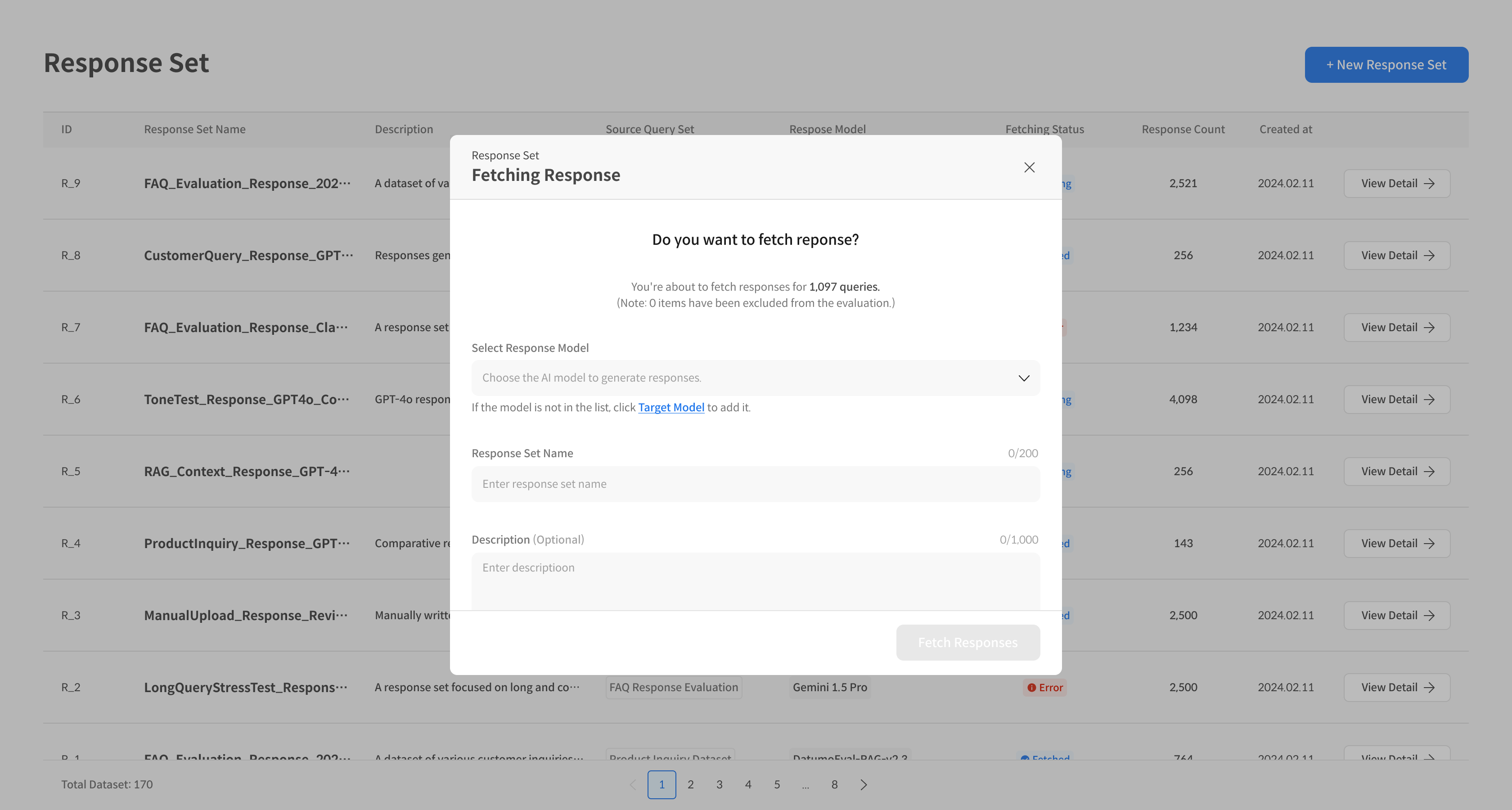
The Target Model entered when creating a Response Set is not just for recording the name of the model that created the response. This information is later used as a baseline for comparing and analyzing model performance on the Dashboard or Leaderboard during evaluation.
In other words, you must set the correct Target Model in the Response Set to clearly see the performance differences between models on the dashboard.
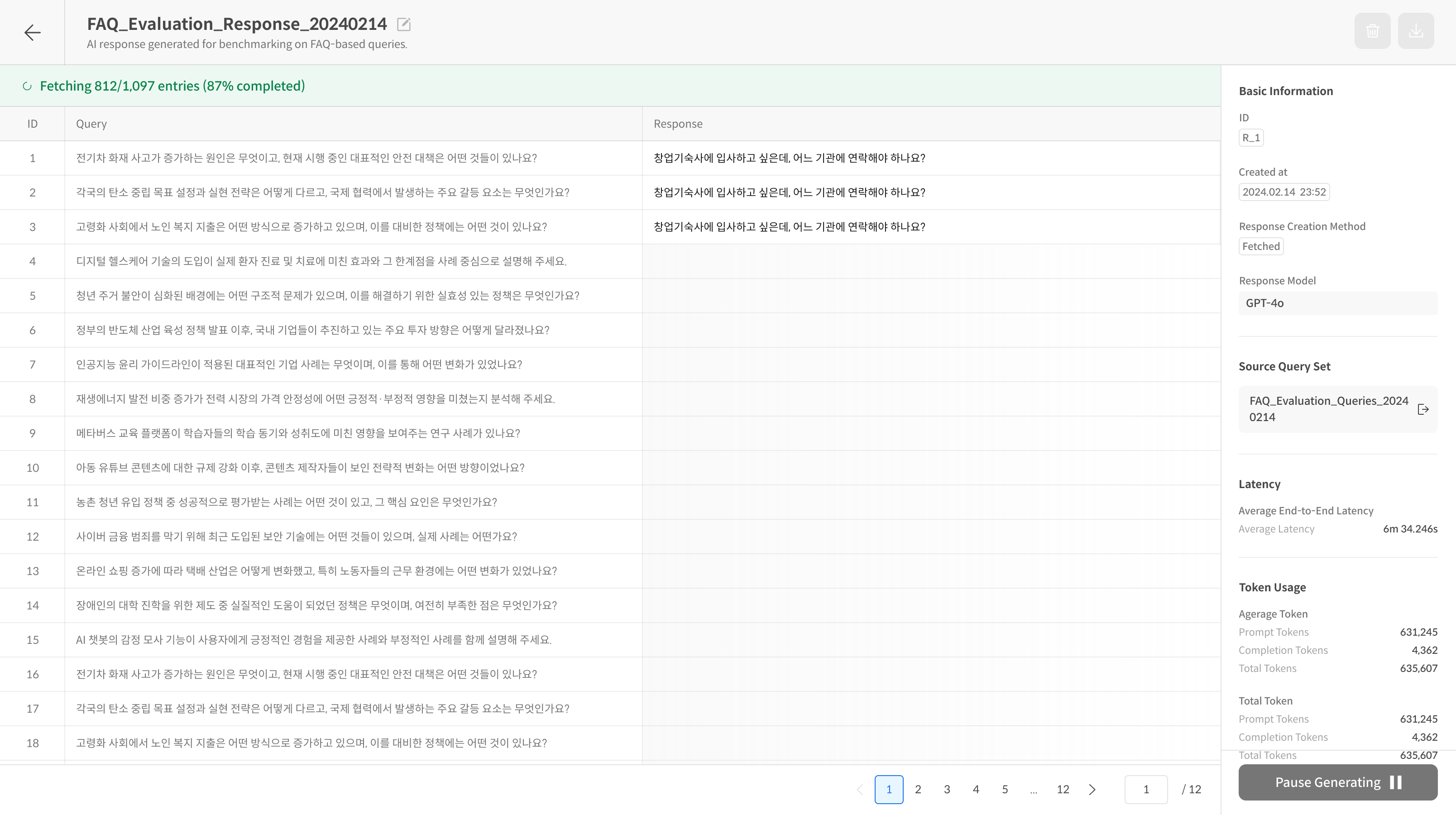
③ Execute Response Generation
- Click the Fetch Responses button.
- Response generation progress (%) can be checked in real-time.
- Wait for the generation to complete.
Step 2: Response Set Management
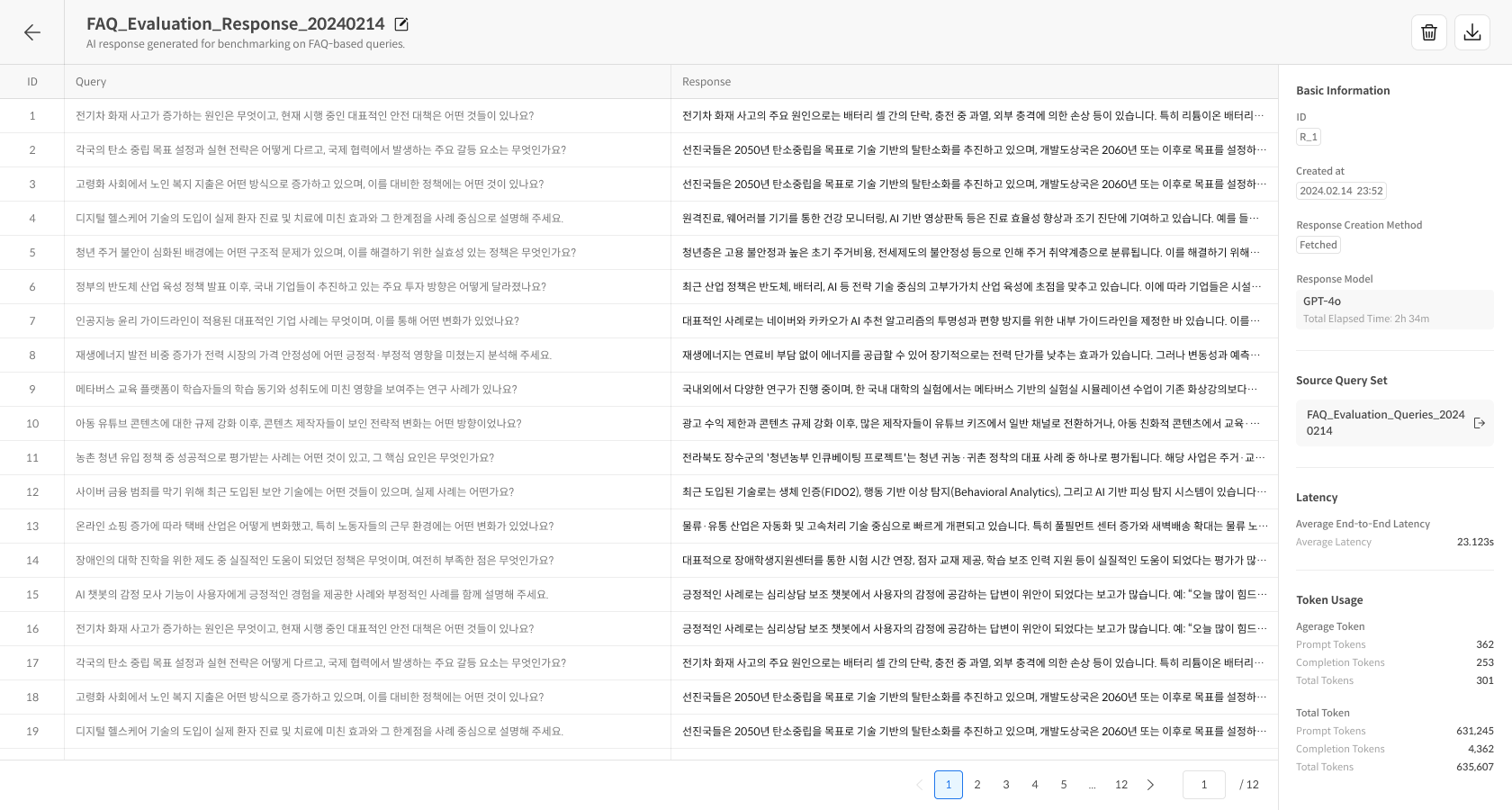
Check Response Set List
The created Response Set is displayed as a list:
- Response Set Name: Name of the response set.
- Source Query Set: Linked Query Set.
- Response Model: The response generation model used.
- Status: Complete/In Progress/Error.
- Number of Responses: Number of responses included.
- Creation Date: Date of creation.
Check Response Set Details
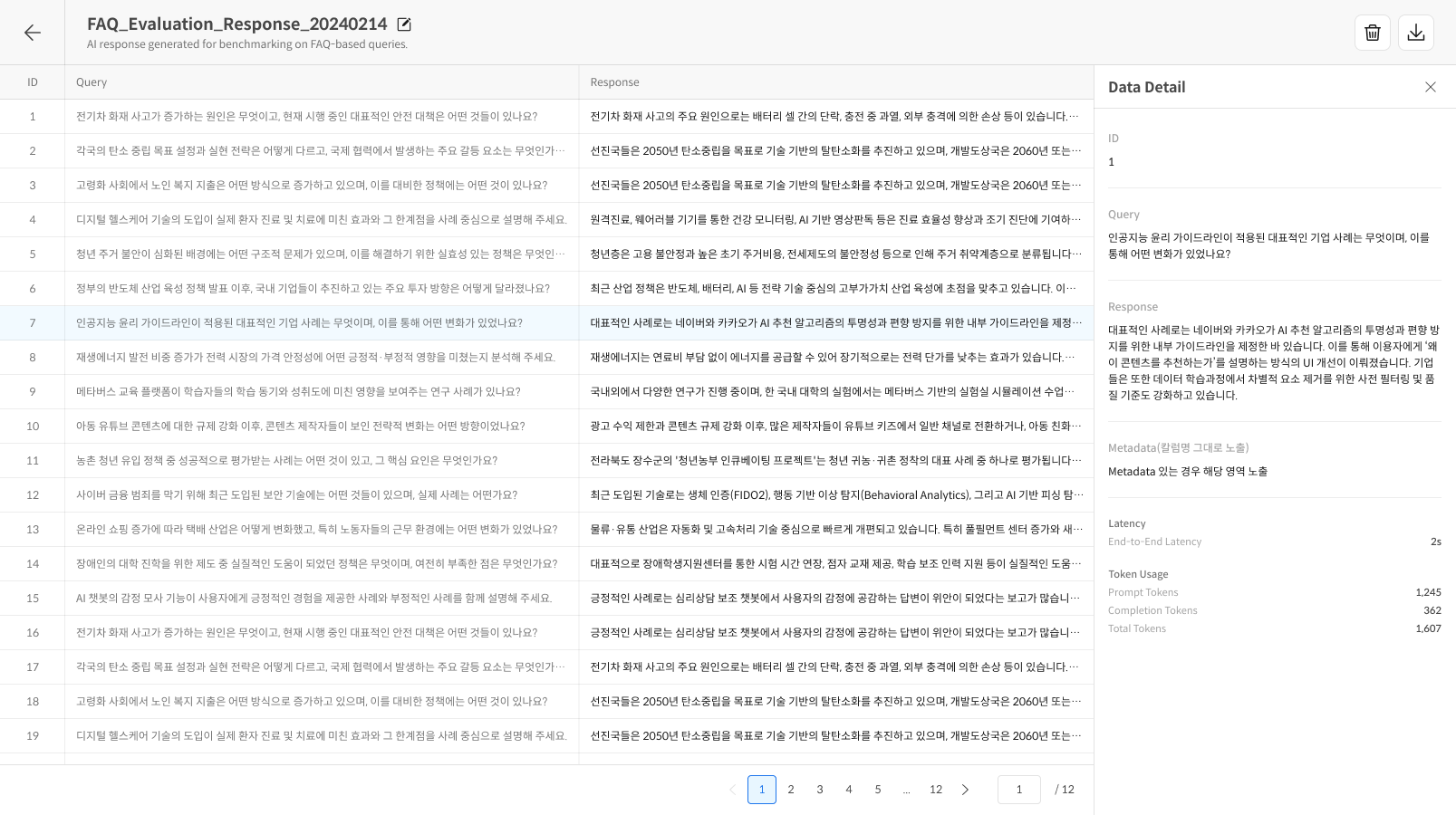
Click the View Detail button to check detailed information:
- Matching relationship between Query and Response.
- Individual response content and quality.
- Metadata information.
📁 File Format Guide
1. Required Columns
- id: Unique identifier.
- query: Question content.
- response: Response content.
2. Optional Columns & Response Specials
- retrieved_context: The reference context retrieved during response generation.
- retrieved_chunk: The reference document chunk retrieved during response generation.
Response special columns (retrieved_context, retrieved_chunk) are not processed as metadata and are used separately in evaluations such as RAG system evaluation.
3. Metadata Columns
- The first row of the uploaded file is recognized as the column name (field name).
- All columns except for the required and special columns are automatically processed as metadata.
- e.g.,
model,category,confidence→ They are preserved as is and can be used to filter or classify evaluation results.
CSV Format Example
id,query,response,retrieved_context,model,category,confidence
1,"What are the customer service hours?","Customer service is open from 9 am to 6 pm on weekdays.","FAQ document: Customer service hours are 09:00-18:00 on weekdays.","gpt-4o","hours","high"
2,"Please tell me about the refund policy.","You can apply for a refund within 7 days of purchase.","Refund policy: Refunds are possible within 7 days of product purchase.","gpt-4o","policy","medium"
3,"What is the shipping fee?","Shipping is free for orders over 30,000 won.","Shipping information: Free shipping for purchases over 30,000 won.","gpt-4o","shipping","high"
XLSX Format Example
| id | query | response | retrieved_context | model | category | confidence |
|---|---|---|---|---|---|---|
| 1 | What are the customer service hours? | Customer service is open from 9 am to 6 pm on weekdays. | FAQ document: Customer service hours are 09:00-18:00 on weekdays. | gpt-4o | hours | high |
| 2 | Please tell me about the refund policy. | You can apply for a refund within 7 days of purchase. | Refund policy: Refunds are possible within 7 days of product purchase. | gpt-4o | policy | medium |
| 3 | What is the shipping fee? | Shipping is free for orders over 30,000 won. | Shipping information: Free shipping for purchases over 30,000 won. | gpt-4o | shipping | high |
🔗 Connection Relationship with Query Set
⚠️ Important: Modification Restrictions
Response Set and Query Set are strongly linked, and the following rules apply:
1. When Creating a Response Set
- File Upload: If a Query does not exist, a Query Set is automatically created and linked.
- Query-based Generation: Automatically links with the selected Query Set.
2. Restrictions after Linking
- A Query Set linked with a Response Set cannot be modified.
- The content, order, and number of linked Queries cannot be changed.
3. Conditions for Modification
- Deleting all linked Response Sets restores the Query Set to an editable state.
💡 Response Set Utilization Tips
✅ Direct Upload Method
- Efficient when reusing existing model results.
- Utilize responses generated with external tools.
- Compare and analyze benchmark results.
✅ Automatic Generation Method
- Real-time model testing is possible.
- Generate responses under consistent conditions.
- Automatically process large volumes of responses.
✅ Quality Management
- Pre-review response quality.
- Classify using metadata.
- Compare results from various models.
⚠️ Precautions
- File Size Limit: Maximum 10MB per individual file.
- Encoding: UTF-8 recommended.
- Required Columns:
id,query, andresponsemust be included. - Query Consistency: The uploaded Query must match the existing Query Set.
- Connection Relationship: The linked Query Set cannot be modified after the Response Set is created.
❓ Frequently Asked Questions (FAQ)
Q. When is a Query Set automatically created when uploading a Response Set?
A. A new Query Set is automatically created when the Query in the uploaded Response file does not exist in the existing Query Set. The Query Set created at this time is automatically linked with the Response Set and becomes uneditable.
Q. I want to modify a linked Query Set.
A. A Query Set linked with a Response Set cannot be modified. If modification is necessary, please delete all linked Response Sets and then modify the Query Set, or create a new Query Set.
Q. Can I generate Responses from multiple models with one Query Set?
A. Yes, you can generate Response Sets for multiple models using the same Query Set. This allows for performance comparison between models.