ER (Expected Response) Generation
The Expected Response (ER) generation feature allows the model to automatically create an expected response for a Query Set with Context.
This enables you to build Query–Response pairs simultaneously and utilize them for evaluation.
🔹Step 1. ER Generation Methods
ER generation can be performed in two ways:
- Path A: Generate along with query creation — After uploading a Context Set, you can generate ERs together during query creation.
- Path B: Generate separately after query creation — For Query Sets linked to a registered Context, you can generate ERs from the detail page using the ER Generate button.
- A. Generate along with query creation
- B. Generate separately after query creation
A. Generate ERs together with query creation
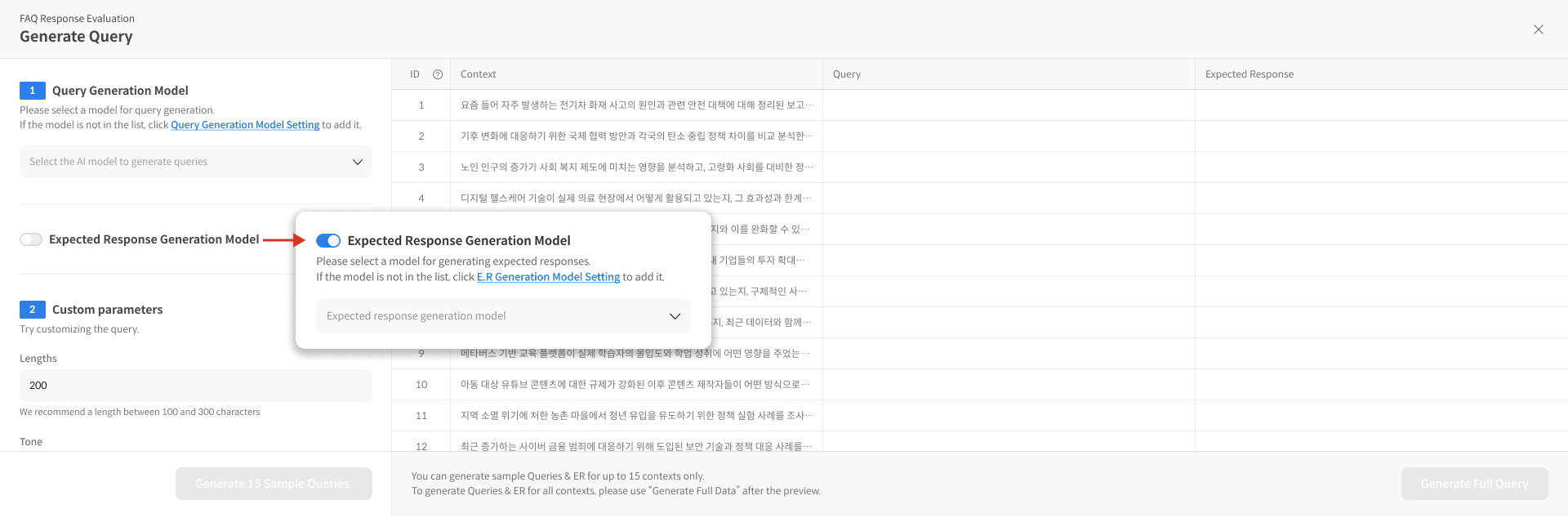
When creating a Query Set, turning ON the “Generate Expected Response” toggle enables the model to automatically generate expected responses during the query creation process.
-
When the ER generation toggle is enabled, an Expected Response configuration section appears on the creation screen.
-
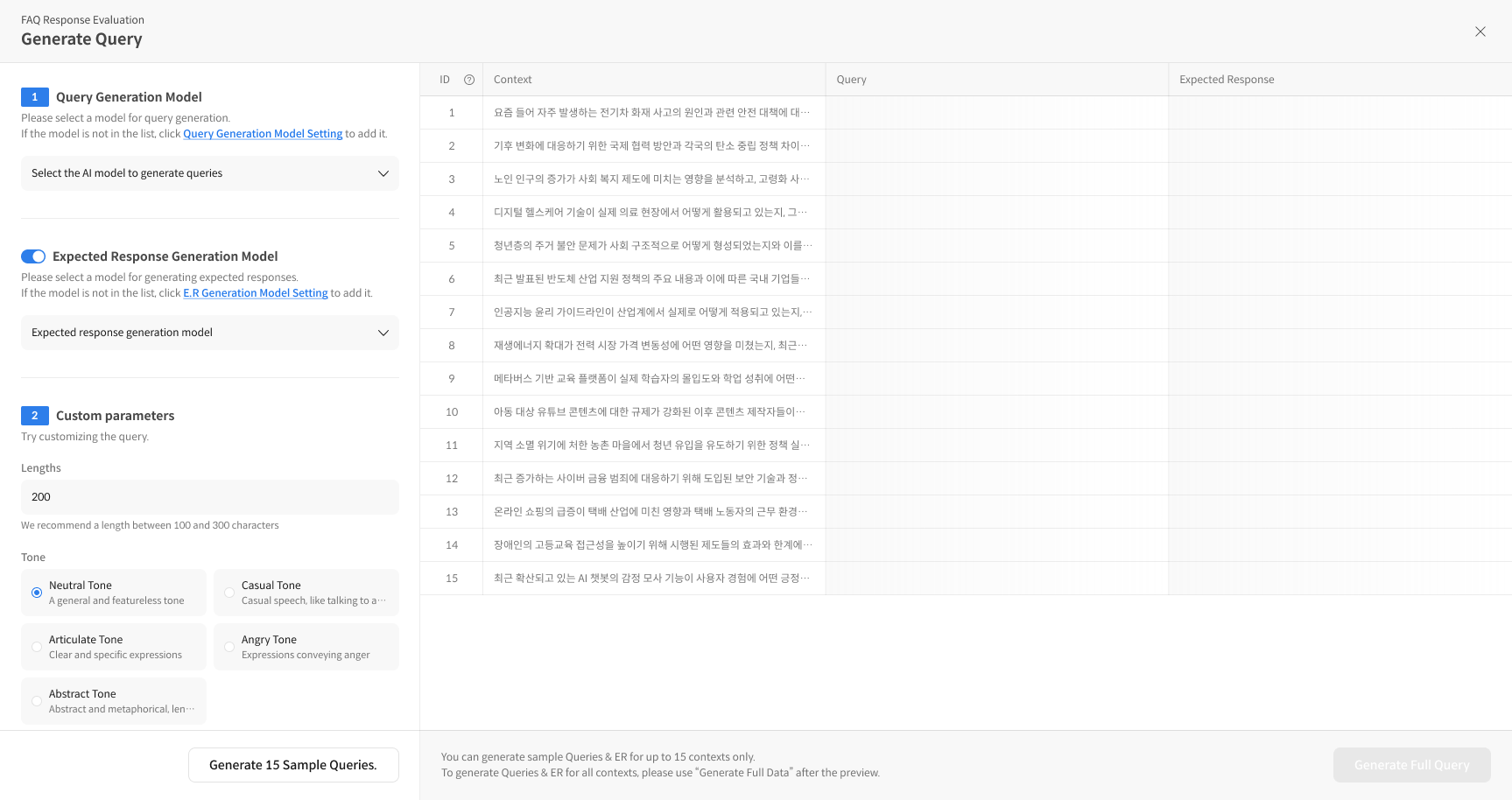
Select the Model/Agent responsible for ER generation.
- Examples: GPT-4o, Claude 3, internal chatbot, etc.
- If no ER model is registered, you can add one through the [Model/Agent Setting] menu.
-
Once a model is selected, an
expected_responsecolumn will be automatically created when generating sample queries,
allowing you to manage Query–ER pairs simultaneously.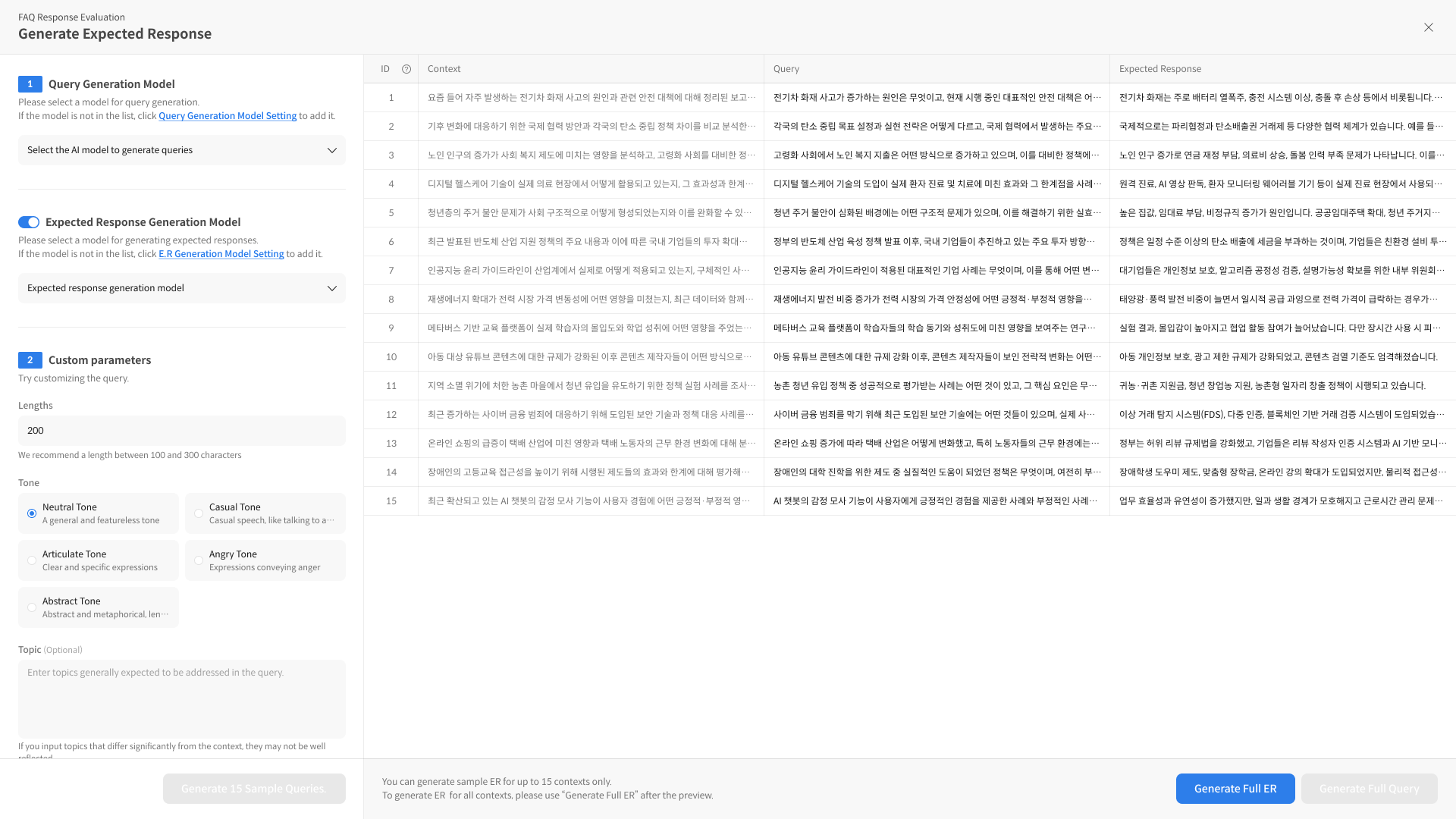
B. Generate ERs separately after query creation
If a Query Set has already been created and is linked to a Context Set,
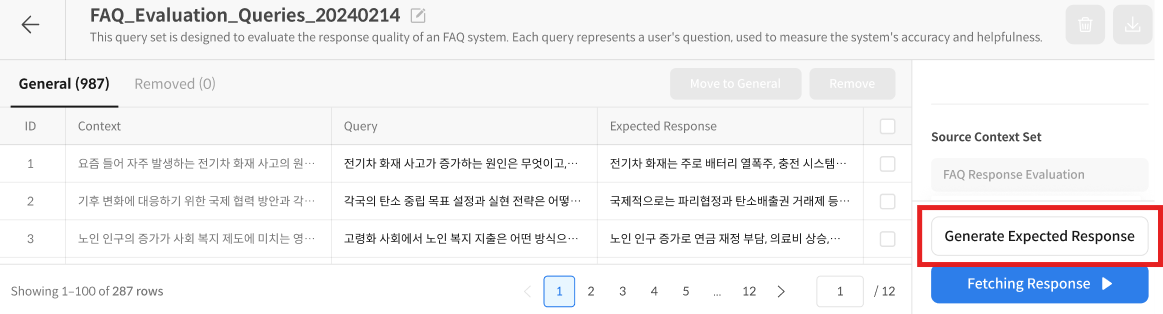
you can generate ERs separately from the Query Set detail page using the ER Generate button.
- Condition: The Query Set must be linked to a specific Context Set.
- How to execute:
-
On the Query Set Detail page, click Generate ER at the bottom right.
-
The selected model will automatically generate expected responses based on each Query.
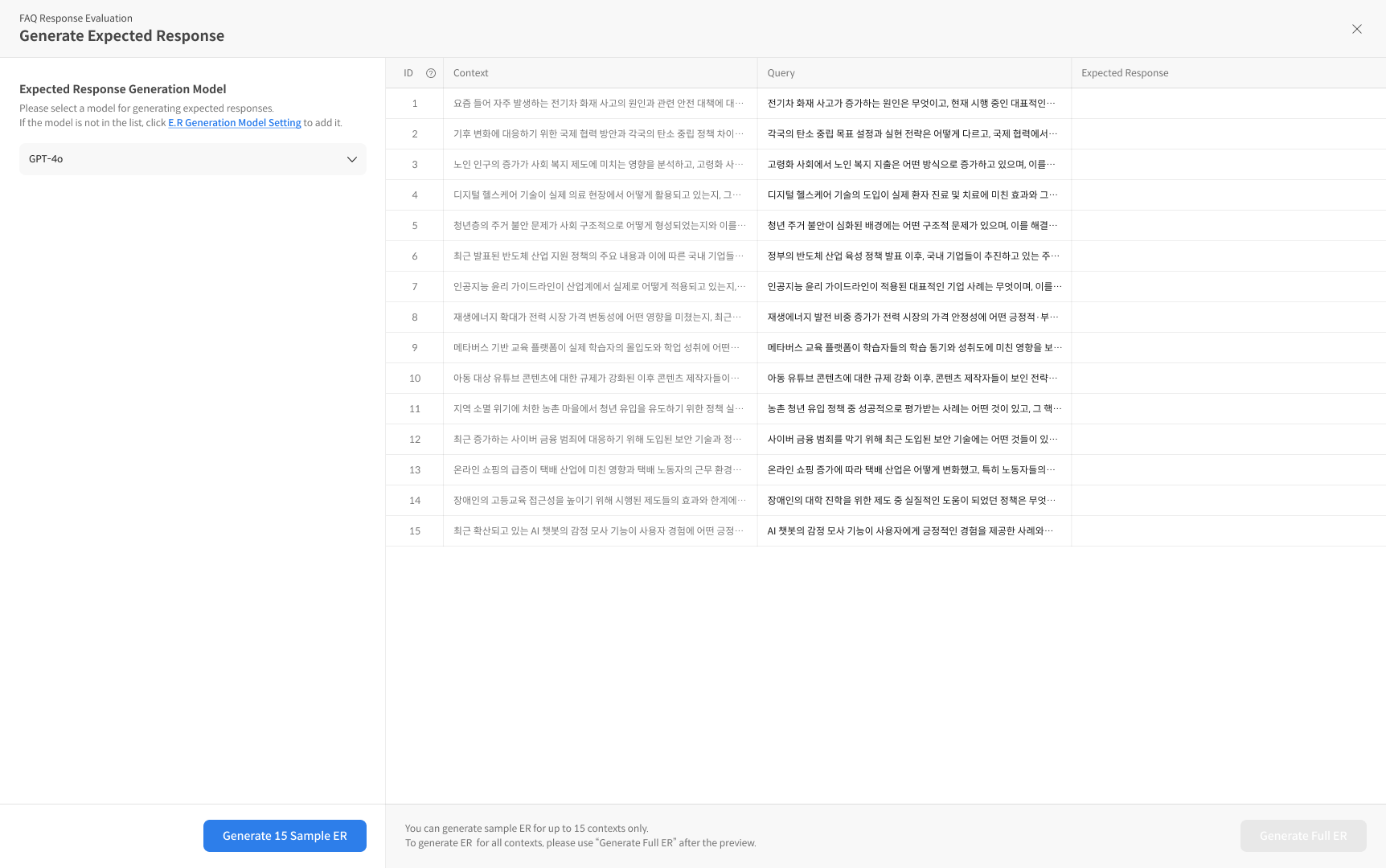
-
The generated ERs will be added to the
expected_responsecolumn within the Query Set.
🔹Step 2. Managing ERs
🛠️ Pause / Resume / Delete
You can monitor the progress of ER generation in real time from the Query Set detail page.
Depending on the current status, the following actions are available:
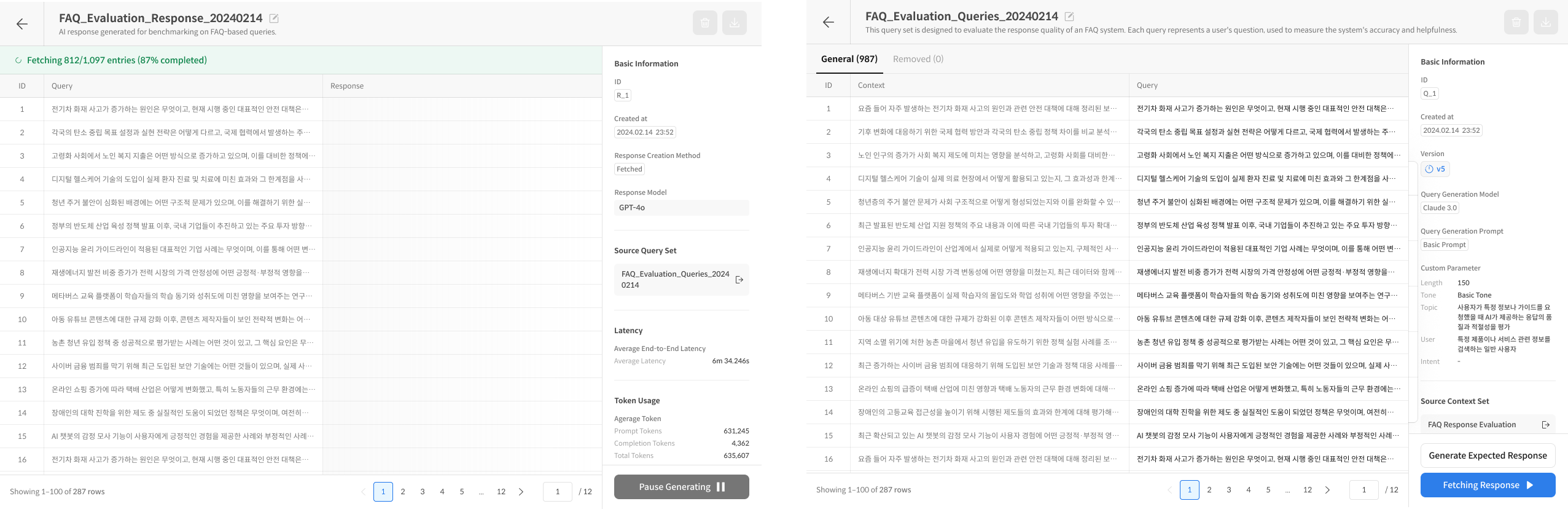
- Pause: Temporarily pauses the ongoing ER generation process.
- Resume: Resumes a previously paused ER generation process.
- Delete: Deletes the entire Query Set if completed or failed. (All ER data contained within the Query Set will also be deleted.)
Results are displayed in batches of 10 during generation, and you can stop the process at any time.
❗Error Handling
If errors occur during ER generation, they can be reviewed collectively on the Error page.
Error items will appear with the status "Sorry, an Error...", and can be handled as follows:
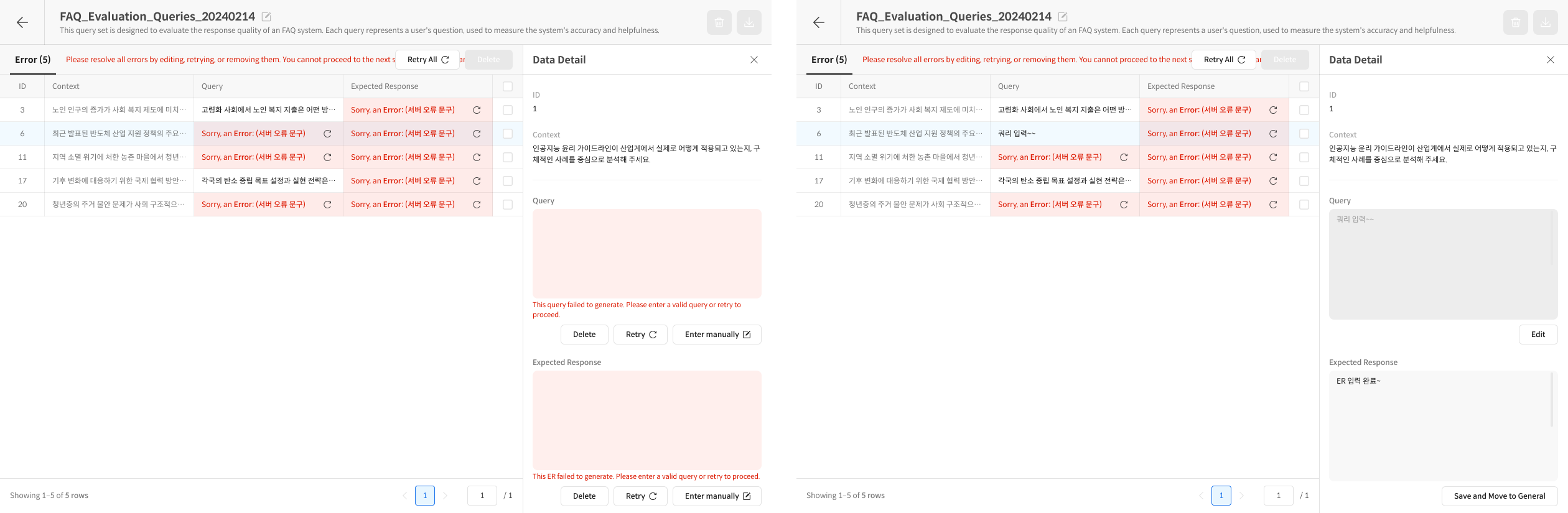
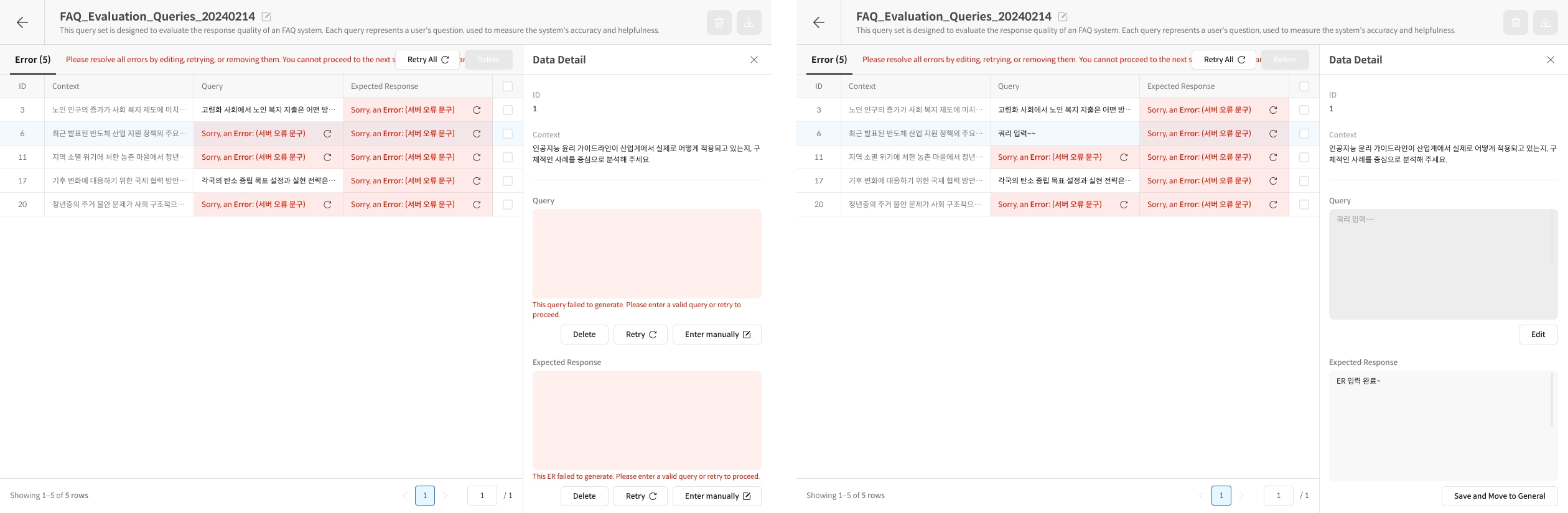
- Retry All: Retry all error items at once.
- Retry (Individual): Retry selected items individually.
- Delete: Delete items that are unnecessary or continue to fail.
- Enter manually: Manually input or edit the ER.
All errors must be resolved before proceeding to the next step (e.g., Response Set generation).
⚠️ Notes and Cautions
- ER is an optional feature that allows you to create Query–Response pairs at once.
- Changing the ER model may affect generation results, so it is recommended to use a consistent model within the same project.
- Generated ER data is not automatically linked to the Response Set and will be used later during evaluation.
- Paused ER generation sessions will automatically expire after 24 hours.