+ Query / Use Custom Prompt
Generate Queries Using a Custom Prompt
This document explains how to generate Queries using a Custom Prompt.
It describes the differences from the basic generation flow and walks through the setup process step by step.
You can generate customized Queries by applying a pre-defined Query Generation Prompt.
Steps ①–③ follow the same process as [a. Basic Generation].
Using a Custom Prompt only affects how Queries are generated.
It works independently of whether Expected Response (ER) generation is enabled.
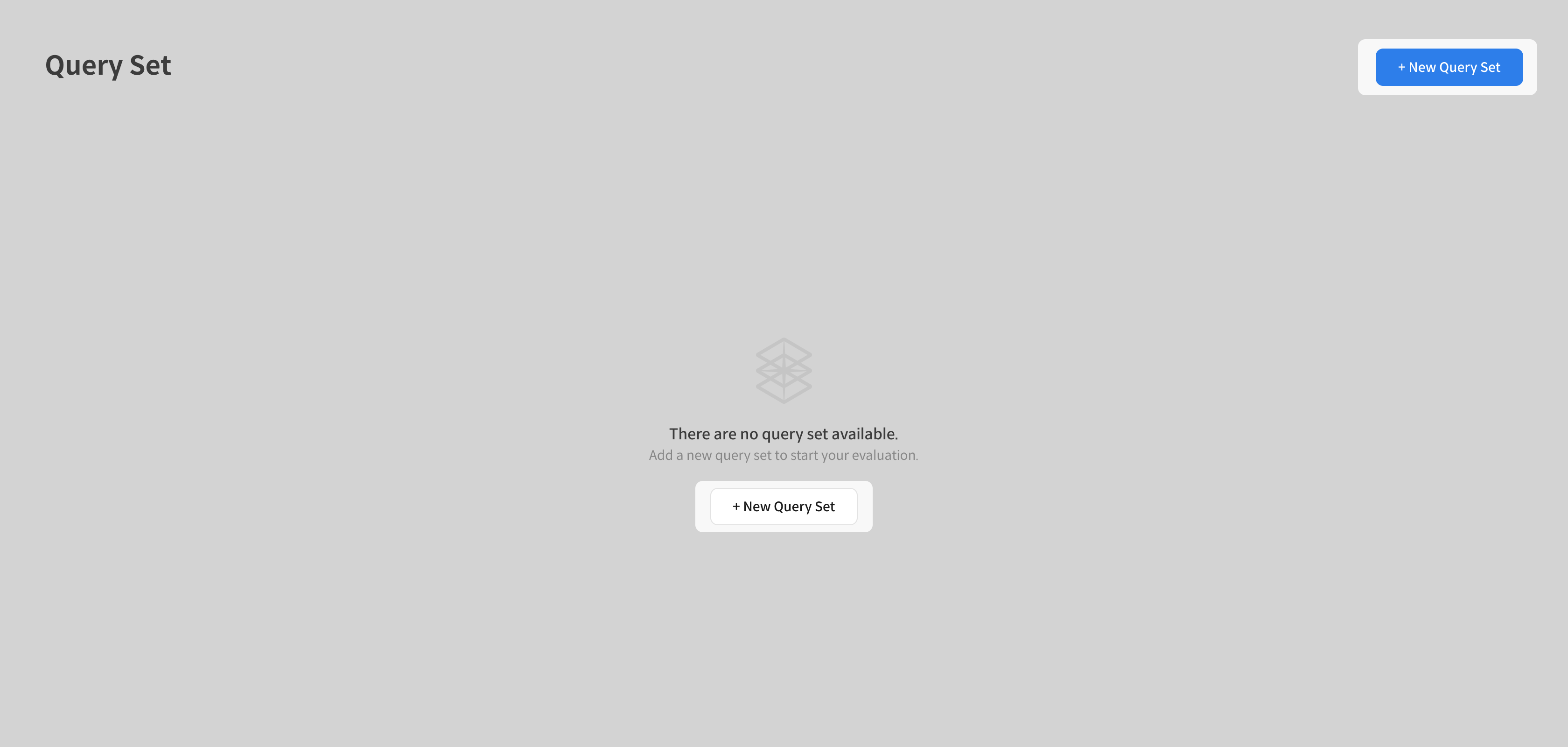
① Access the Query Set creation page
Click the [+ New Query Set] button in the top-right corner.
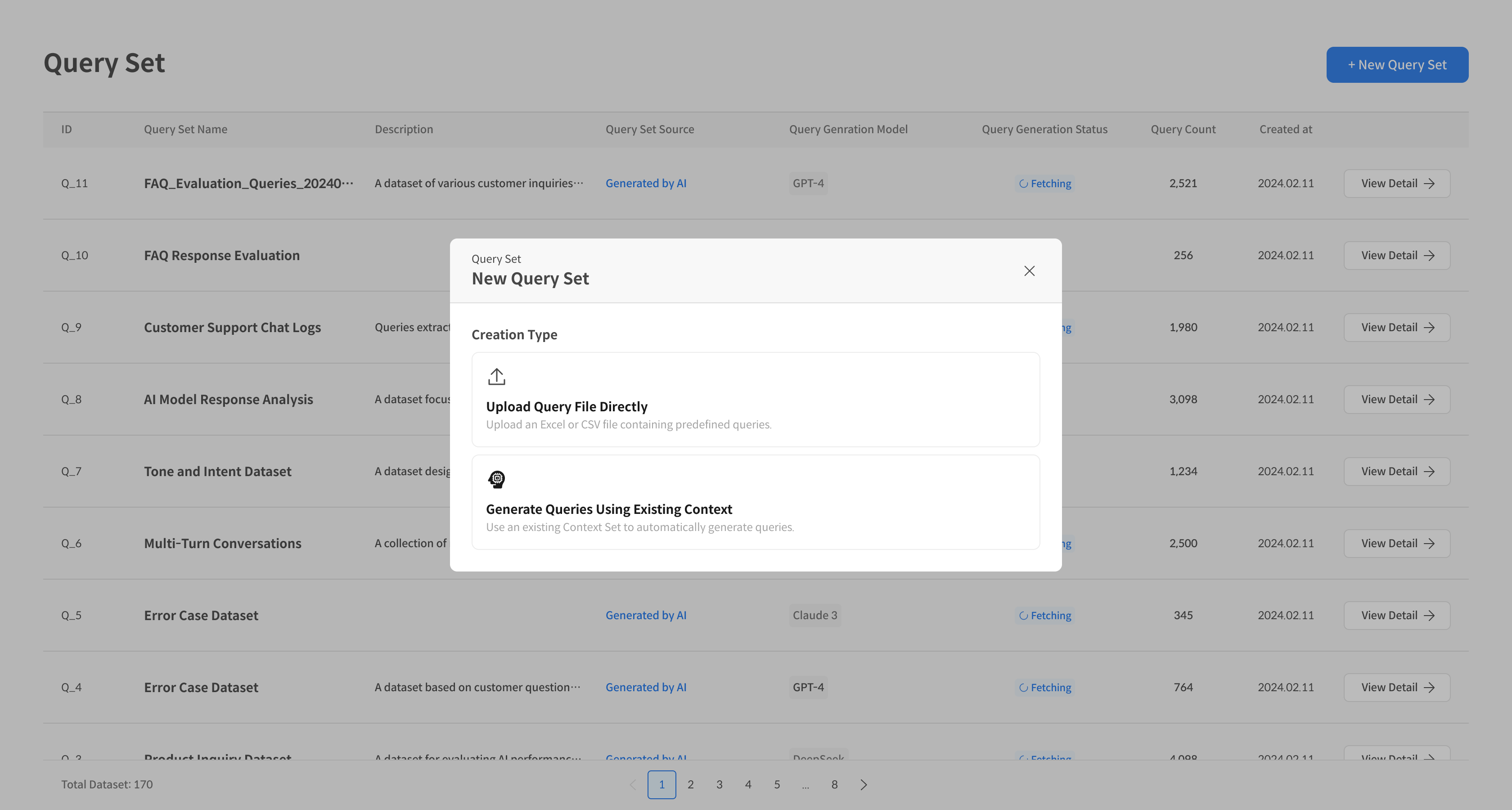
② Select the generation method
From the options, select [Generate from Context Set].
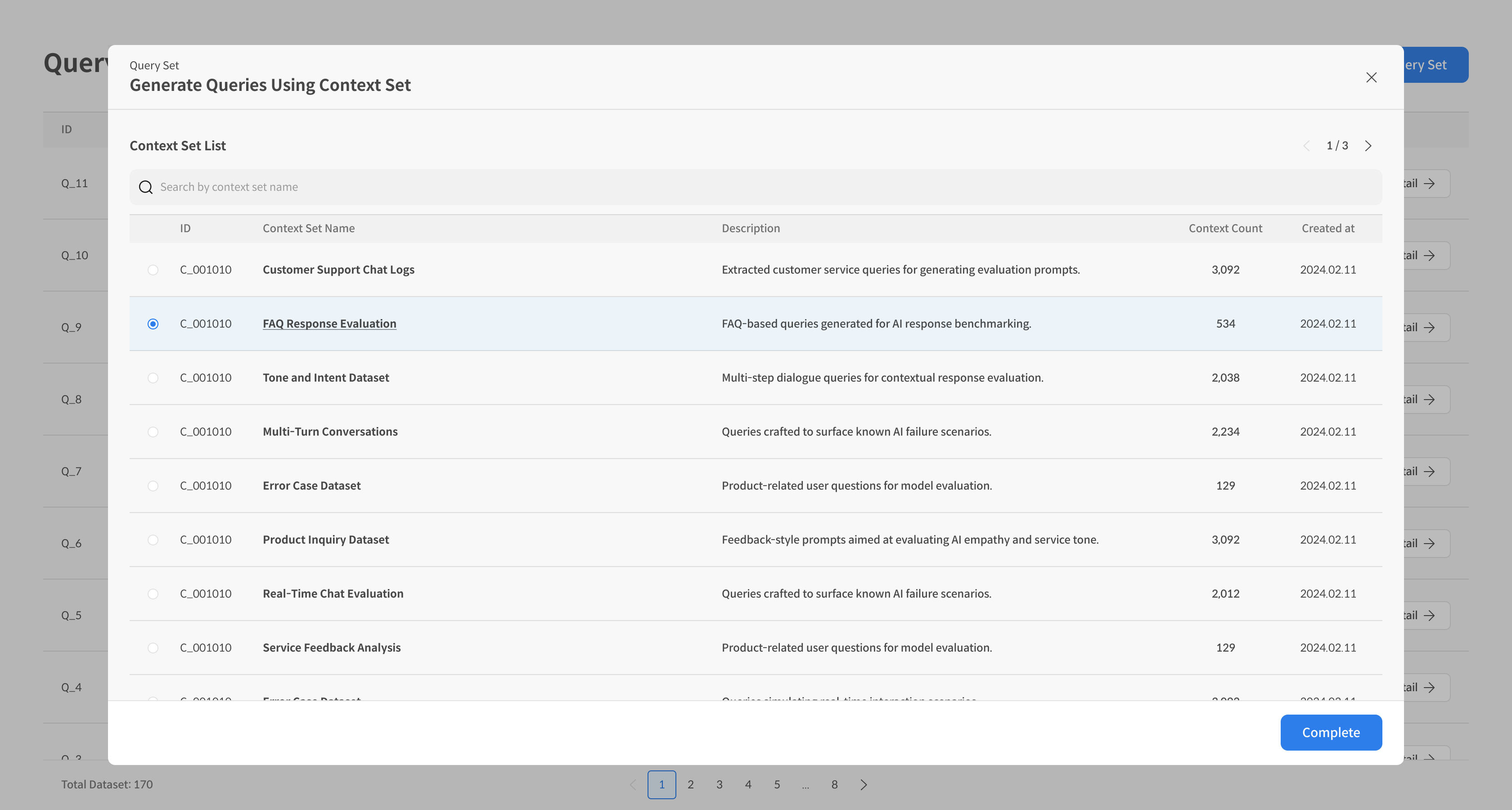
③ Select a Context Set
Choose the Context Set that will be used as a reference for Query generation.
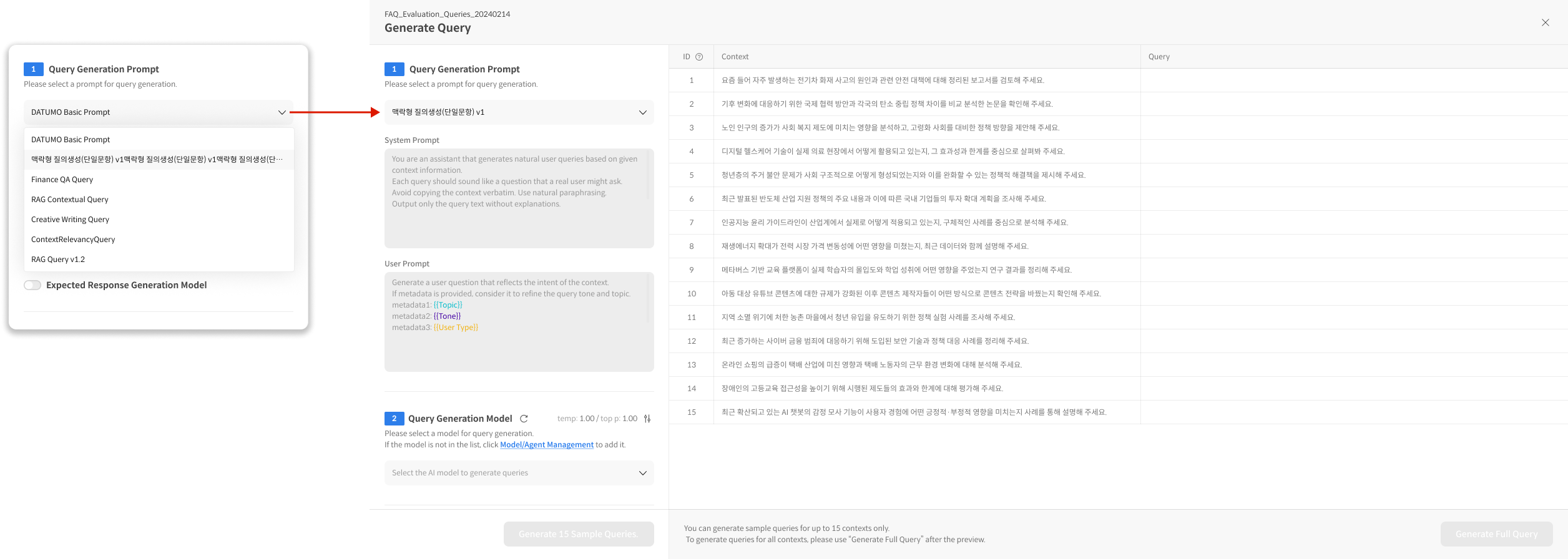
④ Select a Query Generation Prompt
Only active Prompts are displayed in the dropdown list.
To add a Prompt other than the default Datumo Basic Prompt, refer to
Query Generation Prompt Management.
⑤ Select a Query Generation Model
Choose the Model/Agent to be used for Query generation.
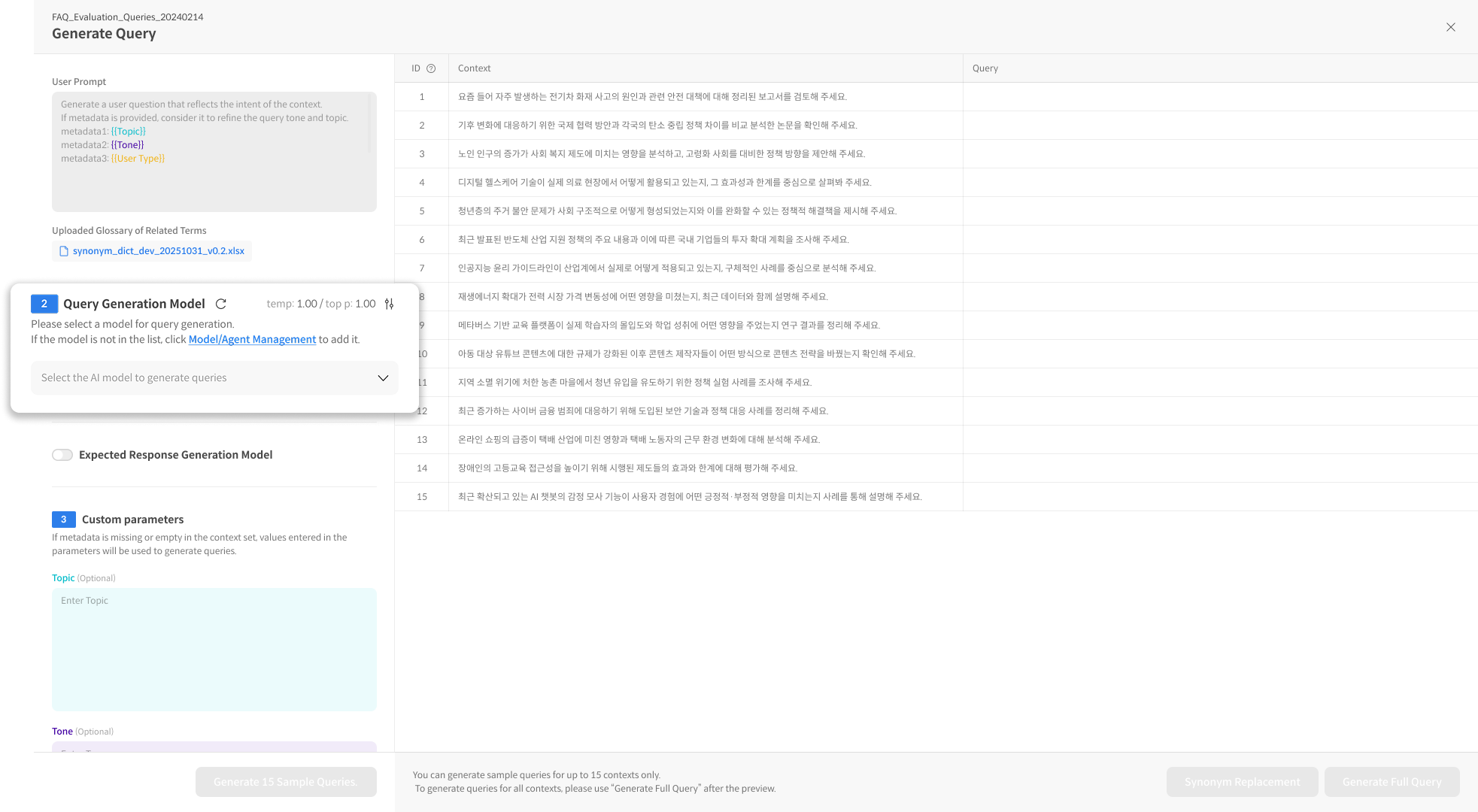
⑥ Configure Custom Parameters
If the selected Prompt includes metadata variables, the corresponding input fields will be enabled.
The values entered here are applied directly during Query generation.
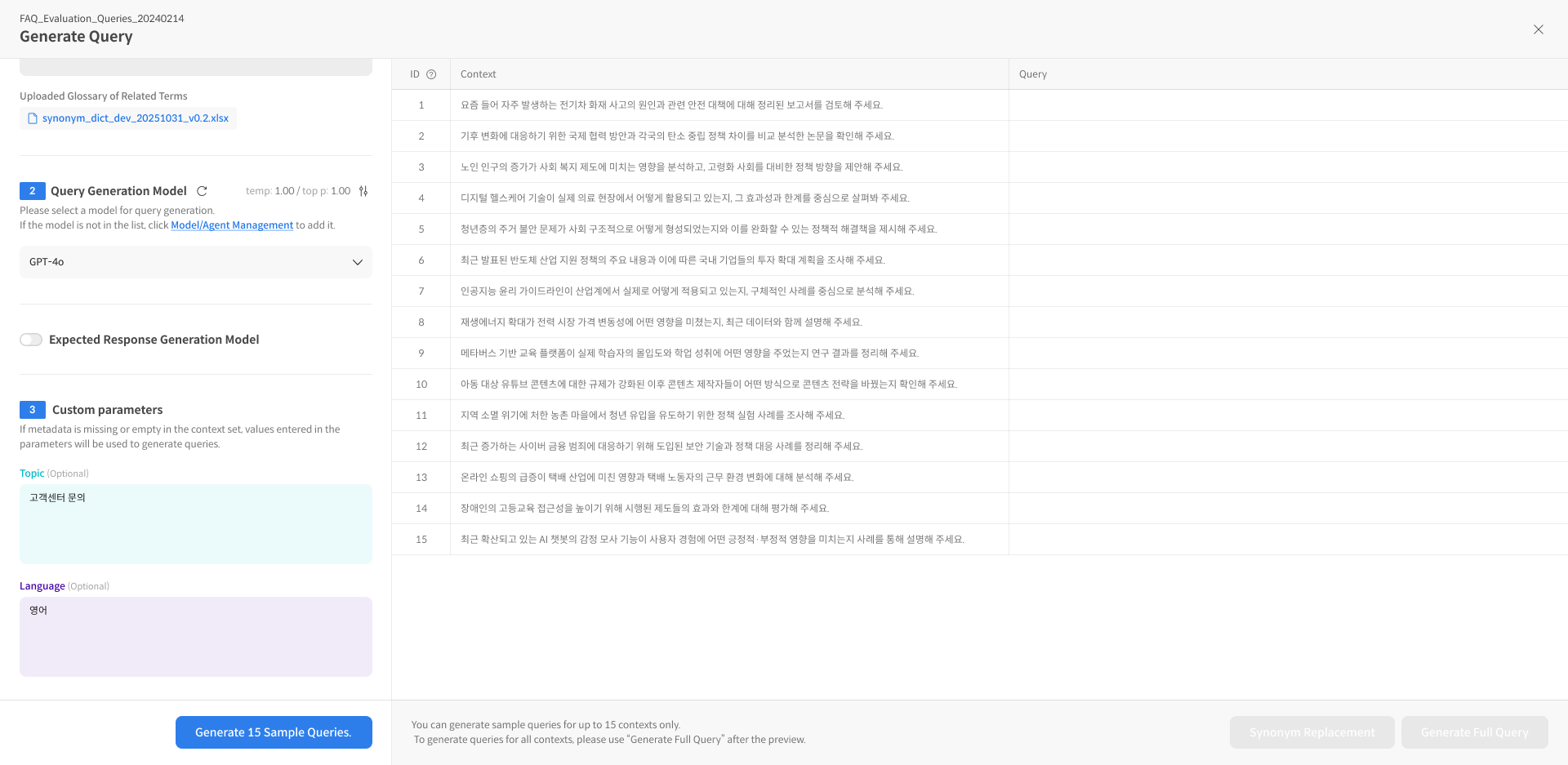
⑦ Generate sample Queries
Click [Generate 15 Sample Queries] to review sample results first.
Click a generated Query to view its details.
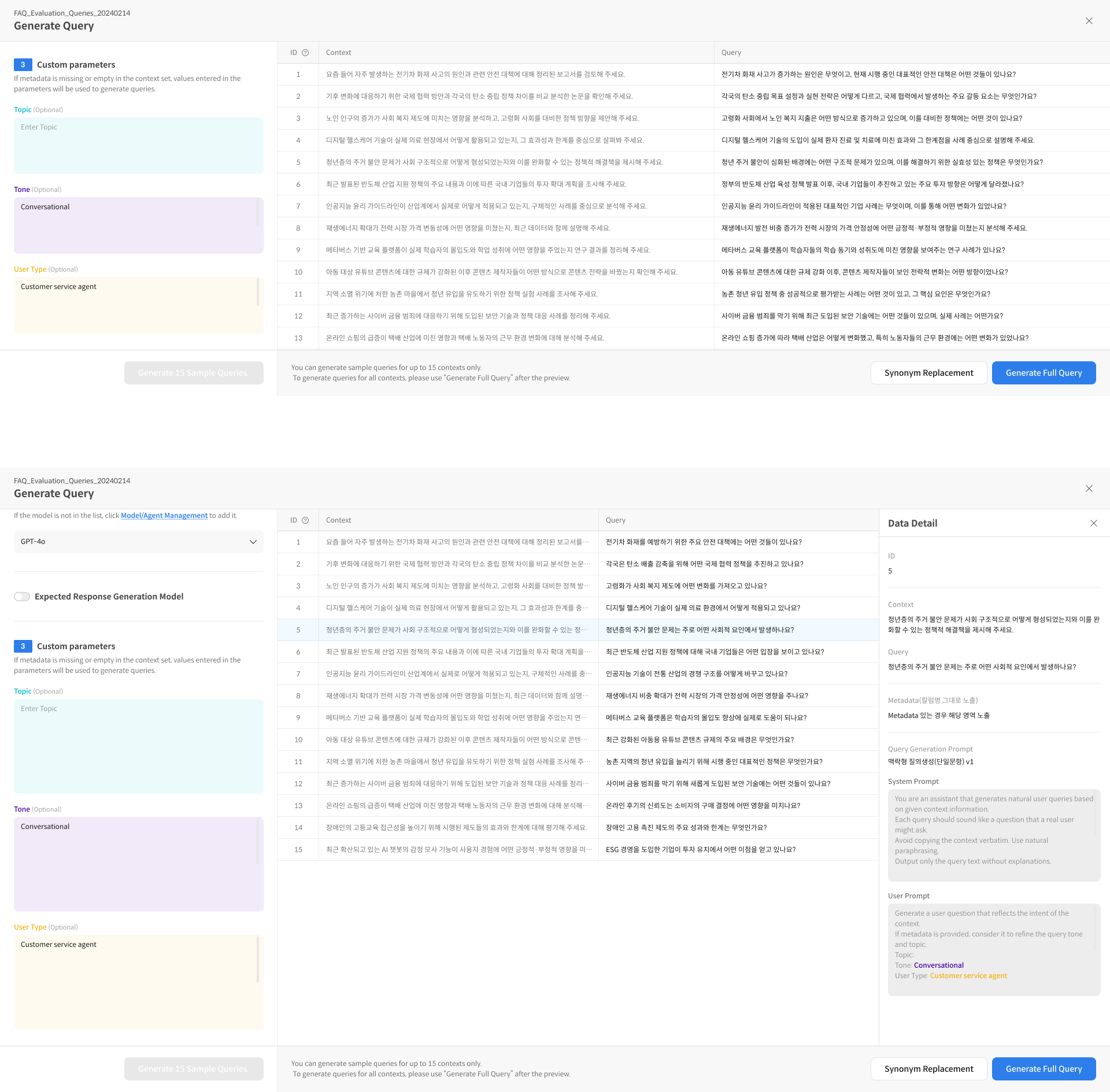
You can review the applied Prompt and the generated Queries in the Data Detail panel on the right.
⑧ Test synonym replacement (optional)
If a Glossary is registered in the Prompt, click [Synonym Replacement] to test synonym substitution.
⑨ Generate all Queries
After reviewing the samples, click [Generate Full Data].
If [Apply Synonym Replacement to All Queries] is checked, the Glossary will be applied to all generated Queries.