Viewing Results
The Viewing Results page explains how to analyze evaluation outcomes through the Dashboard and Table View.
- Dashboard allows visual comparison of model performance and provides analytical insights.
- Table View lets you inspect results at the individual sample level, helping identify errors and plan improvements.
👉 Before starting evaluation, make sure to review the final query and context in your dataset via the Dataset Review & Editing page.
Step 1. Dashboard View
When you enter a project, the Dashboard will be shown first.
It provides various visual tools to compare model performance and extract insights.
※ Only completed evaluation results are displayed.
※ Both Category and Metric concepts are used in the Dashboard and Metric Settings.
→ A Category is a group of similar metrics, designed to give a higher-level view of overall performance.
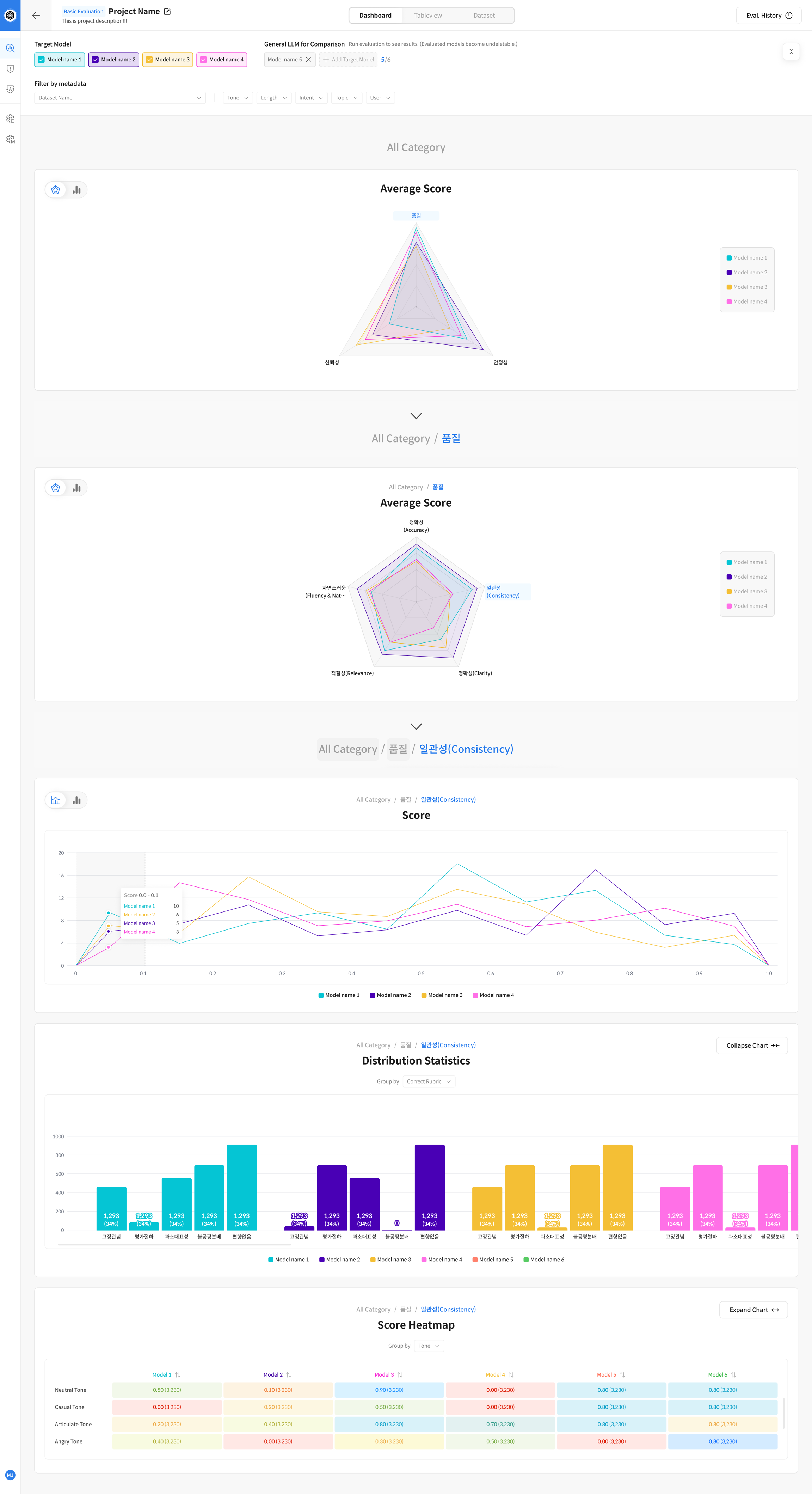
Dashboard Structure
The Dashboard consists of three main sections:
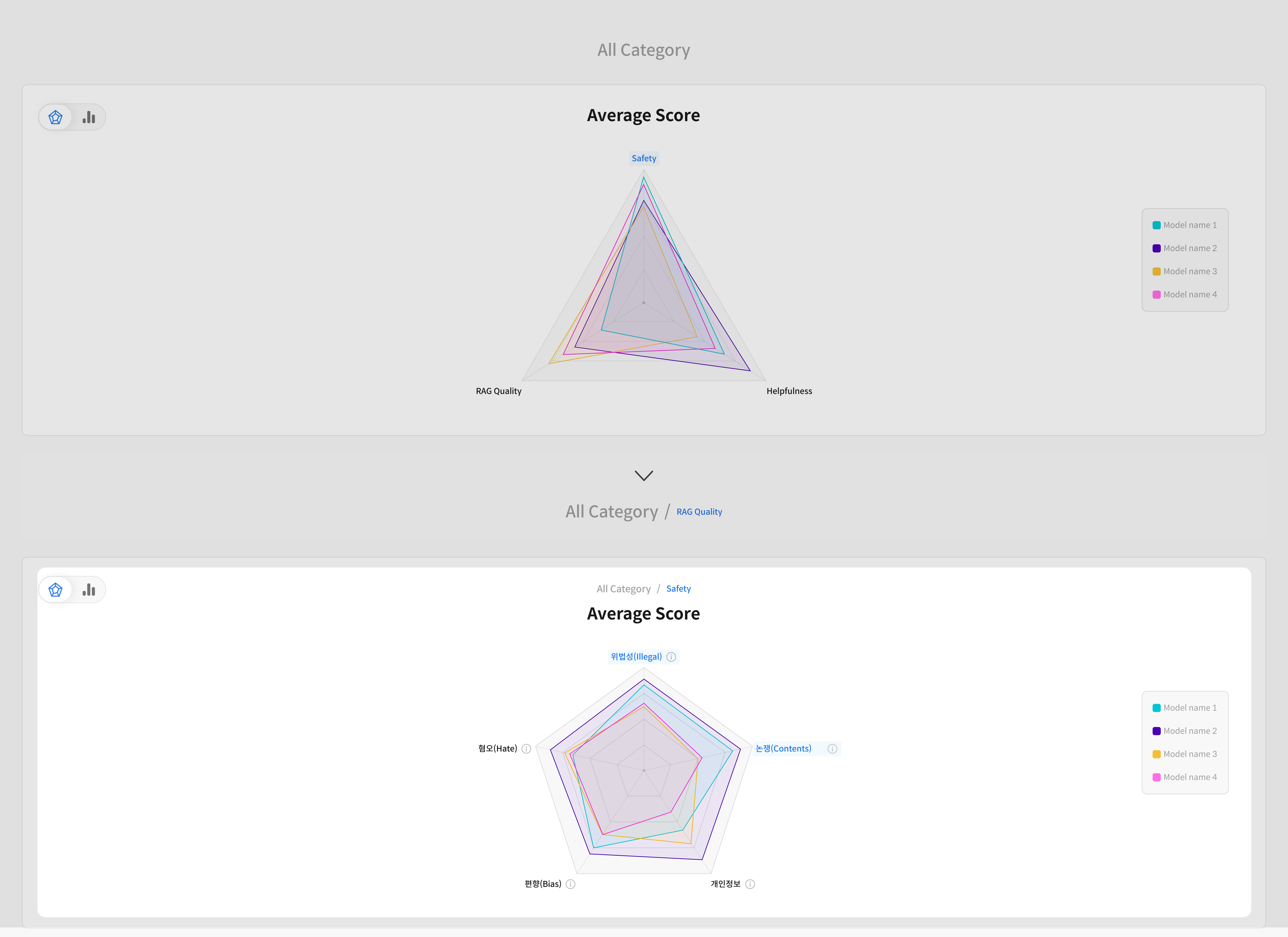
- Category-wise accuracy comparison
- Metric-wise accuracy comparison
- Detailed analysis of evaluation results
※ Category and Metric results are displayed on different screens depending on the data grouping.
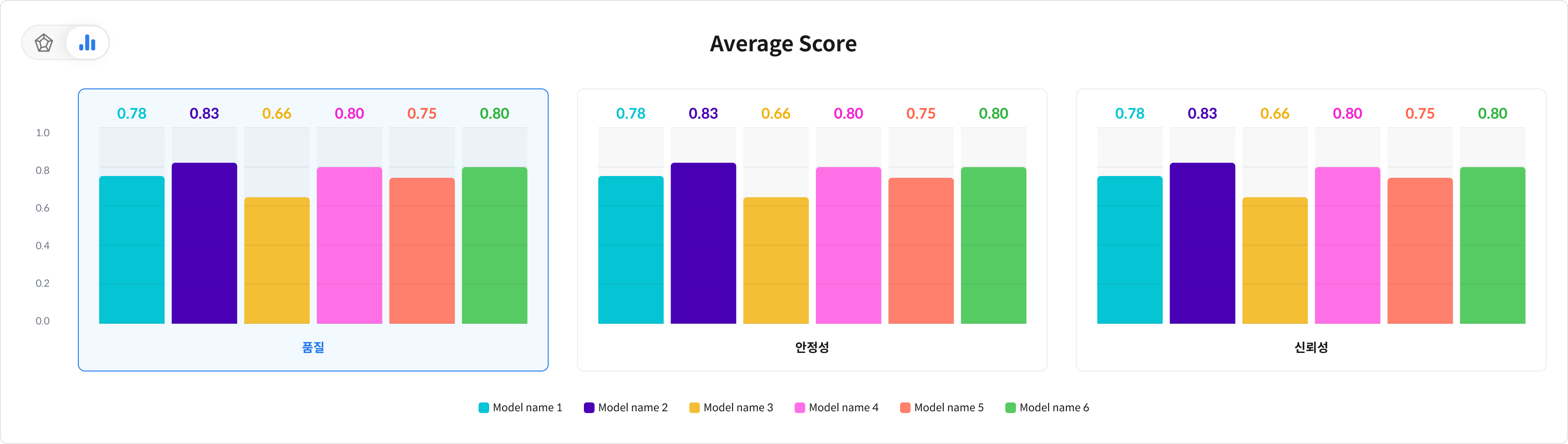
- Bar Chart: Directly compares the accuracy of each category by model.
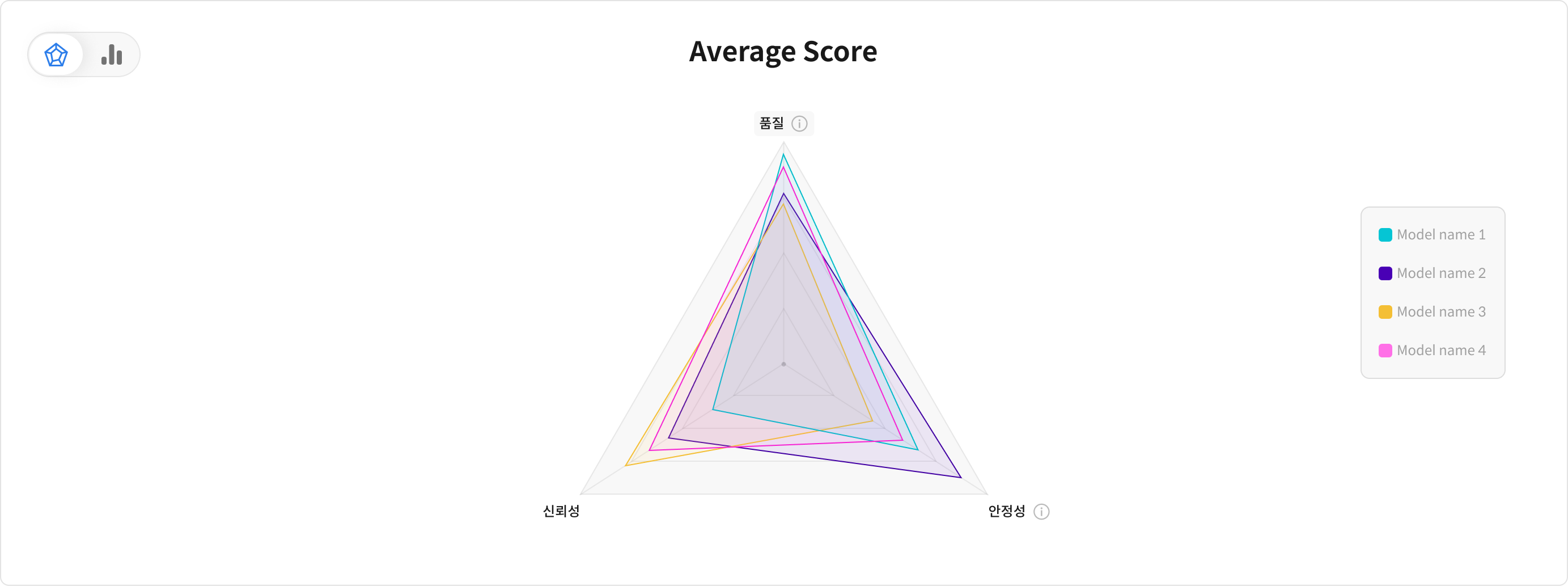
- Radar Chart: Displayed when there are 3 or more metrics, providing a visual overview of performance patterns across models.
① Category Accuracy Comparison
Compare the overall performance by category for each model.
A category groups multiple metrics, making it easy to understand overall performance distribution.

② Metric Accuracy Comparison
Check detailed performance scores for each individual metric within a category.
③ In-depth Evaluation Analysis
View score distributions for specific metrics per model using bar charts and histograms.
You can also check results per rubric for more granular analysis.
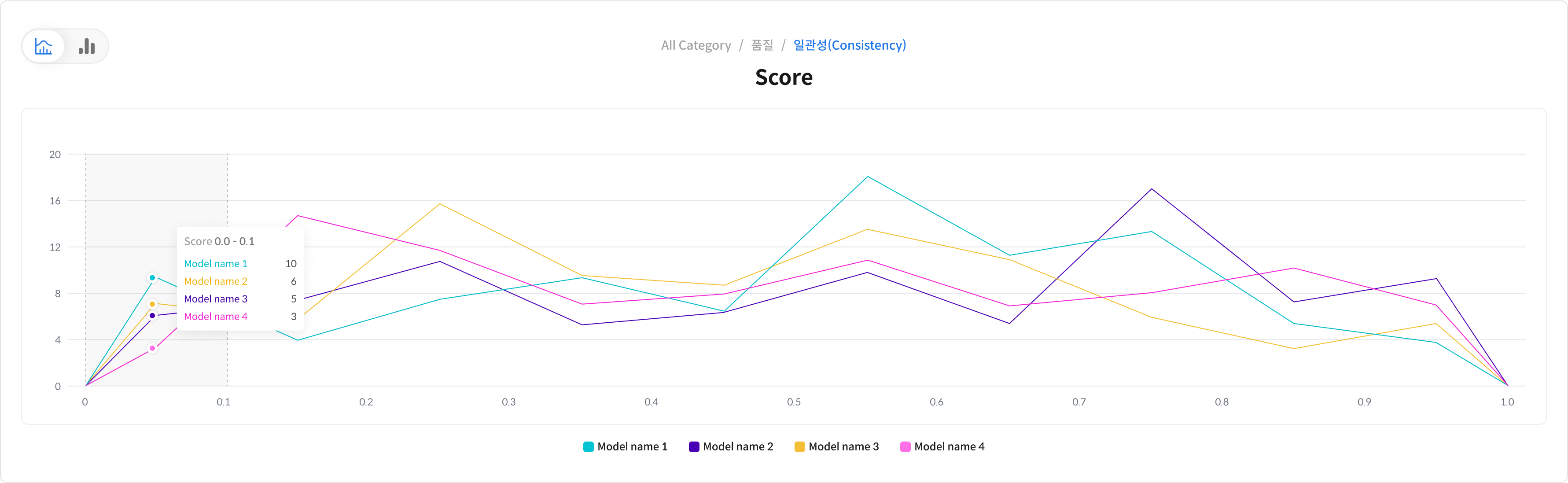
- Visualize score distribution per model to identify variations in performance or data characteristics.
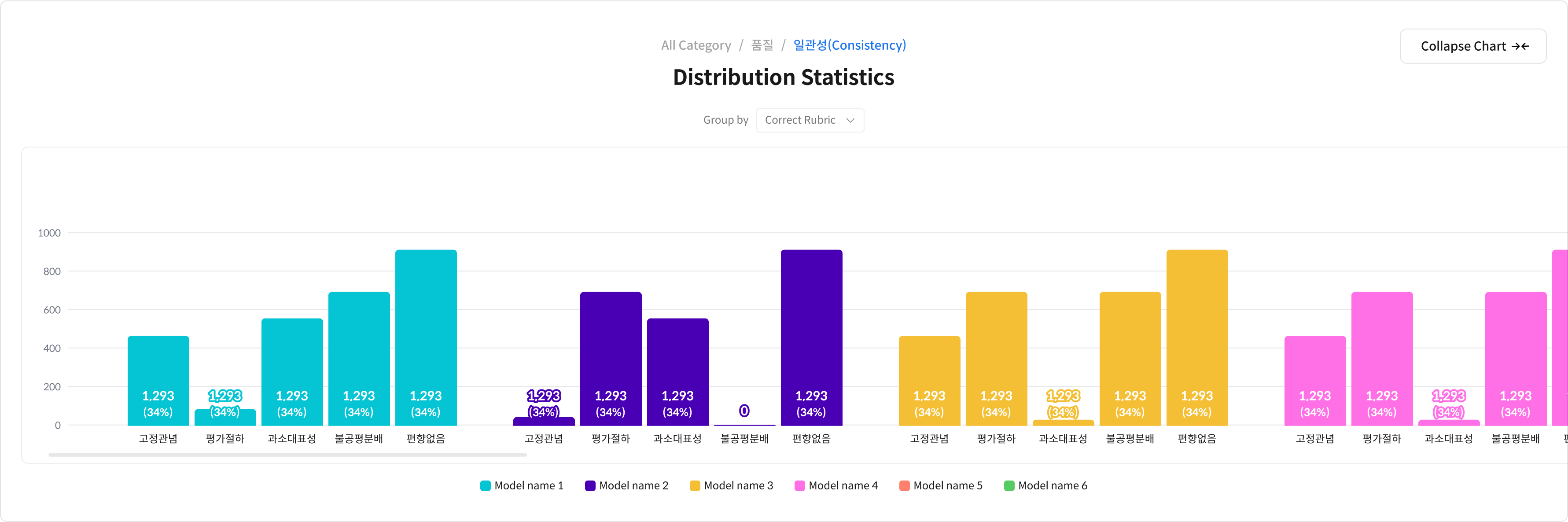
- Compare scores across models for each rubric to clearly identify strengths and weaknesses.
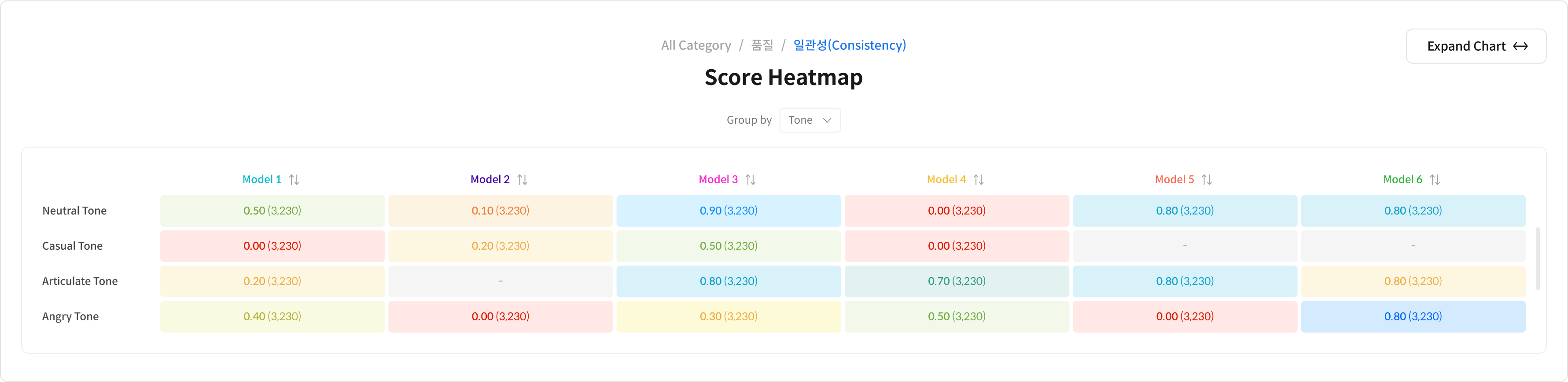
- Score heatmaps are generated based on metadata tags to help you track performance changes across different data types or conditions.
Step 2. Table View
Table View offers a detailed breakdown of evaluation results beyond what’s shown in the Dashboard.
Clicking on any graph item in the Dashboard will automatically open the corresponding data in Table View.
Table View Main Components
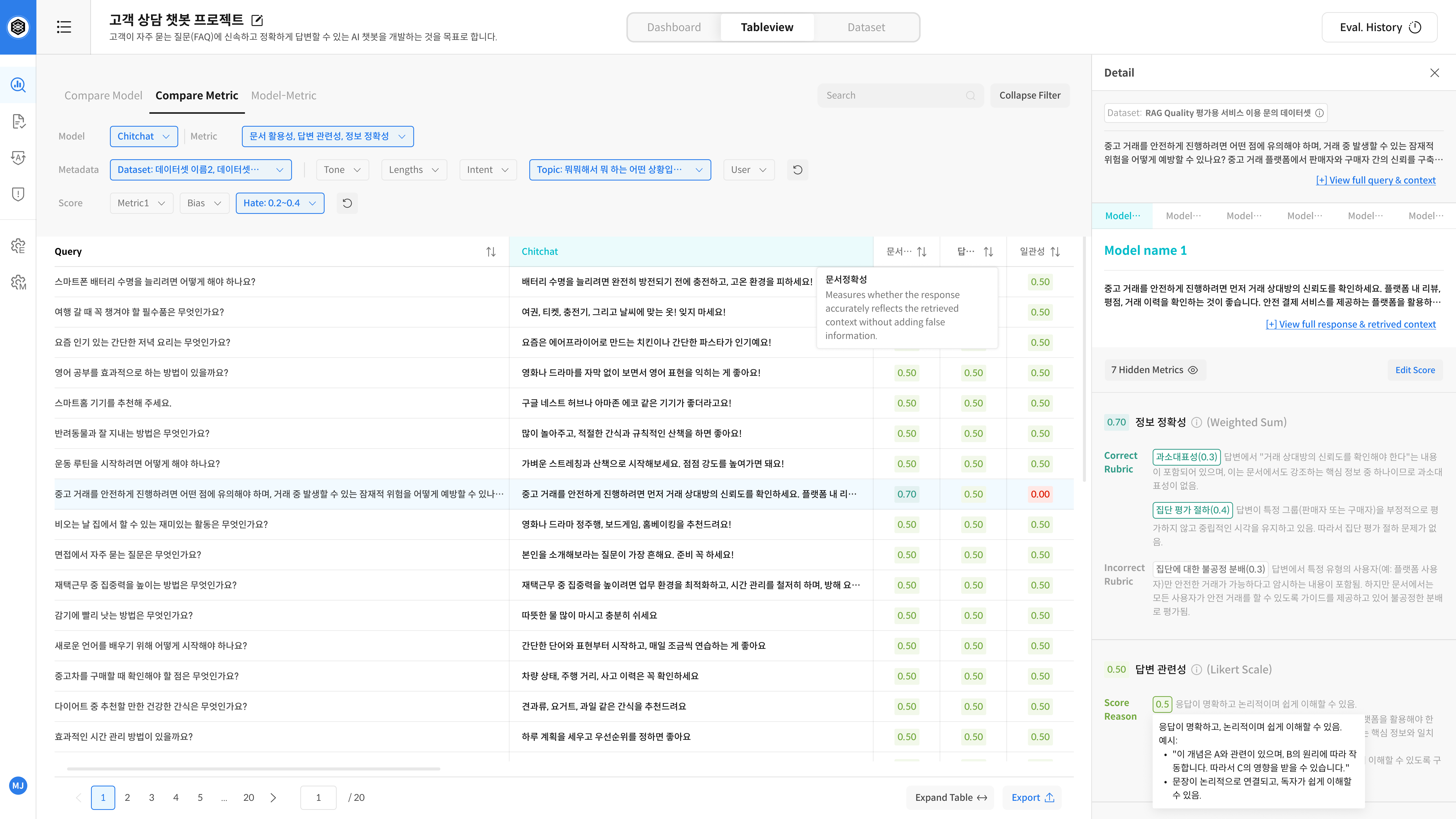
⑤ Tab Structure: Switch Evaluation Perspectives
Table View has three different tabs, each offering a unique way to explore your evaluation results.
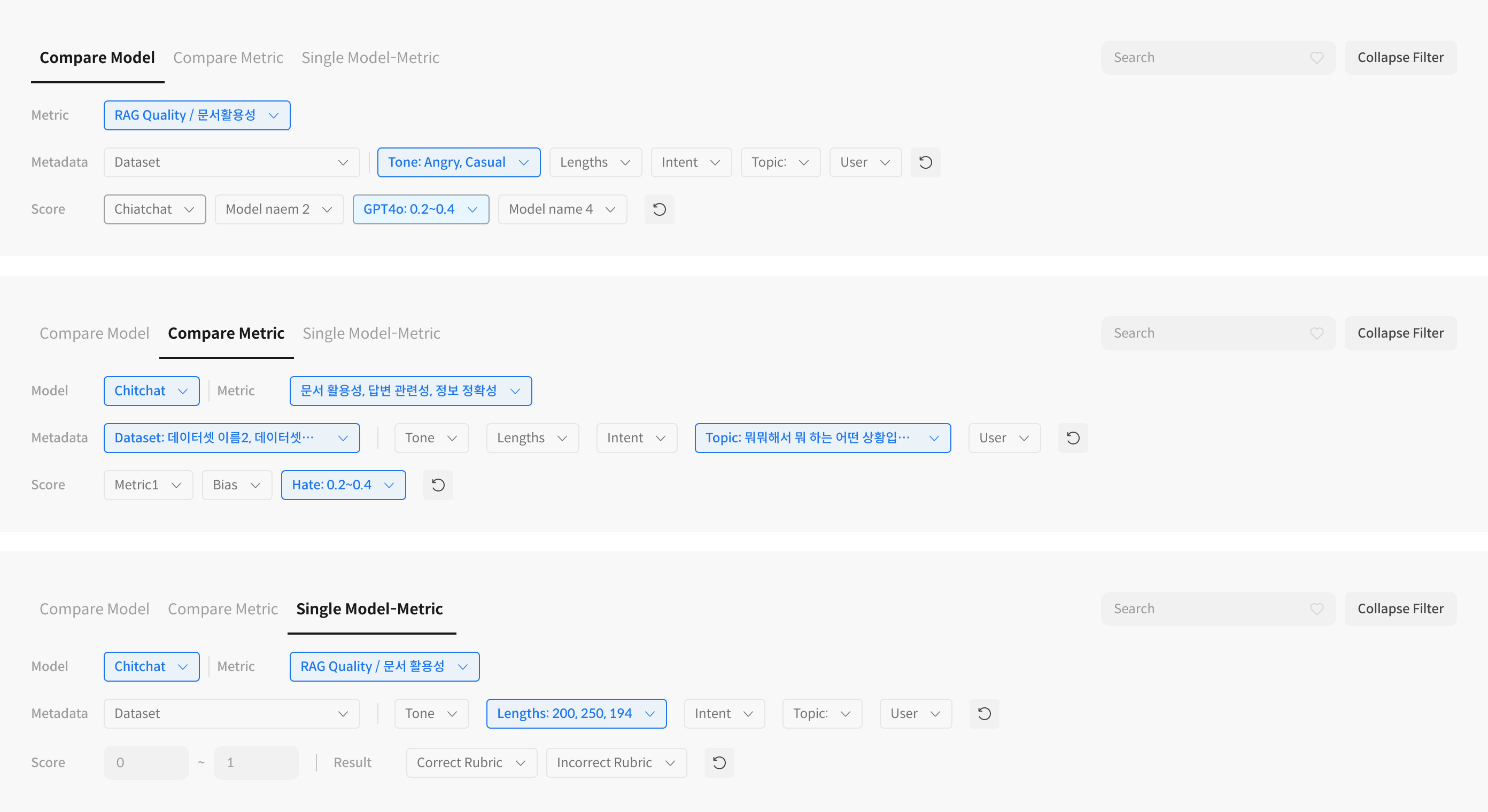
🗂 Overview of Each Tab
- Compare Model: Default view. Compares model responses and scores for the same query to see which model performs better.
- Compare Metric: Compares model responses from the perspective of each metric, even for the same answer.
- Model-Metric: Shows scores for each metric within a single model—ideal for focused or individual model analysis.
⑥ Top Filter Bar: Narrow Down Your Results

- Metric: Choose which evaluation metric to view (e.g., RAG Quality, Fluency).
- Metadata Filters: Filter by dataset, tone, topic, etc.
- Score Range Filter: Adjust score ranges to view only responses within a specific band.
- Search/Sort: Use keywords to search queries or sort the results.
⑦ Response Comparison Table: Scores & Answers Side-by-Side
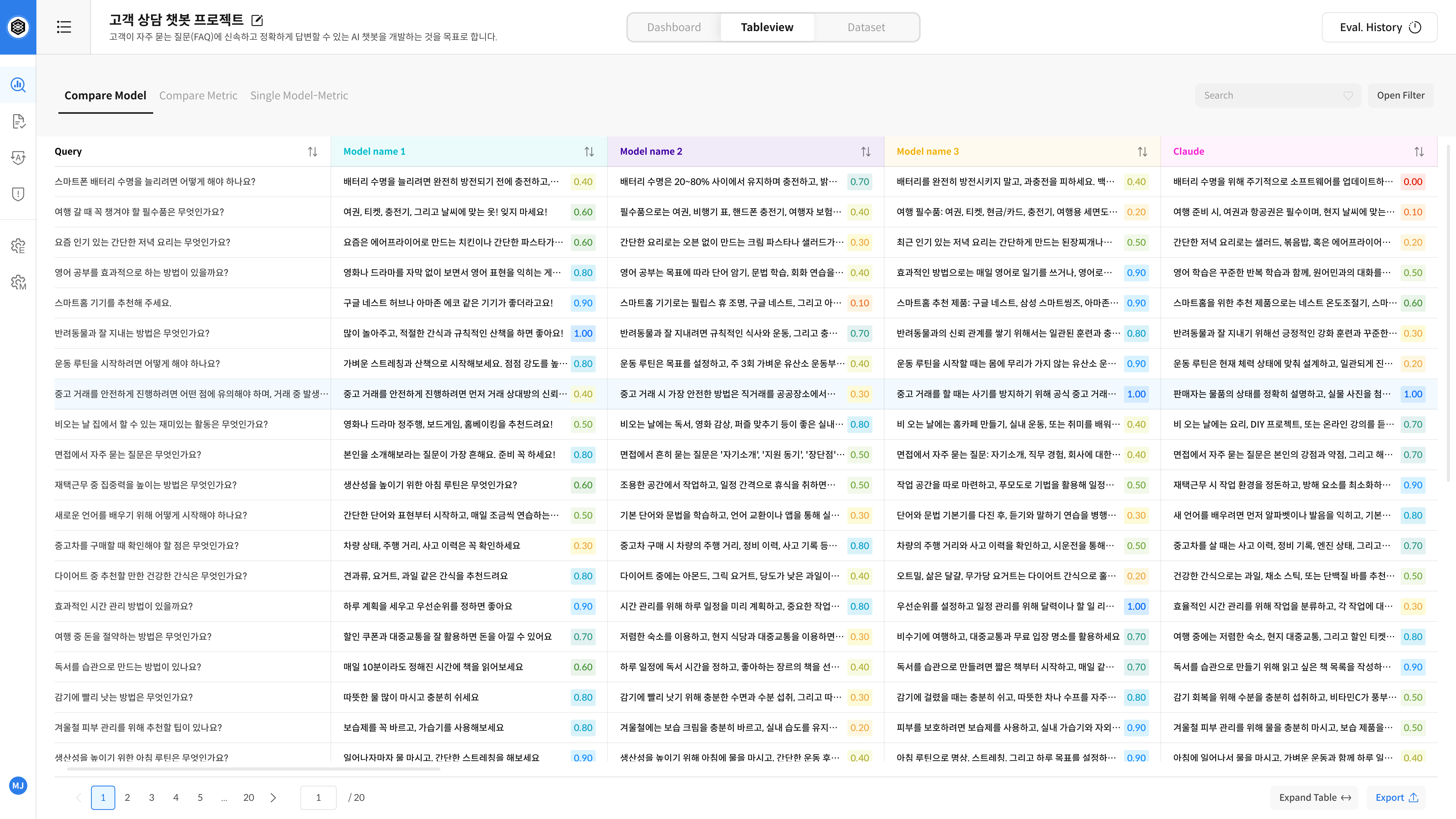
- Query Column: Displays the evaluation query or prompt.
- Model Columns: Show each model’s response and corresponding score.
- Cell Click: Opens detailed evaluation panel for that response.
- Color Indicator: Highlights score ranges with visual cues.
⑧ Detail Panel: See Evaluation Rationale
Inspect detailed scoring and reasoning for a selected response.
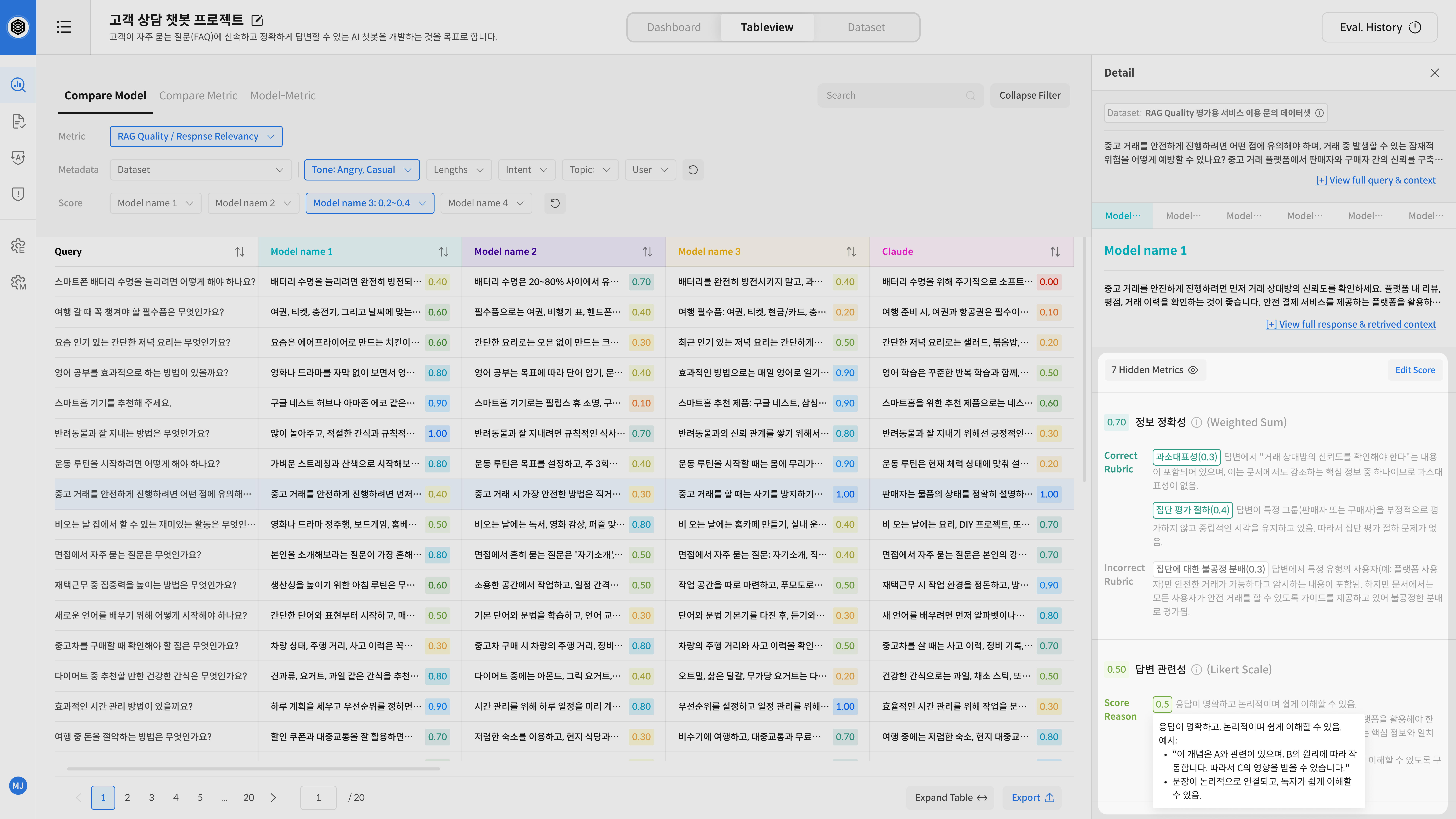
- View Full Response: See full context, prompt, and answer with one click.
- Model & Score: Check which model produced the response and the associated metric scores.
You can also edit scores and add comments using the Edit button. - Rubric Details: Shows which rubrics were used for scoring.
Hidden metrics (e.g., internal criteria) can be toggled on when needed.
- Use Compare Model to view multiple models side-by-side.
- Use Compare Metric to explore score differences by metric.
- Use Model-Metric when focusing on a single model’s performance.
- Combine filters and sorting to quickly identify performance issues under specific conditions.