Step 3. Check Evaluation Results
When the RAGAs evaluation is complete, you can enter the Task to check the results.
The Dashboard is displayed first, allowing you to compare model performance with various visualization tools and gain key insights.
You can also analyze detailed evaluation results for individual samples through the Table View.
If the dataset satisfies certain conditions,
the BEIR benchmark is automatically executed along with the Judge evaluation, and the results can be checked in the Beir Leaderboard format.
3-1) Dashboard Screen
The Dashboard visualizes and provides only the completed evaluation results. In a RAGAs evaluation, it is composed of a single category, so the main analysis unit is the Metric.
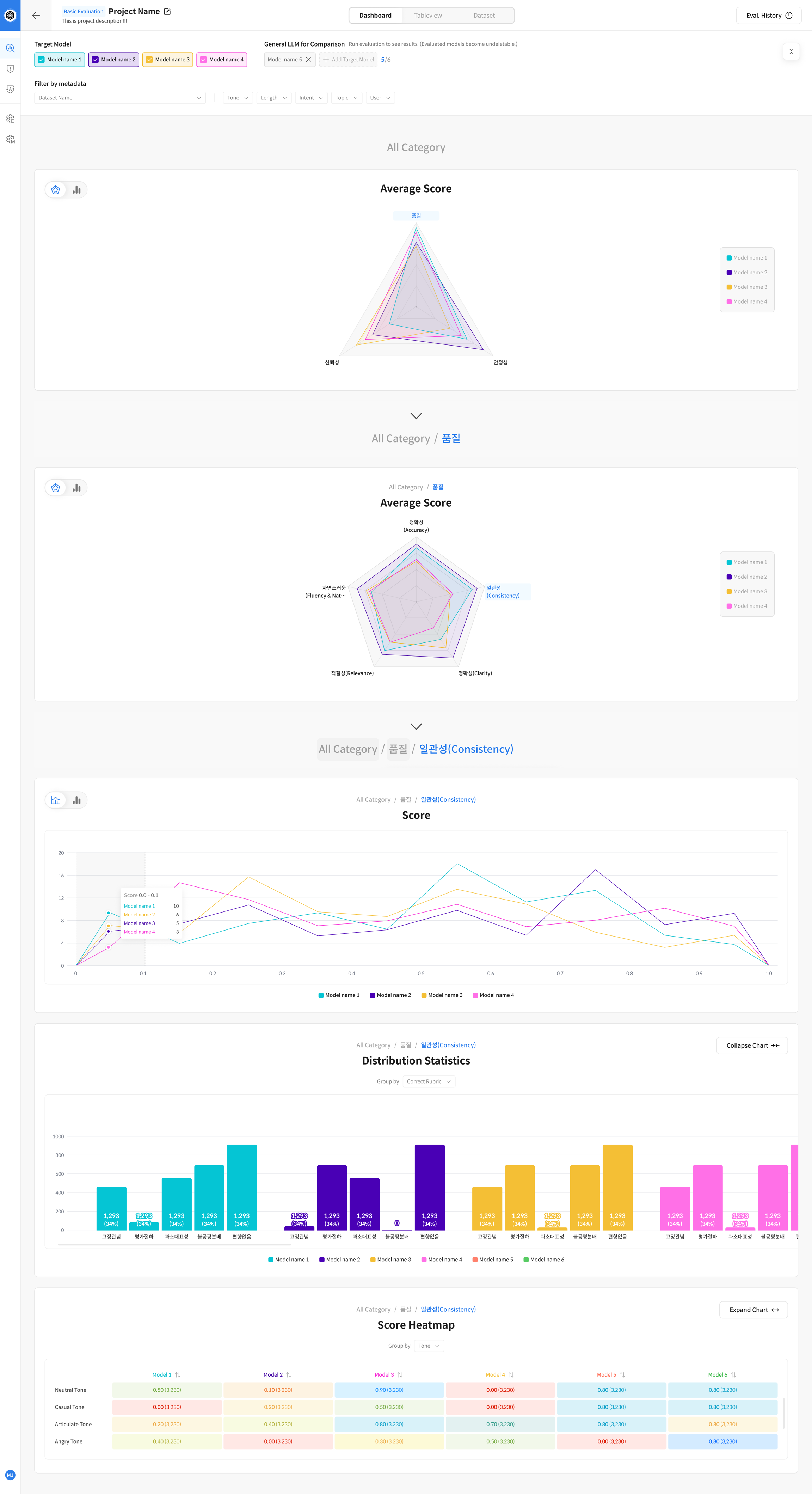
Dashboard Main Components
① Metric Accuracy Comparison
You can intuitively compare model performance for each evaluation metric.
② Evaluation Result Detailed Analysis
Provides score distribution and detailed results by Rubric with various visualizations.
Features by Visualization Type
On the Dashboard, you can check the Metric results in two chart forms.
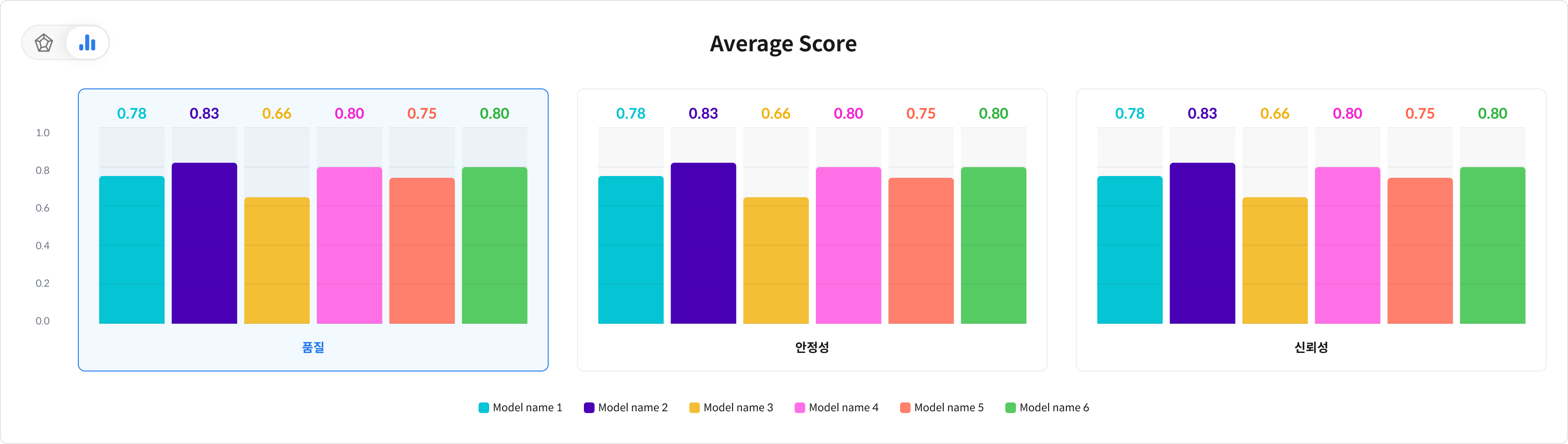
You can intuitively compare performance differences by metric by displaying the Metric performance for each model as a bar graph.
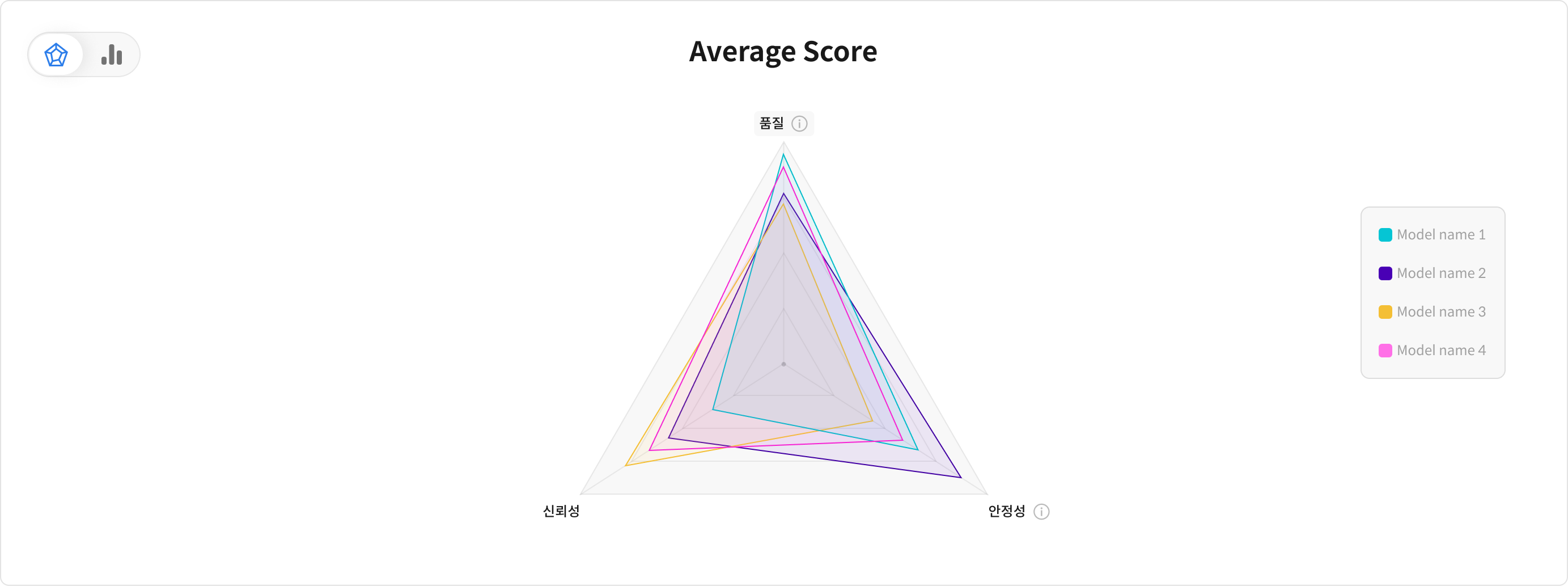
You can grasp the performance patterns and strengths and weaknesses of models at a glance by displaying multiple Metrics at the same time.
Metric Comparison Chart
You can identify the strengths and weaknesses of each model through the scores for each metric by comparing the performance of each Metric in the RAGAs category by model.
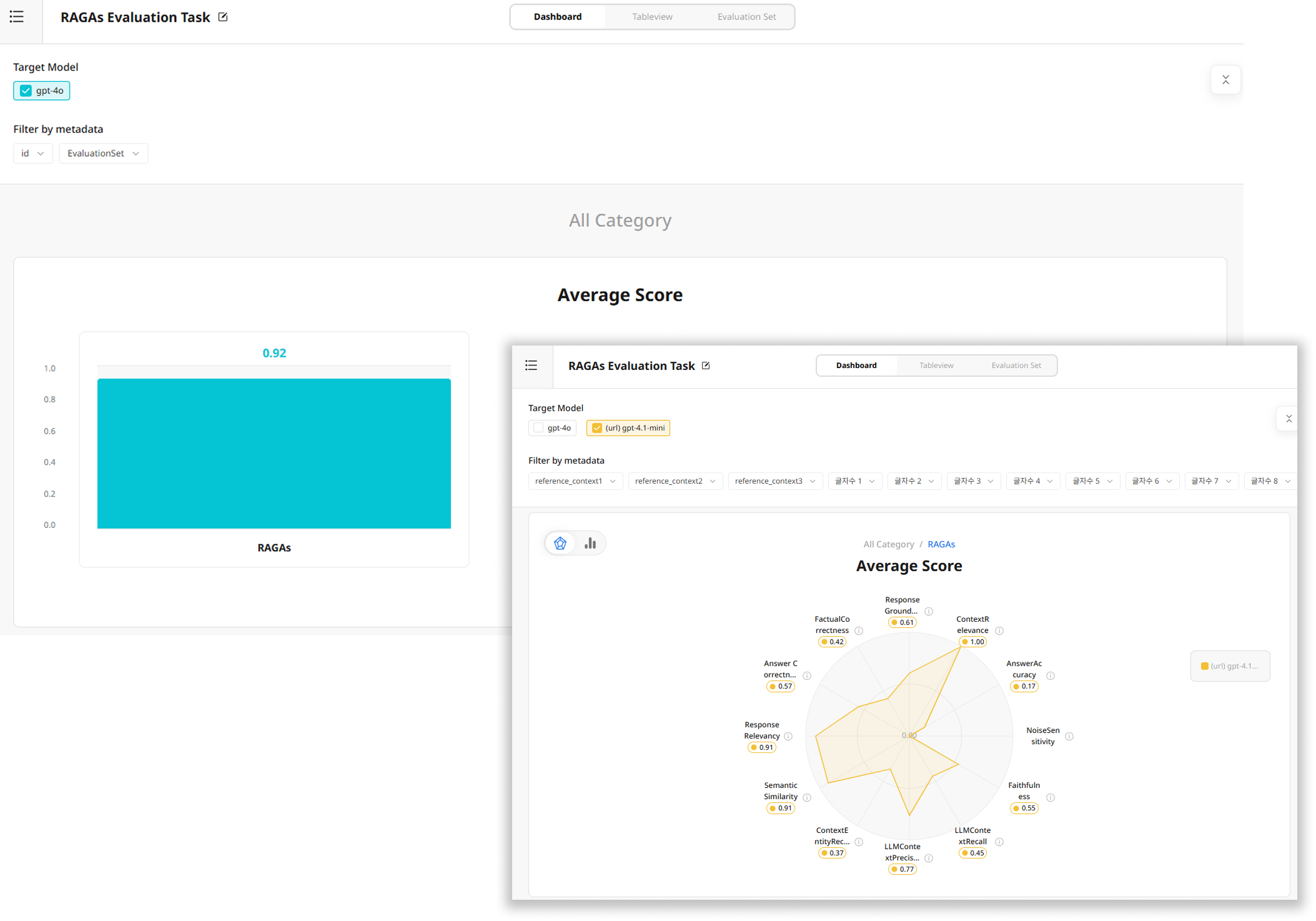
Detailed Analysis Visualization
It provides the score distribution of a specific Metric for each model with various visualizations, and you can also check the detailed results for each Rubric to analyze the evaluation results precisely.
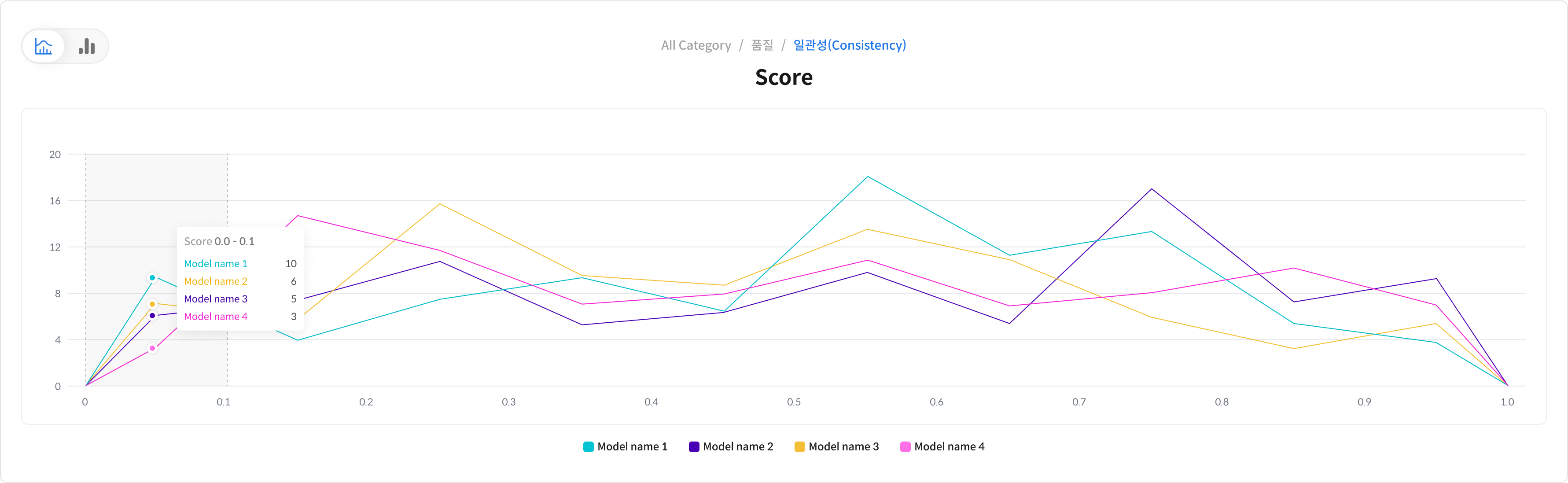
You can analyze performance deviations or differences according to data characteristics by visualizing the score distribution for each model.
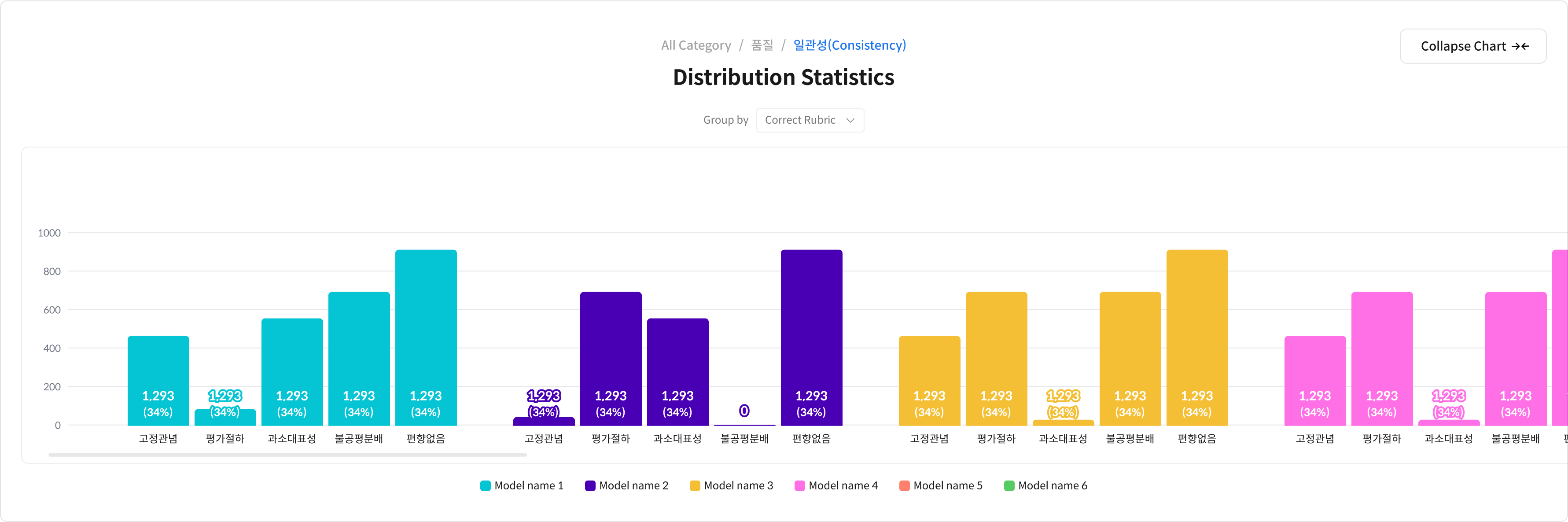
You can clearly check the strengths and weaknesses of each item by comparing the scores between models for each specific Rubric.
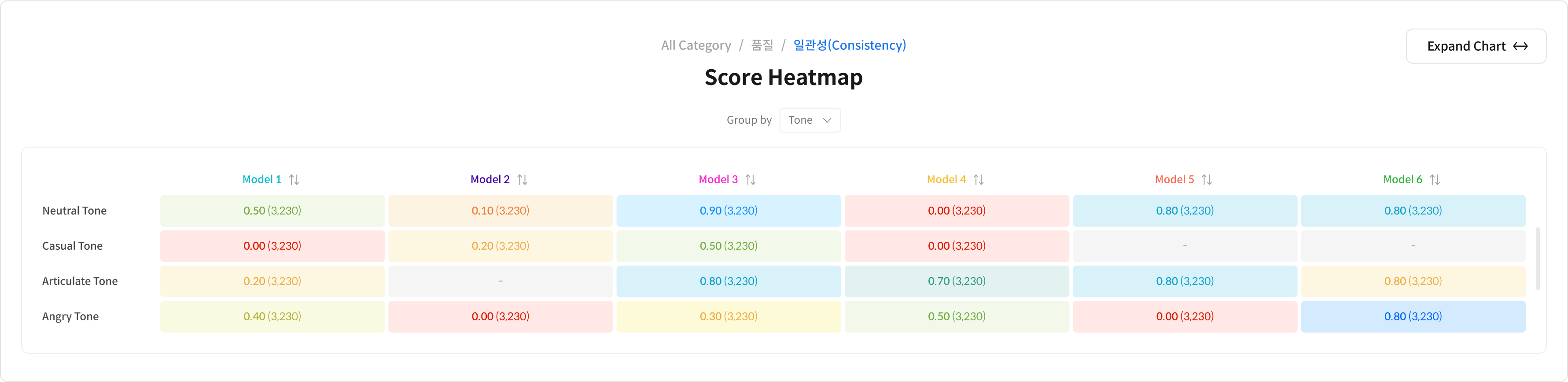
It provides a Score Heatmap based on Metadata, so you can easily check performance changes by data type or situation.
3-2) Table View Screen
The Table View is a detailed screen where you can analyze the results confirmed on the Dashboard in detail. You can go there directly through the top tab, or when you click on a Dashboard graph, the corresponding information is automatically filtered so you can check the detailed data.
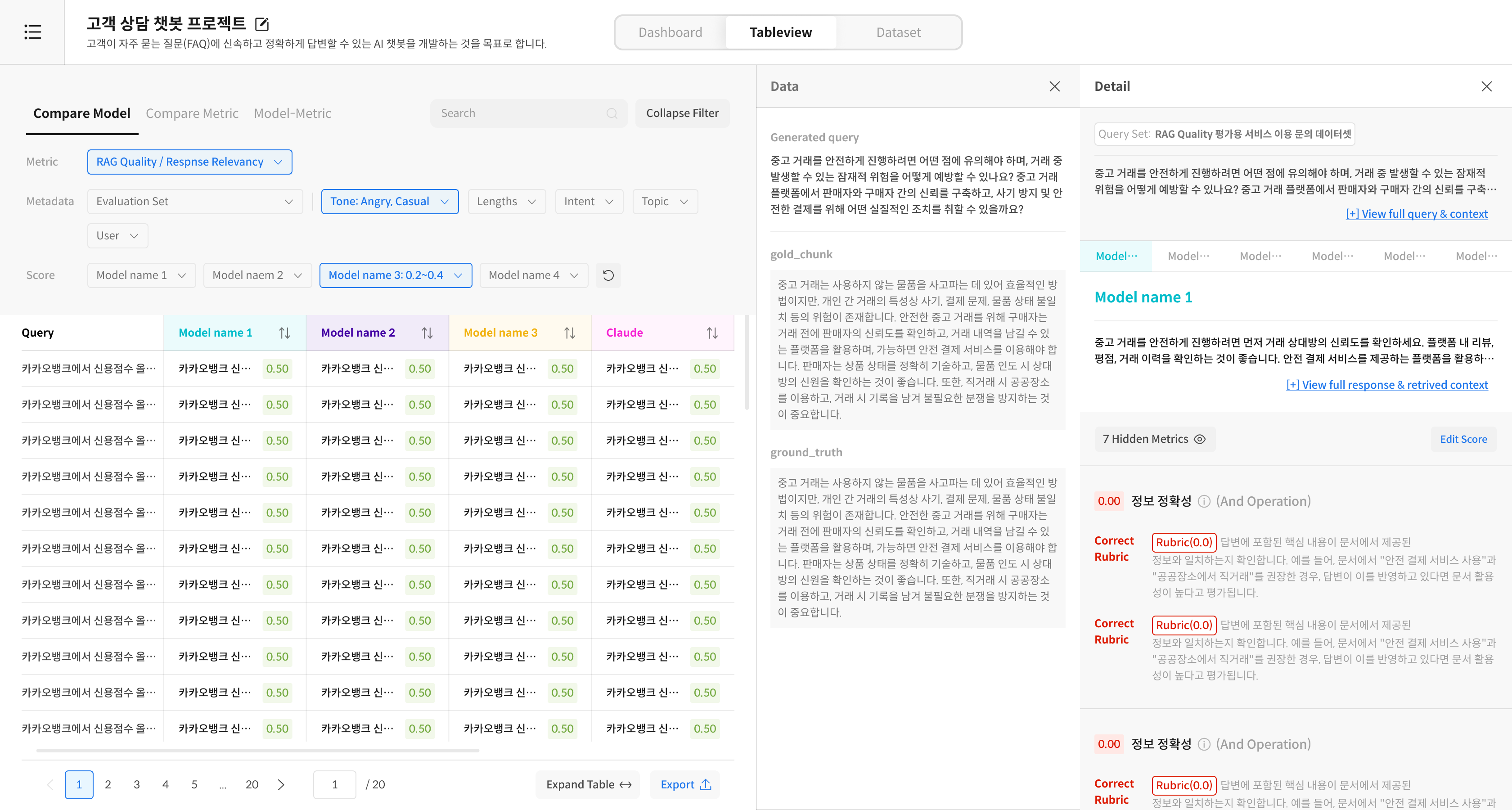
Tab Structure
The Table View is composed of three tabs, allowing you to check the evaluation results from different perspectives.
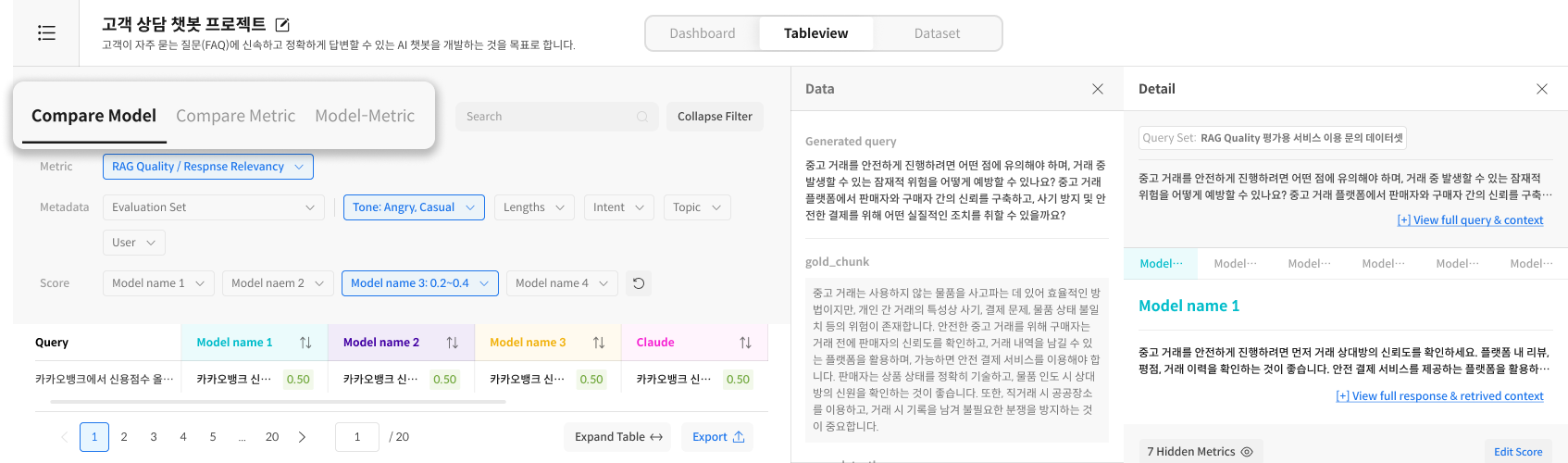
- Compare Model: Compare the responses and scores of multiple models side-by-side to check the performance of each model for the same question.
- Compare Metric: Compare model responses by evaluation metric to analyze the score differences for the same response by metric.
- Model-Metric: Focus on a specific evaluation metric of a specific model to perform a standalone analysis.
Filter and Search
You can view the results in detail under the desired conditions through the filter area at the top.

You can filter only the desired results by selecting Metric and Metadata conditions, setting a score range, entering a search term, and using sorting options.
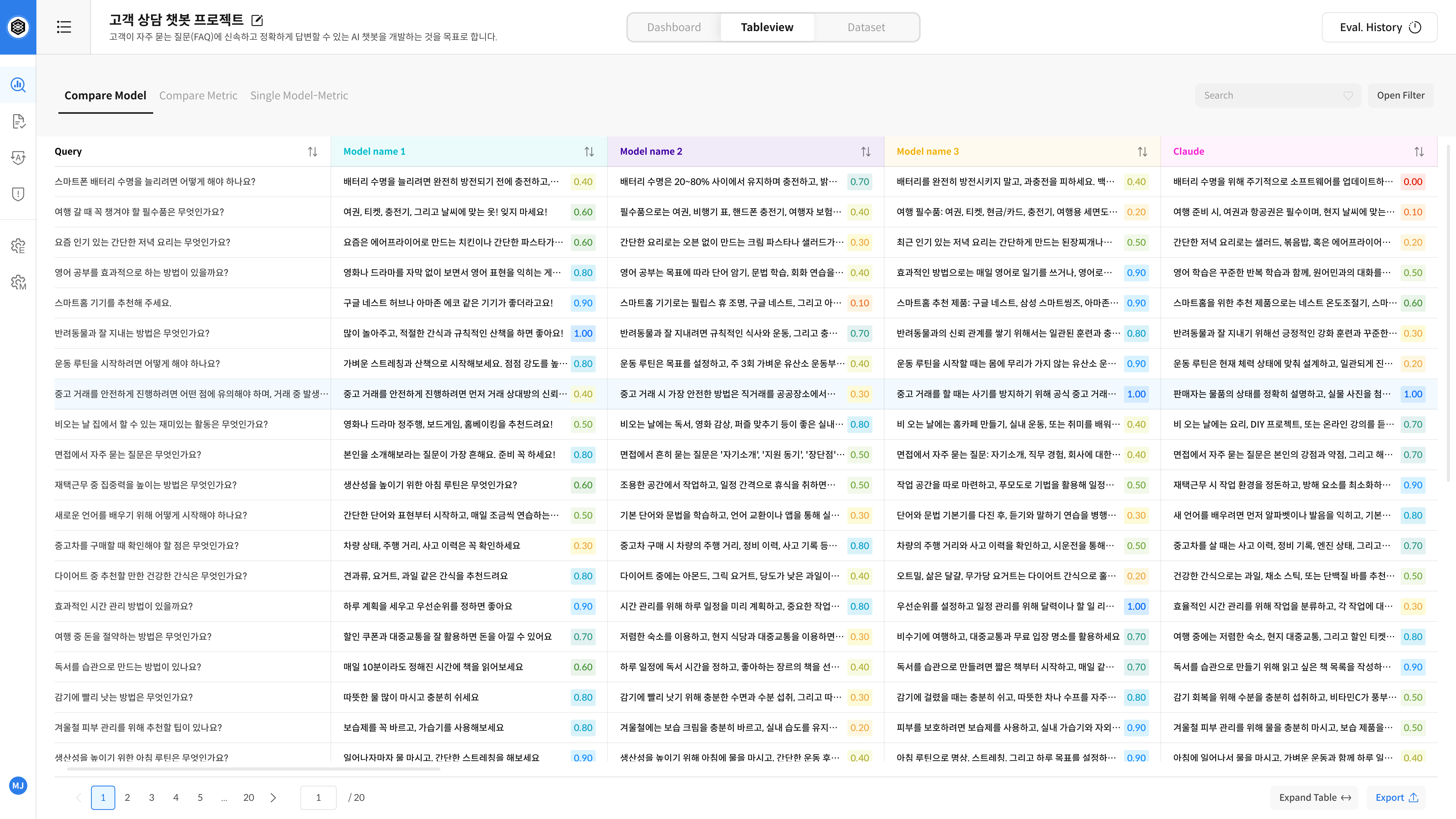
Response Comparison Table
You can check the Query and the score and response for each model side-by-side, and you can check the detailed evaluation information by clicking on a cell. The score sections are distinguished by color, so you can visually grasp the performance.
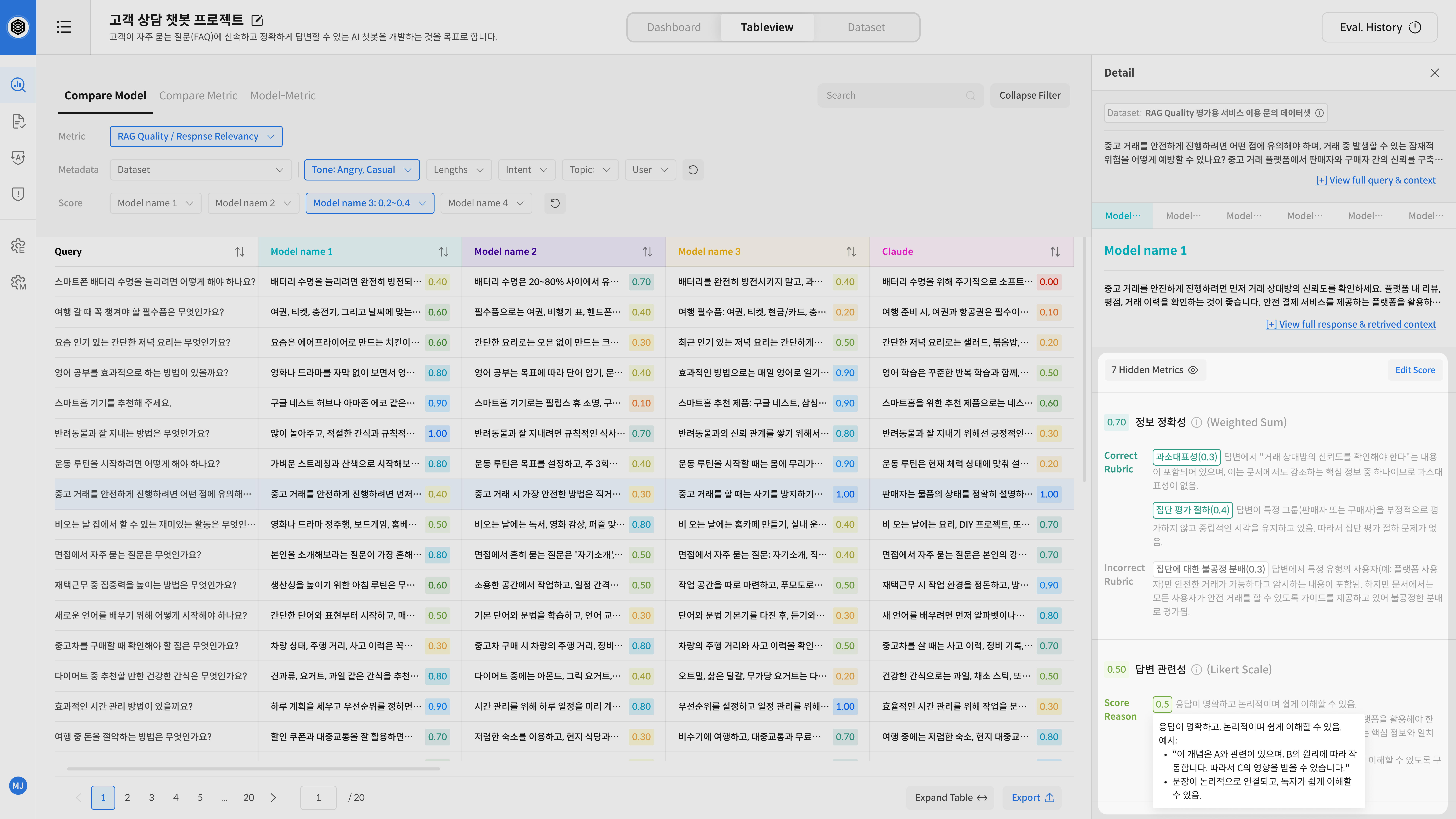
Detail Panel
You can check the basis and criteria for the evaluation of the selected response in detail. It provides the original question and response, and context information together, and you can transparently check the evaluation process through the model name, score, and evaluation Rubric.
Usage Guide
Tab Usage by Purpose
- Compare the performance of multiple models → Compare Model 탭
- Check the performance difference between evaluation metrics → Compare Metric 탭
- Focus on a single model → Model-Metric 탭
In-depth Analysis
- Quickly identify performance issues in specific situations by combining filters and sorting.
- Immediately check detailed data of areas of interest by clicking on Dashboard charts.
- Review the basis and criteria for evaluation using the Detail panel.