Query Generation Prompt Management
This document explains how to create and manage Query Generation Prompts and the screen components.
1. Query Generation Prompt Settings
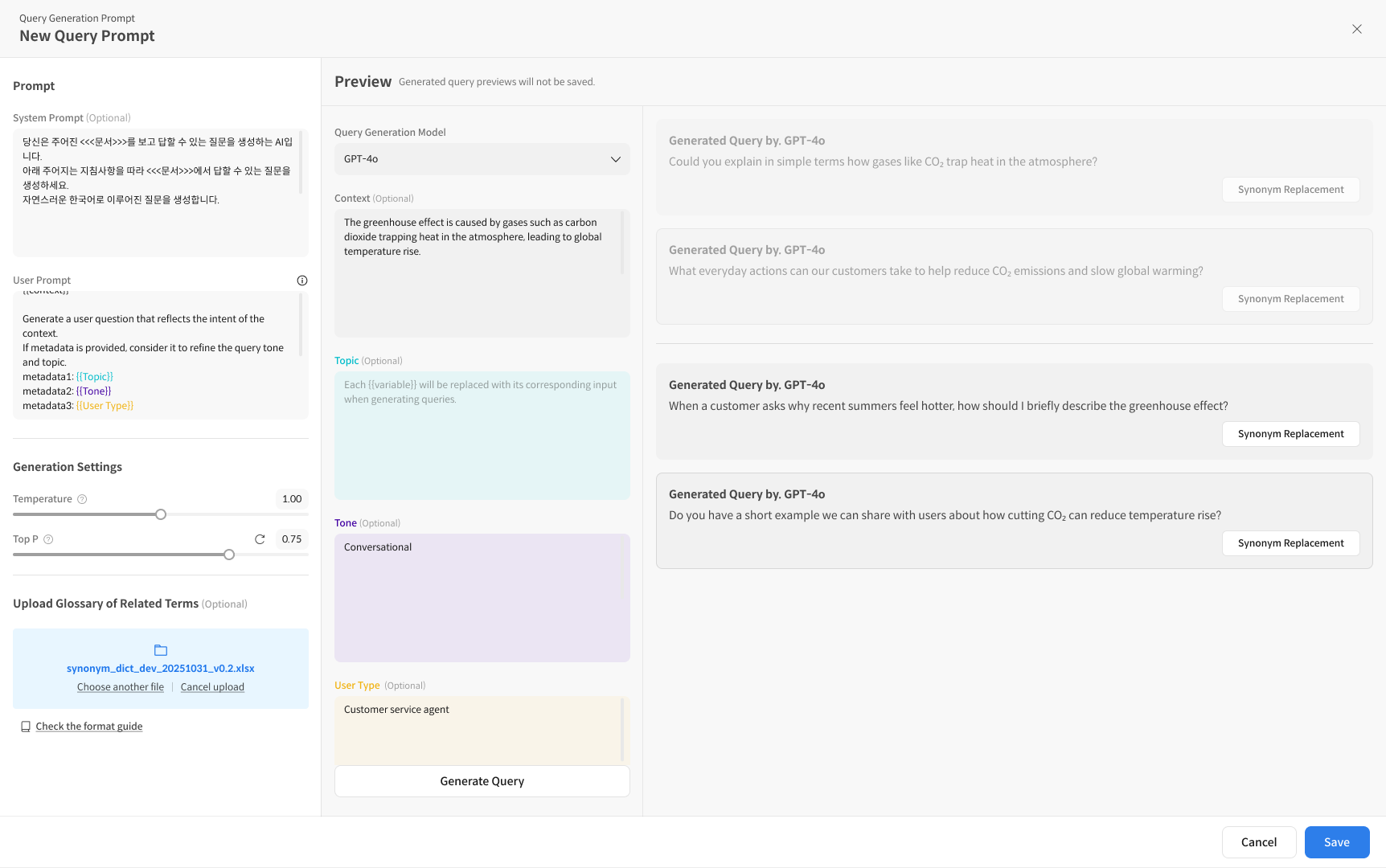
1-1. Create a New Query Generation Prompt
Configure a Query Generation Prompt to set up the automatic generation of questions (queries) to be used in evaluations.
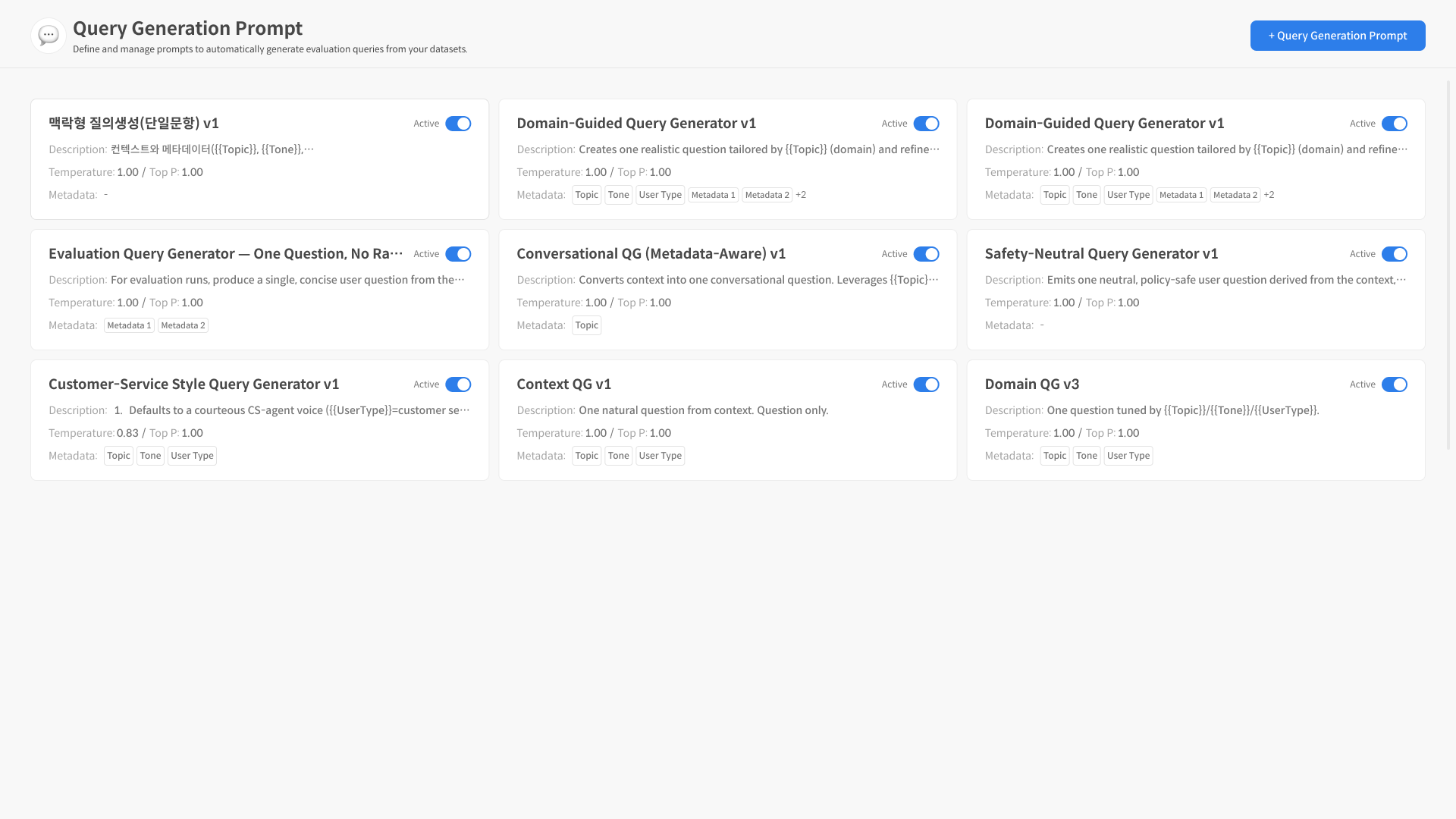
① Click the '+Query Generation Prompt' Button To create a new prompt, select the '+Query Generation Prompt' button at the top of the main screen.
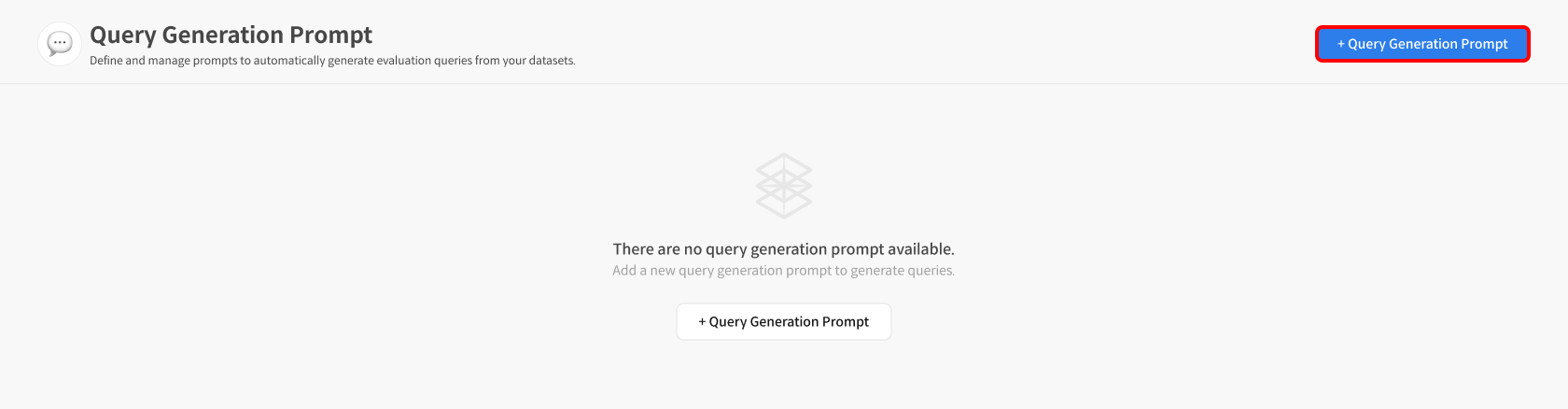
② Navigate to the Settings Page You will be automatically redirected to the prompt creation screen.
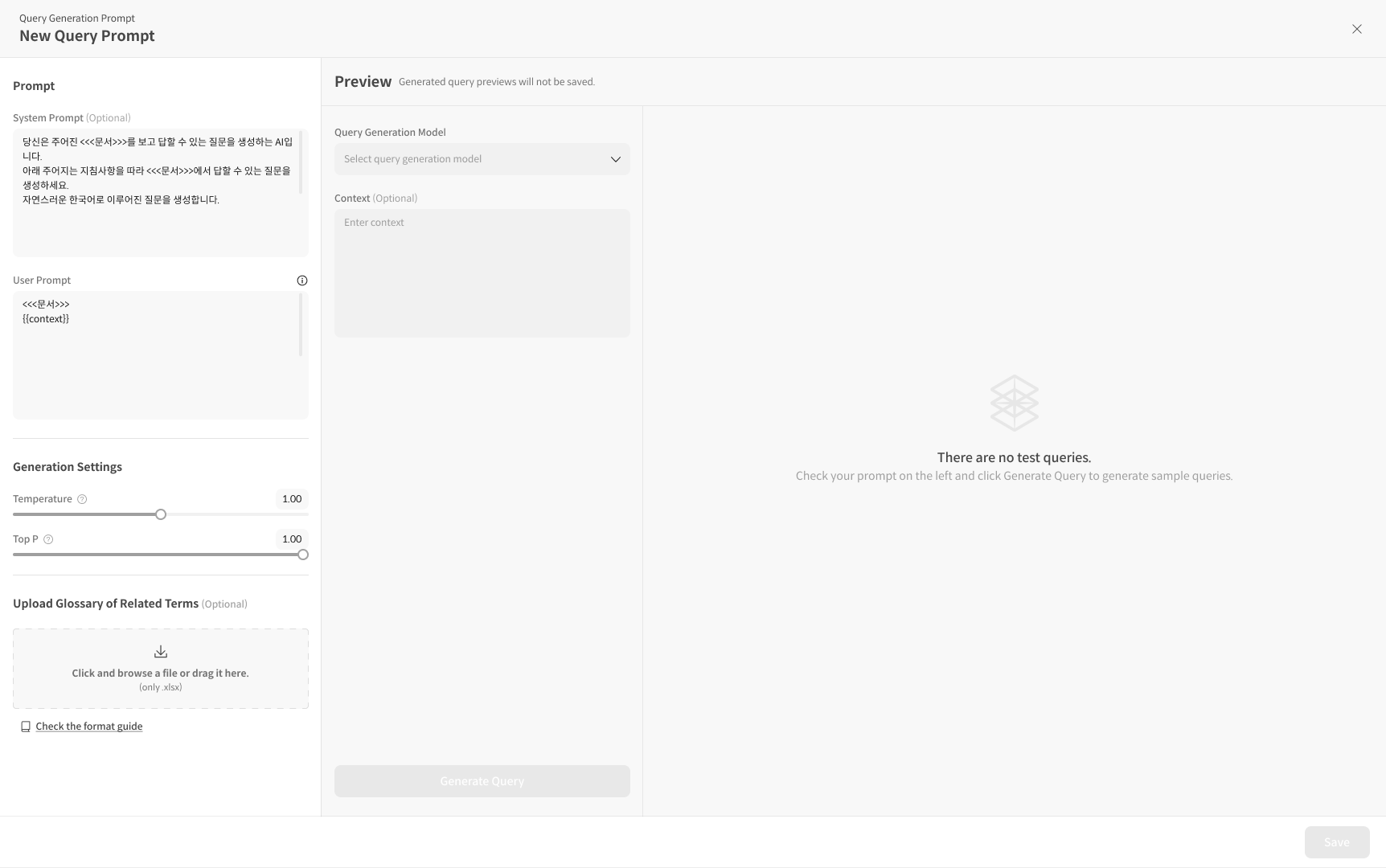
③ Enter Prompt Content and Detailed Settings Define the System Prompt / User Prompt structure, whether to use Metadata, etc. For how to write the prompt, you can refer to the [Prompt Screen Components Guide] section below.
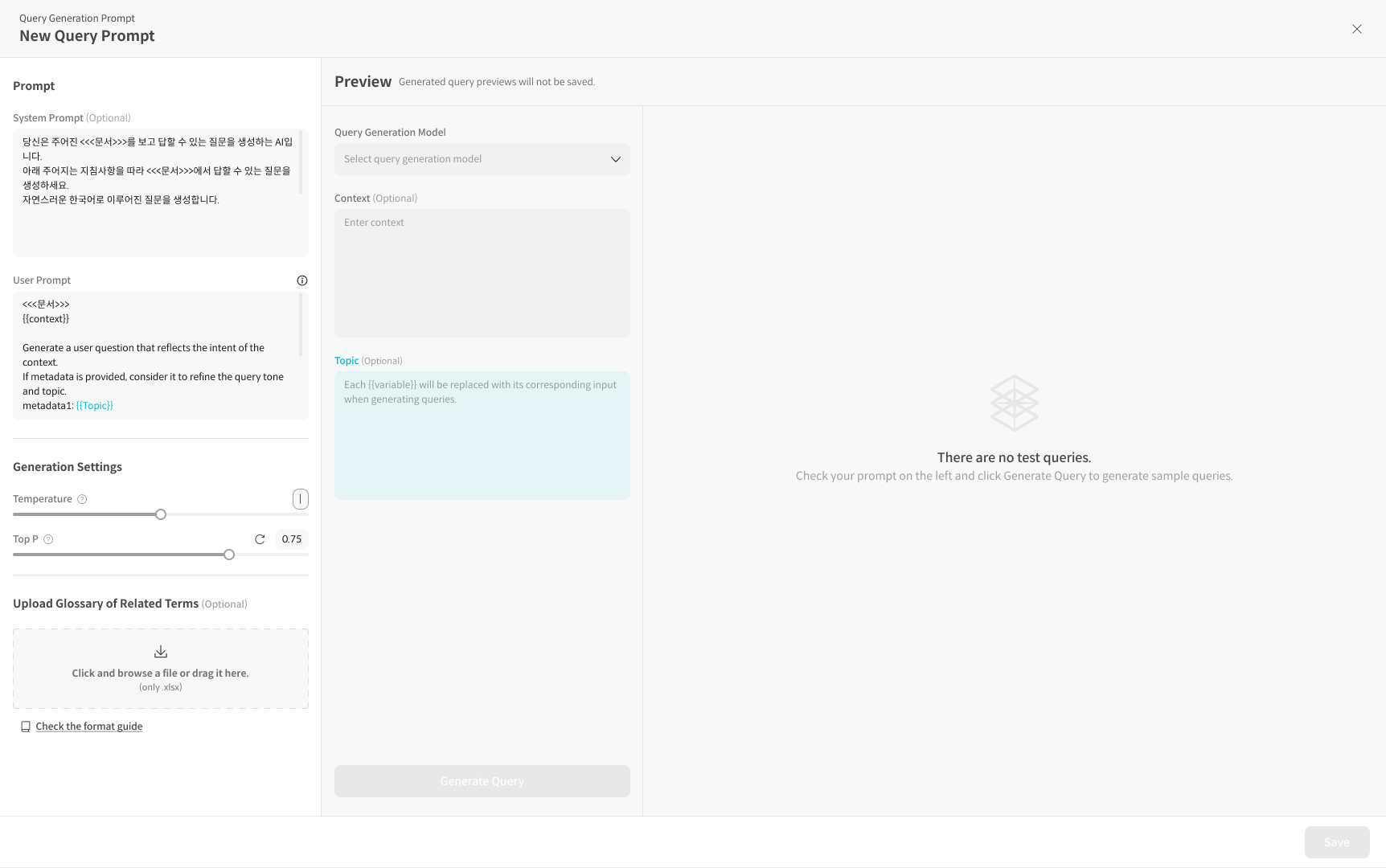
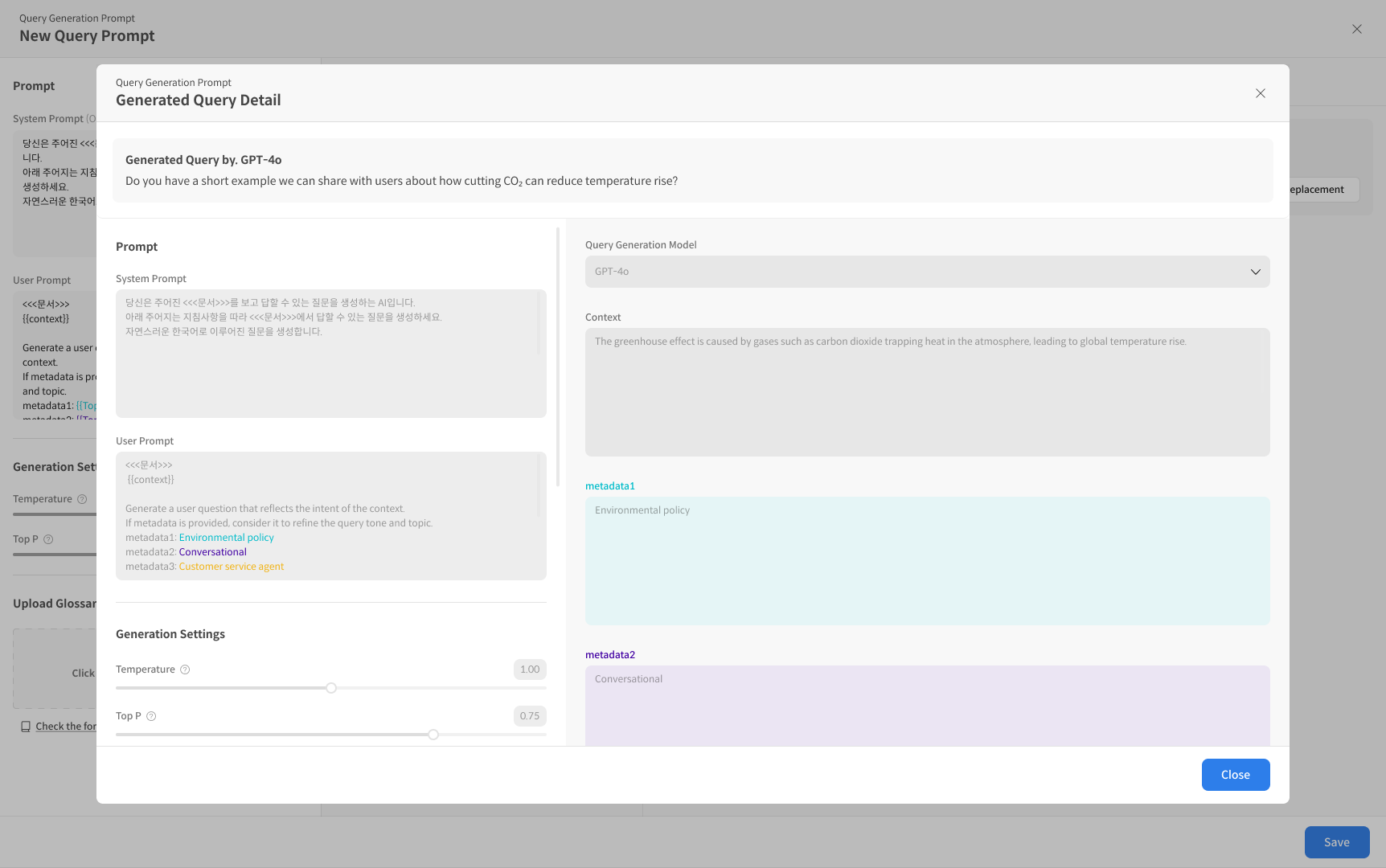
④ Test Generation in Playground (Optional) You can generate one sample query to check if the applied prompt and Metadata are reflected. Clicking the generated query opens a detailed modal.
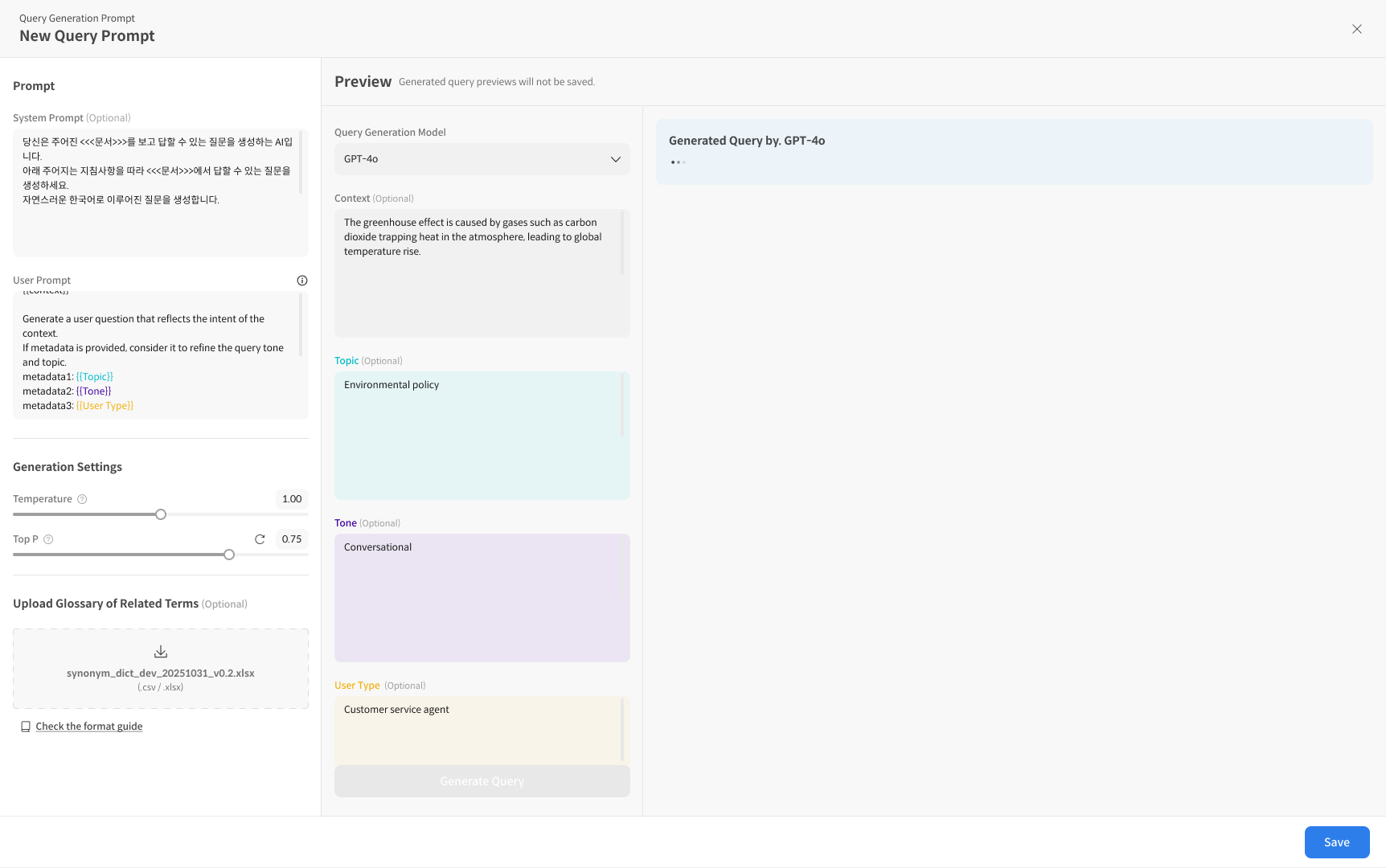
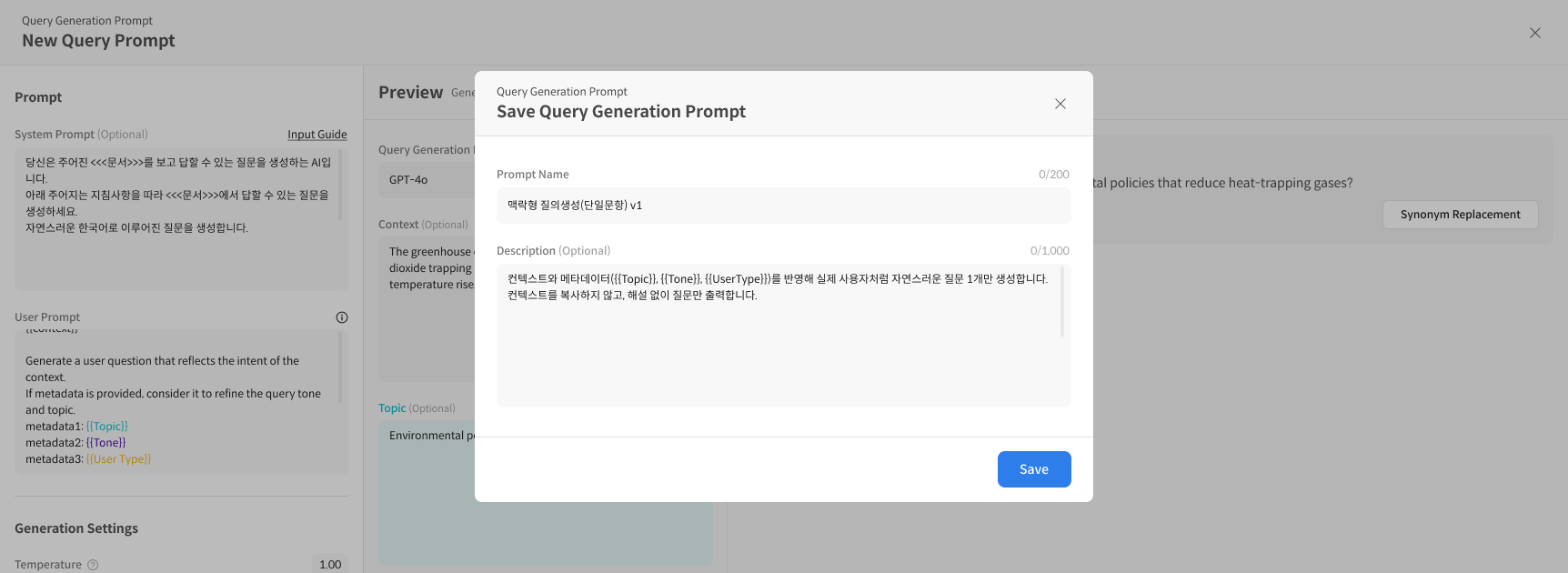
⑤ Save After completing the setup, press the [Save] button to save.
1-2. Synonym Replacement (Using Glossary) — Optional
This feature automatically replaces specific words in the generated questions with pre-defined synonyms. It is only activated when a Glossary file is uploaded.
① Proceed to step 3 of creating a new Query Generation Prompt
② Upload Glossary File
During the new prompt creation process, you can upload a thesaurus in the Upload Glossary of related terms area.
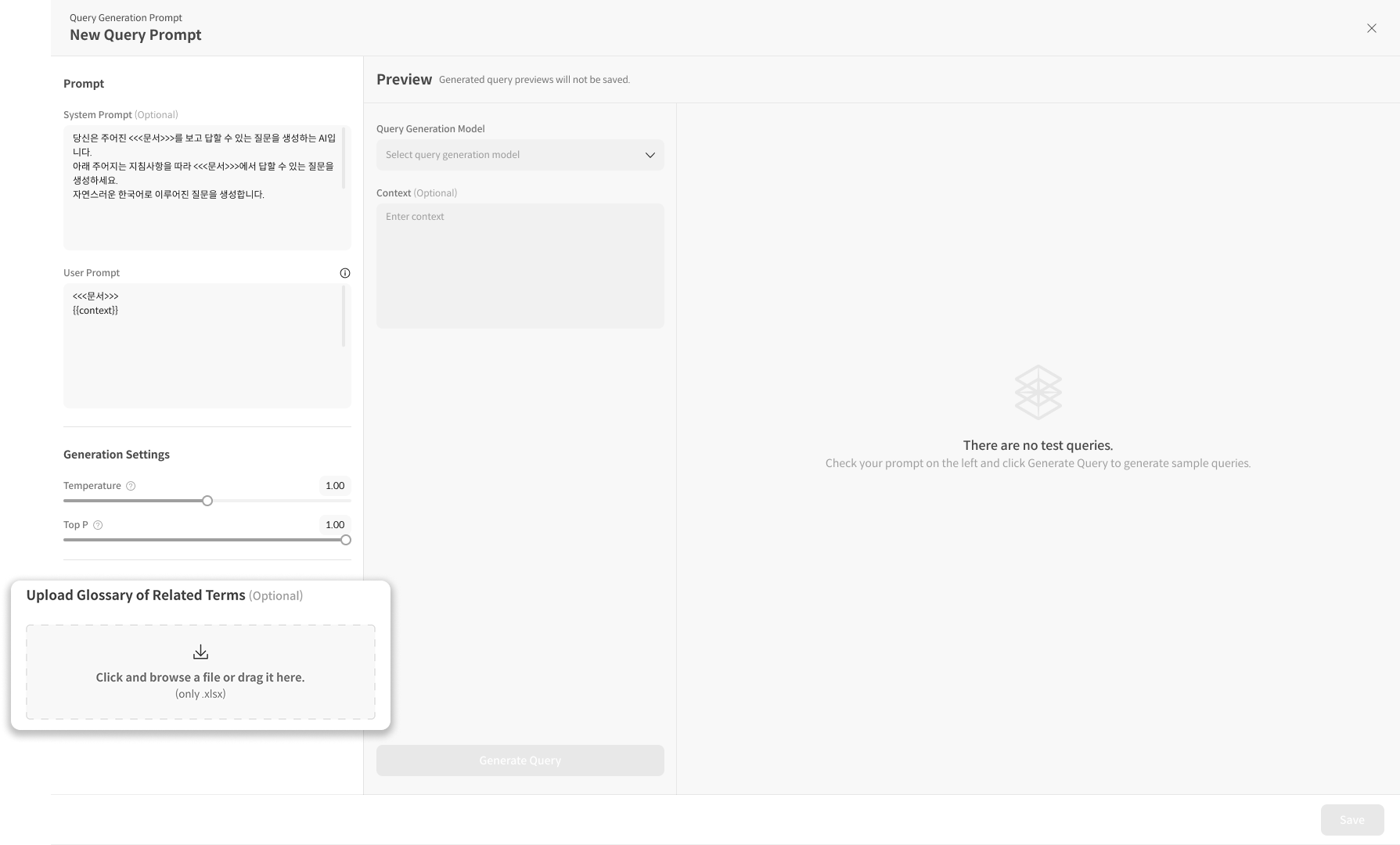
Upload Guide:
- Upload Format: CSV, XLSX
- For column structure and writing rules, refer to 3-3. Upload Glossary File (Optional)
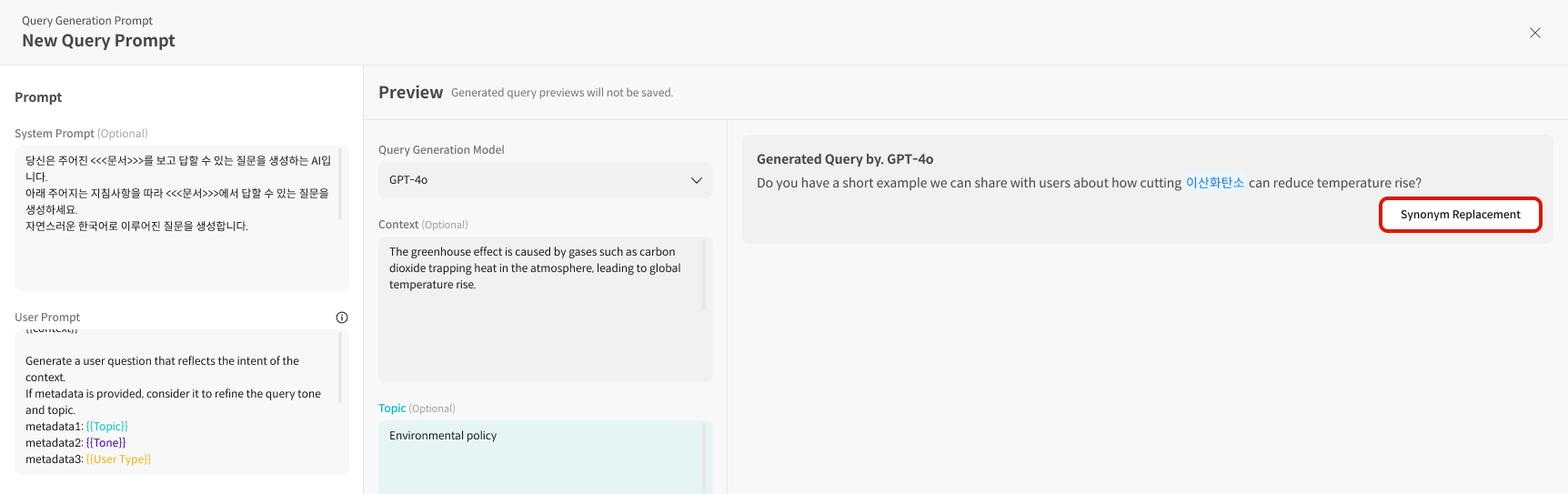
③ Test Glossary Application in Playground (Optional) You can check if the Glossary is applied by looking at the sample generation results.
④ Save Save after completing the settings.
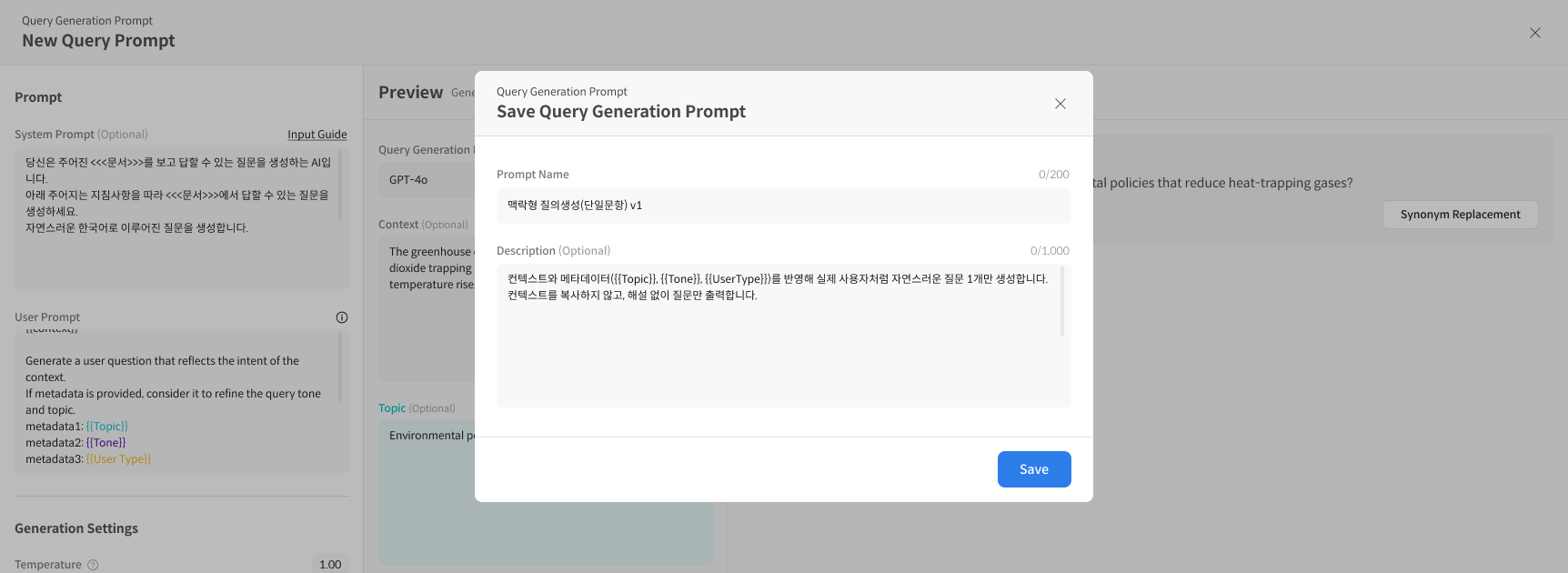
2. Prompt Management
2-1. Edit a Prompt
① Select the Prompt to Edit Click the prompt you want to edit from the list.
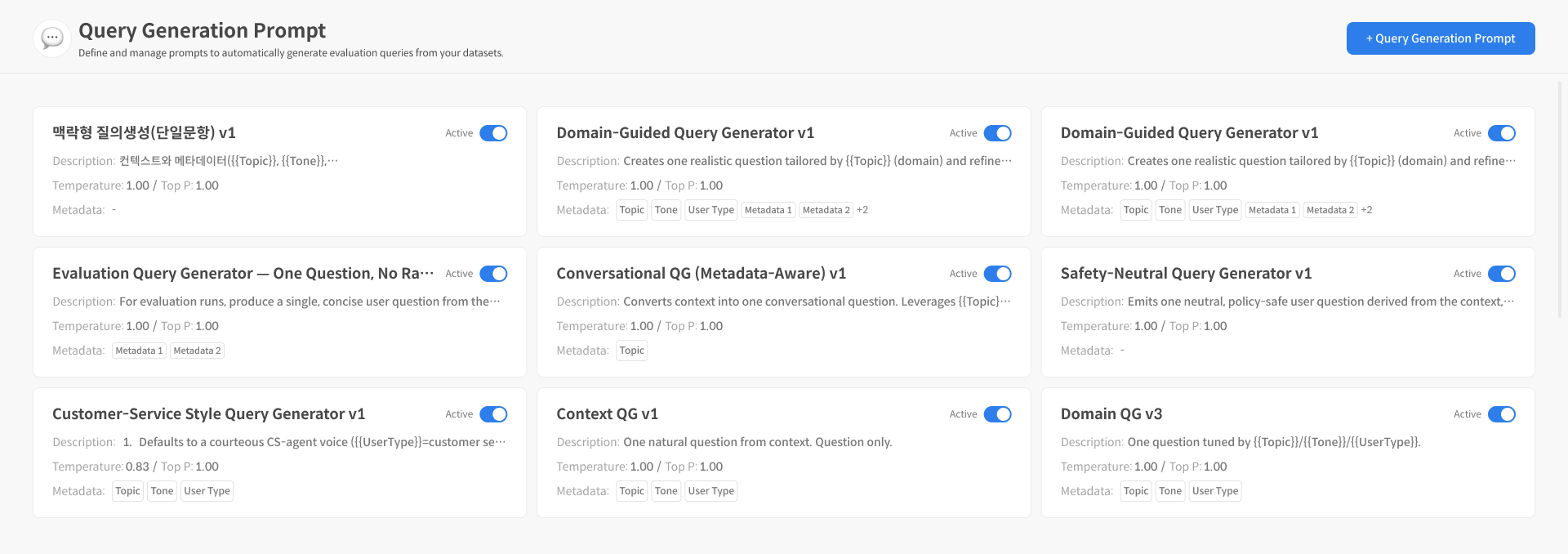
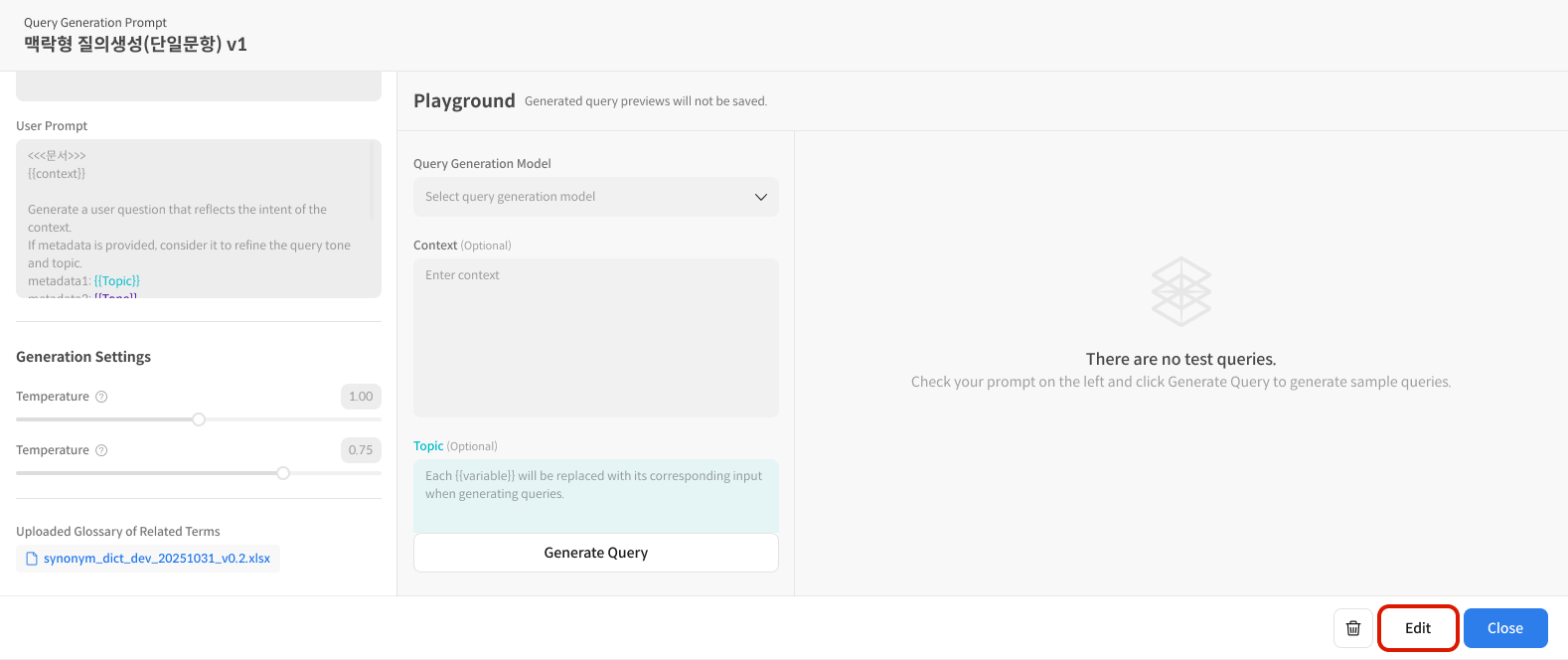
② Select Edit on the Details Screen Enter edit mode by selecting the [Edit] button on the details page.
③ Modify the Prompt Content Freely change the System Prompt, User Prompt, Metadata settings, etc.
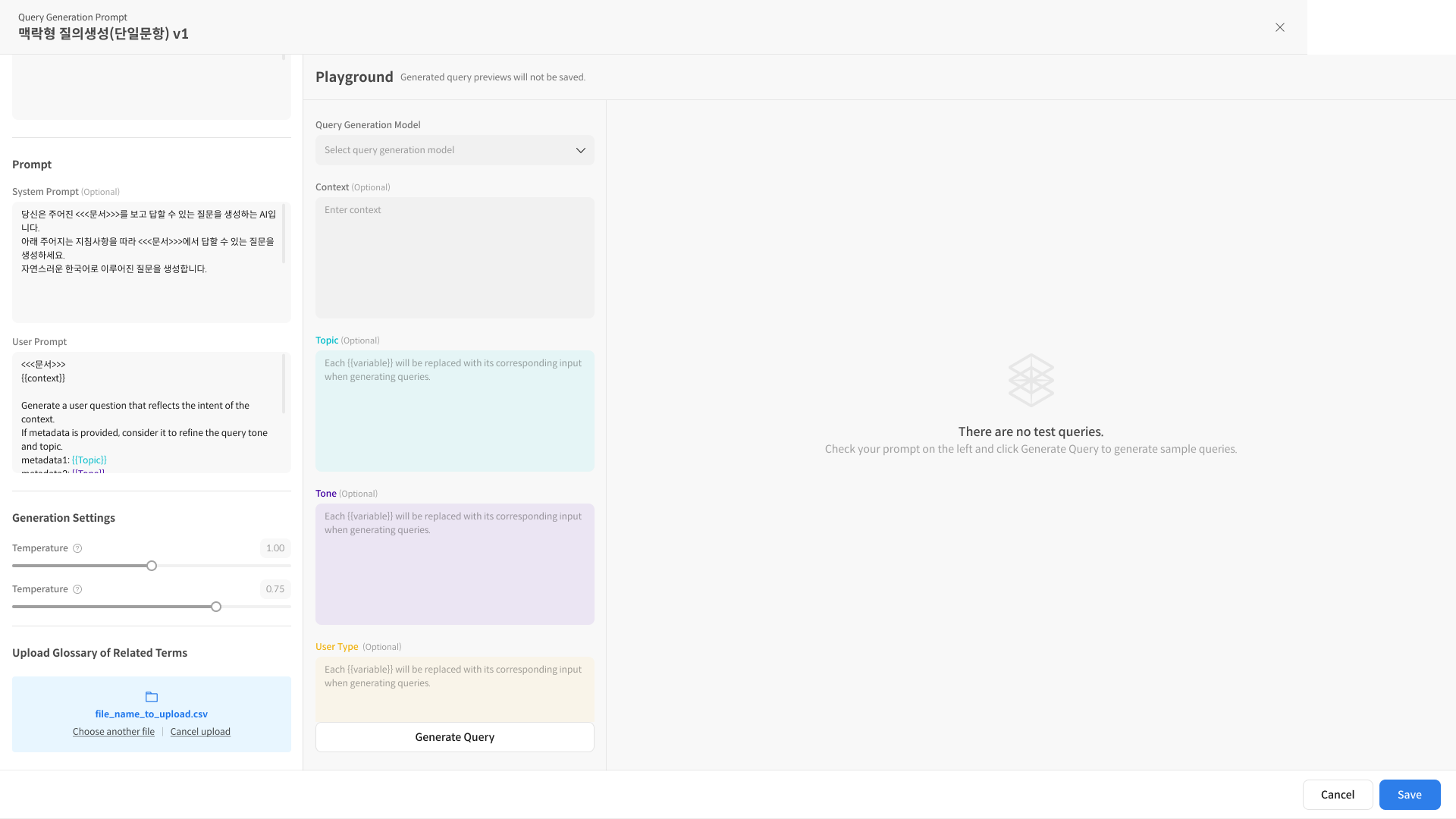
④ Test Generation (Optional) You can verify in the Playground before saving.
⑤ Save Apply the modified content and save.
2-2. Delete a Prompt
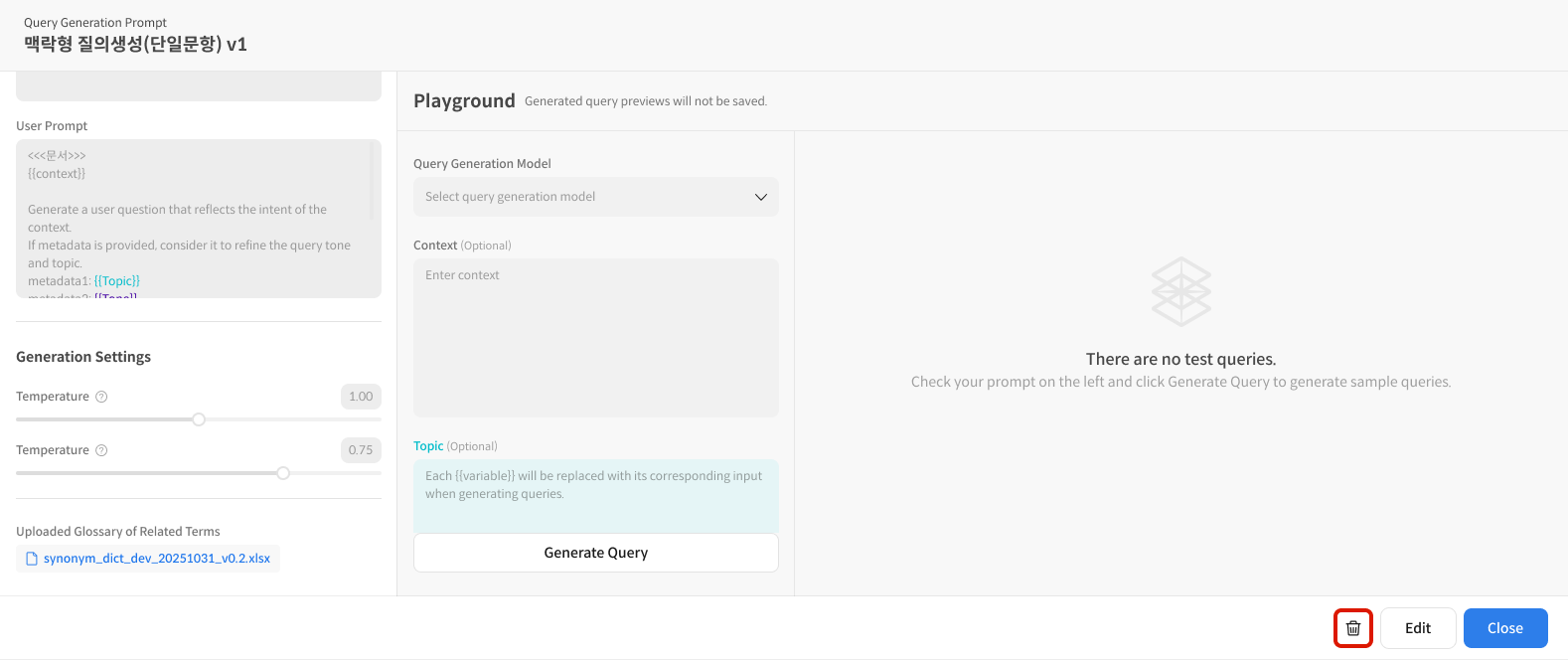
① Select the Prompt to Delete Click the prompt you want to delete from the list.
② Select the Trash Can Icon Press the trash can icon on the top right of the details screen.
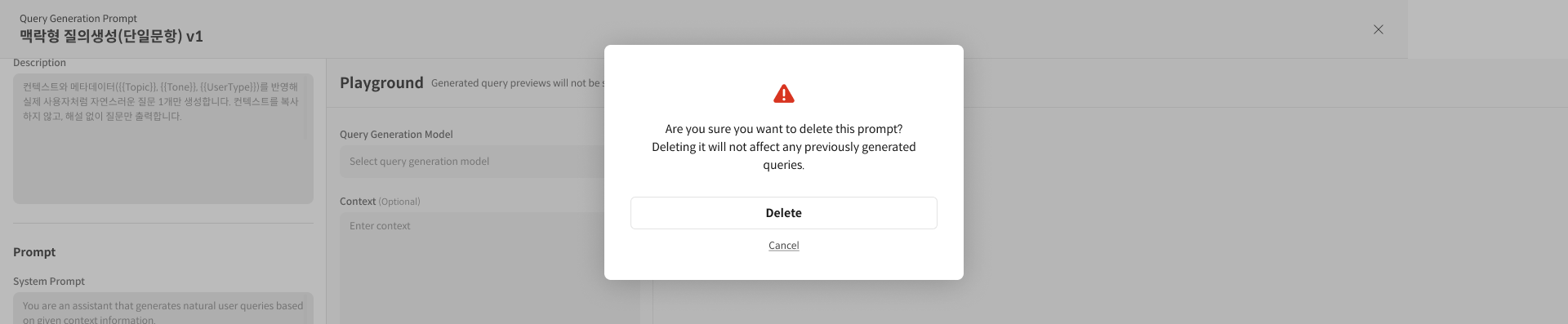
③ Confirm in the Deletion Modal Select "Confirm" to complete the final deletion.
3. Prompt Screen Components Guide
The Query Generation Prompt setting screen consists of two screens: Setting and Playground.
- Setting
- System Prompt / User Prompt input
- Generation Settings
- Glossary settings
- Playground
- Metadata input
- Sample query generation
3-1. Prompt Writing Guide
This is the core area for writing the question generation rules, consisting of a System Prompt and a User Prompt.
If necessary, insert variables (metadata) in the {{ }} format.
Examples: {{Topic}}, {{Tone}}, {{Language}}
Writing Tips:
- System Prompt (Optional): Define the model's role, write objectives, prohibitions, etc.
- User Prompt (Required): Specify question generation rules, format, how Metadata is reflected, etc.
Example:
//* System Prompt Example:

You are an education expert.
Generate learning evaluation questions based on the given document.
Do not copy directly from the document or create overly simplistic questions.
Write questions that stimulate the student's thinking.

//*User Prompt Example:

<<<Document>>>
`{{context}}`

Generate questions based on the key content that can be inferred from the document.
If the Metadata below is provided, please reflect it.

Subject/Topic: `{{Topic}}`
Question Tone: `{{Tone}}`
Question Language: `{{Language}}`
3-2. Generation Settings
Adjust the sentence generation style by setting options like Temperature, Top-P, etc.
-
Temperature
The lower the value, the more consistent and predictable the model's response; the higher it is, the more creative and diverse the output.
-
Top-P
Limits the range of candidate words considered when selecting the next word based on probability, with higher values allowing for more diverse expressions.
A low Temperature is recommended for Safety evaluation purposes.
3-3. Upload Glossary File (Optional)
Upload a CSV/XLSX file.
- Official Term: The standard term that serves as the baseline
- Synonym: Alternative expressions with the same meaning as the official term
- Subordinate Term: Detailed concepts included in the official term (currently unsupported, enter
-) - Dictionary: Values that will actually be used for replacement (combination of official term + synonyms)
When a Glossary file is uploaded, the "Synonym Replacement" feature becomes available. During query generation, official terms in the sentence are automatically replaced with values registered in the dictionary column.
3-4. Playground
If variables ({{ }}) are included in the User Prompt, Metadata input fields are automatically added to the Playground. The entered Metadata values are reflected when generating sample queries.
You can immediately check the result by generating one sample message. Selecting the generated query allows you to see detailed information about the actual query generation, including Metadata and output results.
You can improve the quality by repeating the cycle of checking results → modifying the prompt → regenerating.